

Player Performance
Challenges
A challenge is a short, task-based fitness activity a club creates and assigns to teams, player groups, or user groups — a sequence of timed drills (each with its own instructional video) that a player or parent works through in the app, with the result shared to the club's challenge feed.
Who can do what
| Action | Who |
|---|---|
| Create, edit, or assign a challenge | Club admins and coaches with the right permission |
| Complete a challenge for yourself | Any club member the challenge is assigned to |
| Complete a challenge on behalf of a player | That player's parent/guardian — even without an org membership of their own, as long as they're linked to the player |
| View the challenge feed | Anyone the challenge is assigned to |
A parent/guardian doesn't need to be a member of the club to complete a challenge for their own player — the player relationship alone is enough.
Step by step: creating and assigning
Open the Challenges tab
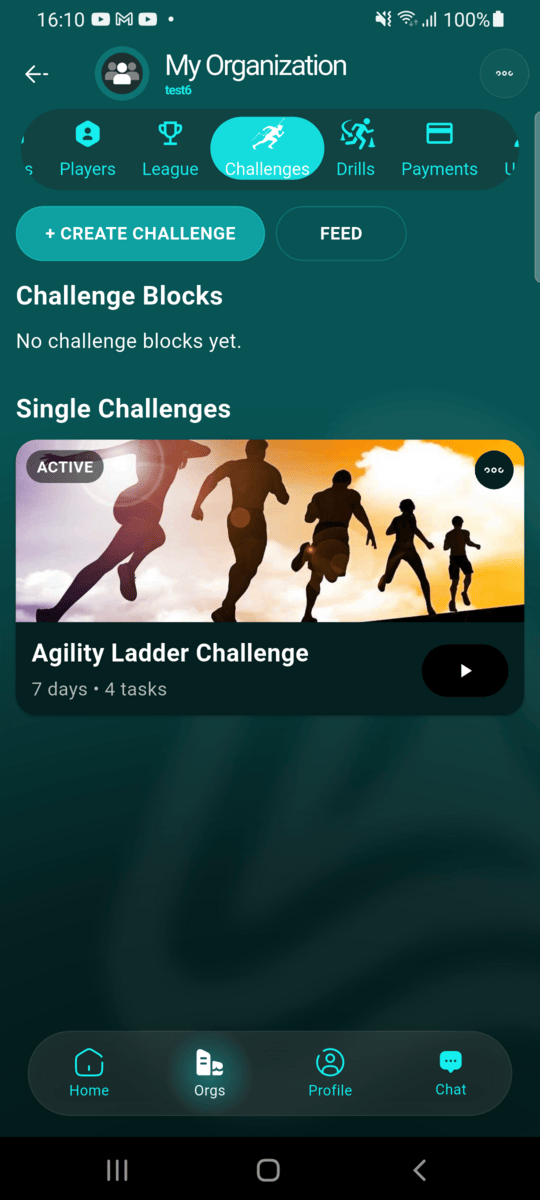
From the club's screen, open the Challenges tab. Every challenge the club has created is listed here, grouped into challenge blocks (a set of challenges with shared completion criteria) and single challenges.
Create the challenge
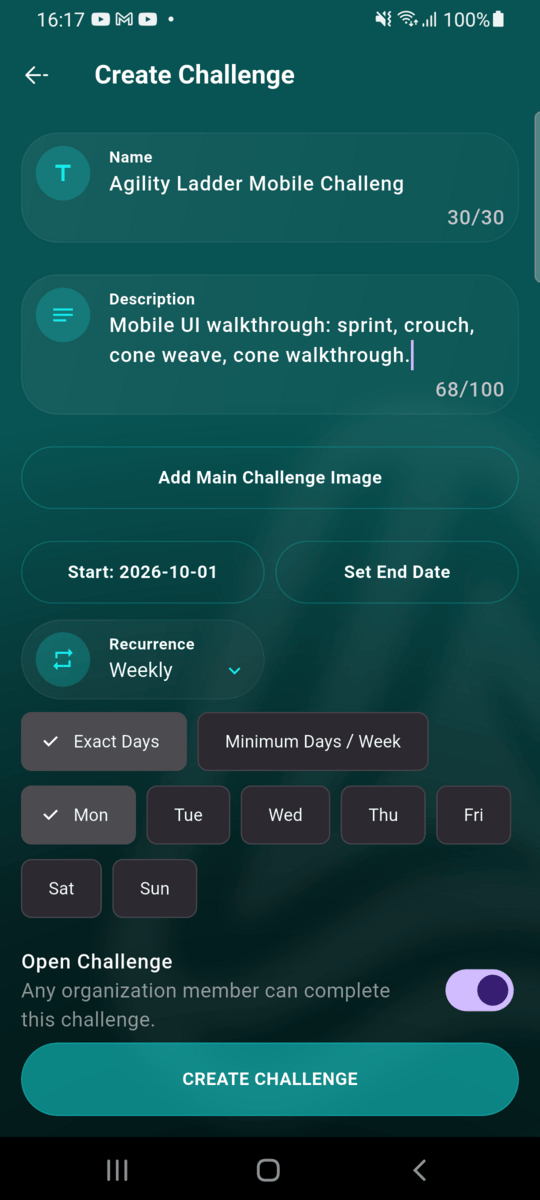
Tap + Create Challenge and fill in a name and description, optionally add a cover image, set a start date and recurrence (weekly on specific days, every N days, or monthly), and build the task list — each task can carry its own instructional photo or video, a duration or rep target, and a break. Toggling Open Challenge lets any club member complete it; leaving it off restricts completion to whoever the challenge is later assigned to.
Assign it
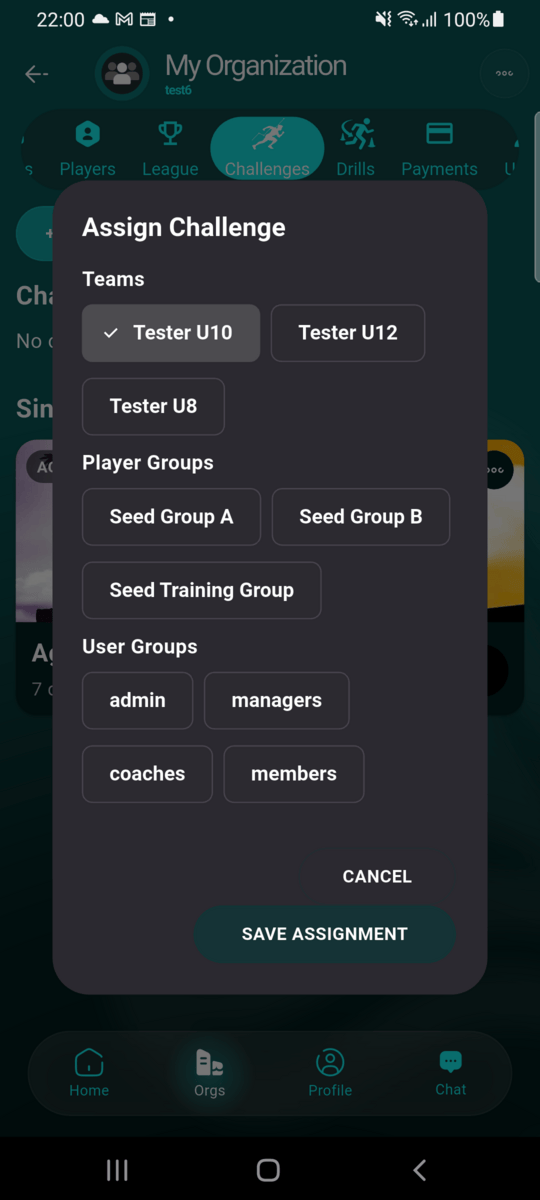
From a challenge card's menu, choose Assign challenge to pick which teams, player groups, or user groups can see and complete it. A challenge can be assigned to more than one audience at once.
Step by step: completing a challenge
Open the challenge
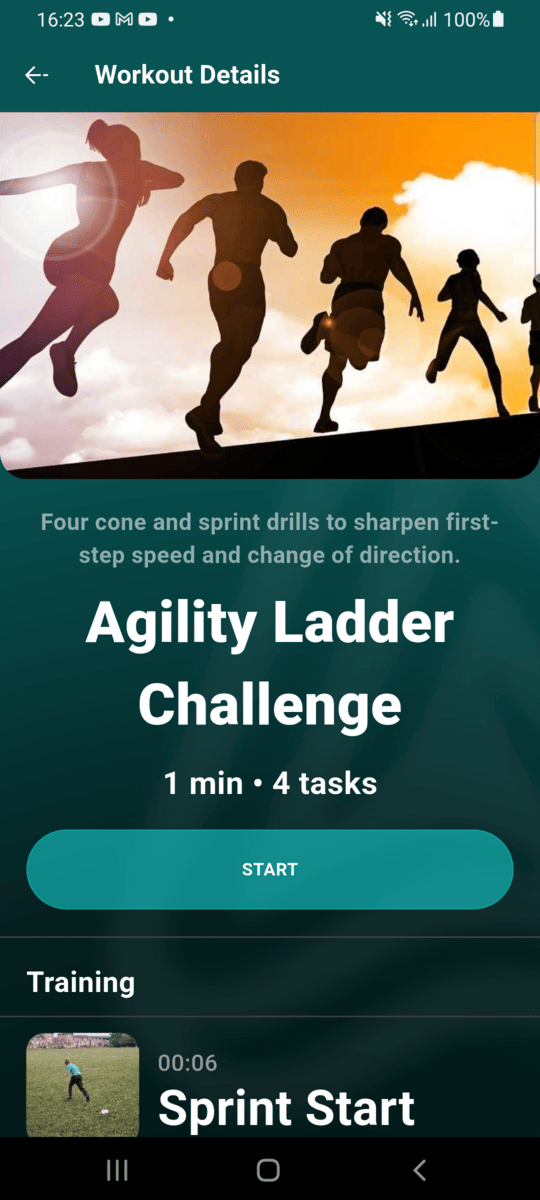
Tap an active challenge from the club's Challenges tab or your own Home feed. The detail screen shows the challenge's cover image, description, total duration, and task count, and starts downloading the task videos locally so playback doesn't stall partway through. The full task list sits underneath, each entry showing its own thumbnail and duration.
Work through the tasks
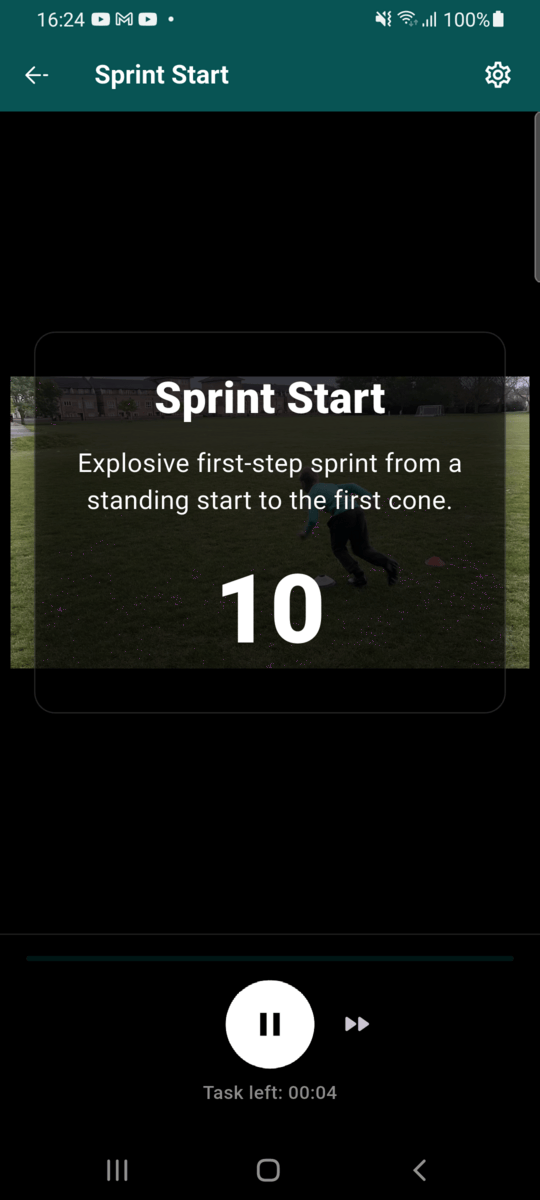
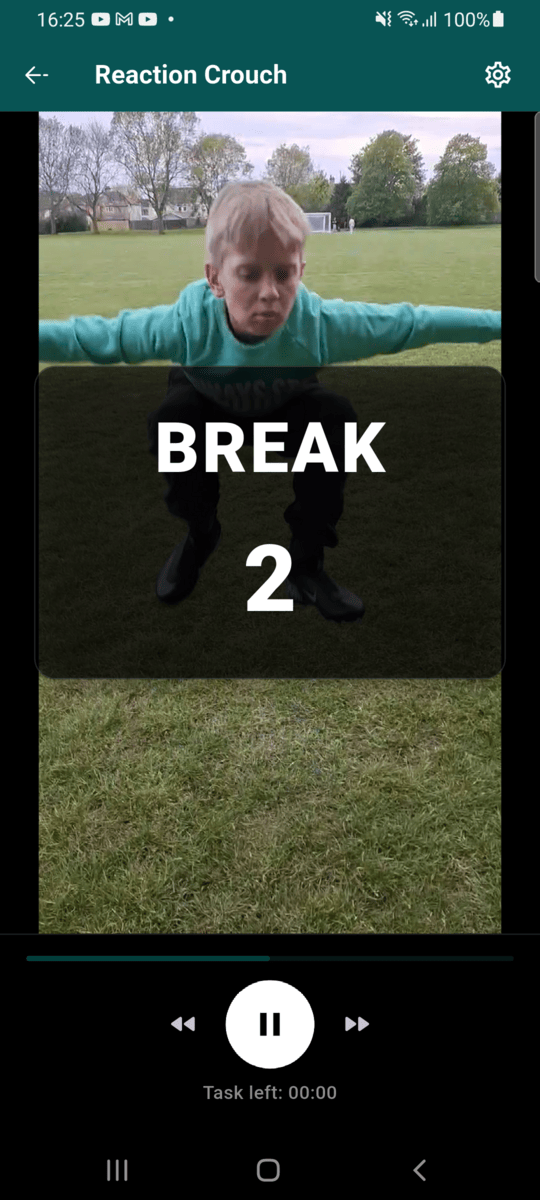
Tap Start to begin. Each task plays its instructional video with a countdown overlay, and auto-advances to the next one once the timer runs out — or tap the controls to pause, skip back, or skip ahead. A short break counts down between tasks that need one, so there's time to reset before the next drill starts.
Finish the session
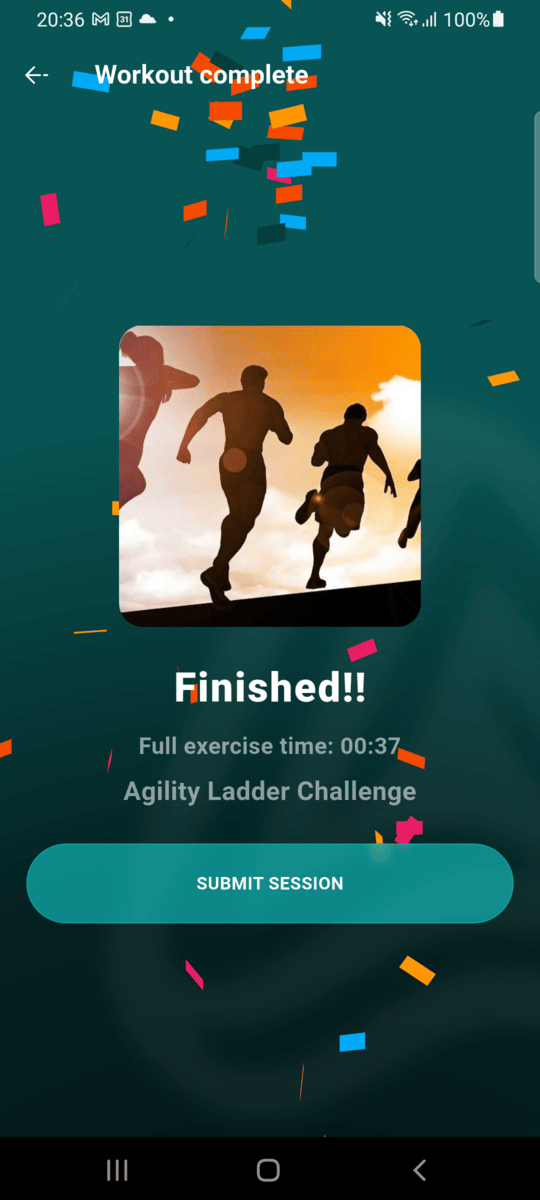
Completing the final task shows the total exercise time and a Submit Session button.
Choose who completed it
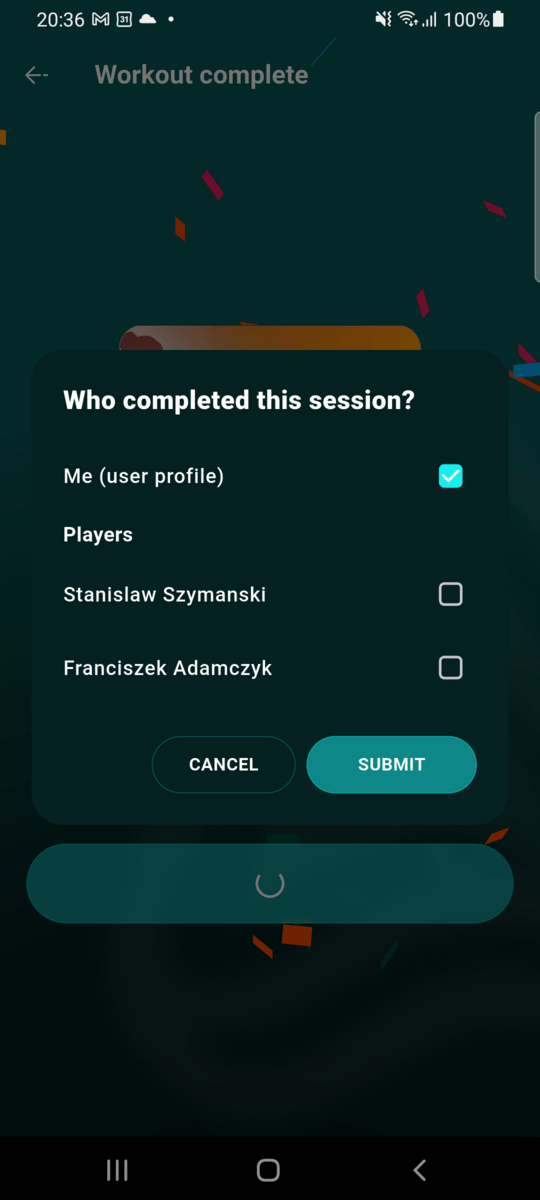
Before the session is submitted, pick who it's for: your own user profile, or one of your linked players — useful for a parent recording a session on behalf of more than one child from the same device. Submitting posts the result to the club's challenge feed.
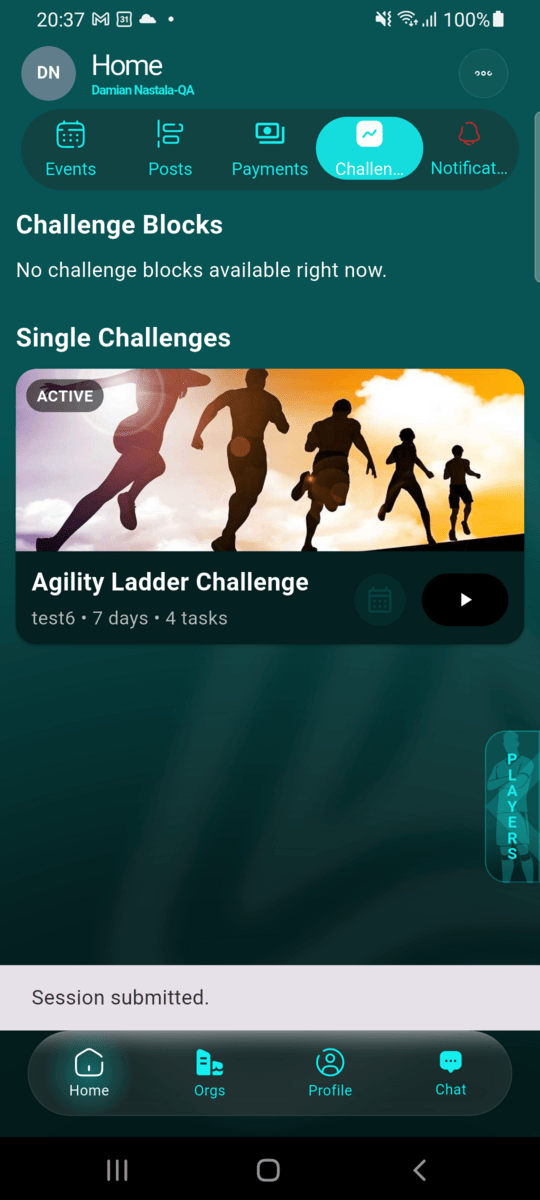
Challenge blocks
A challenge block groups several related challenges under shared completion criteria — for example, a minimum number of sessions per week over a set number of weeks. Blocks appear above single challenges on the Challenges tab, and are created, assigned, and completed the same way as an individual challenge.