

League Management
Handling forfeits
When a club reports a forfeit, it doesn't decide the fixture on its own — it sits as a pending claim until a league admin reviews it. This stops a single club from unilaterally deciding a match (by mistake, or maliciously) and gives you a single review step even when both clubs report, whether they agree on who forfeited or blame each other. This guide walks through both outcomes on a real fixture: Oakwood Rovers U10 vs Thornfield United U10 in the Cambridge Youth Football League.
Who can do this
Anyone with the league's Seasons: all permission — by default, your league's admins. Reporting a forfeit yourself as the league admin — the League declared reason on the report dialog — is unaffected by any of this and still applies immediately, since you're already the authority there. This review step only exists for claims clubs file.
Step by step
Spot a pending fixture
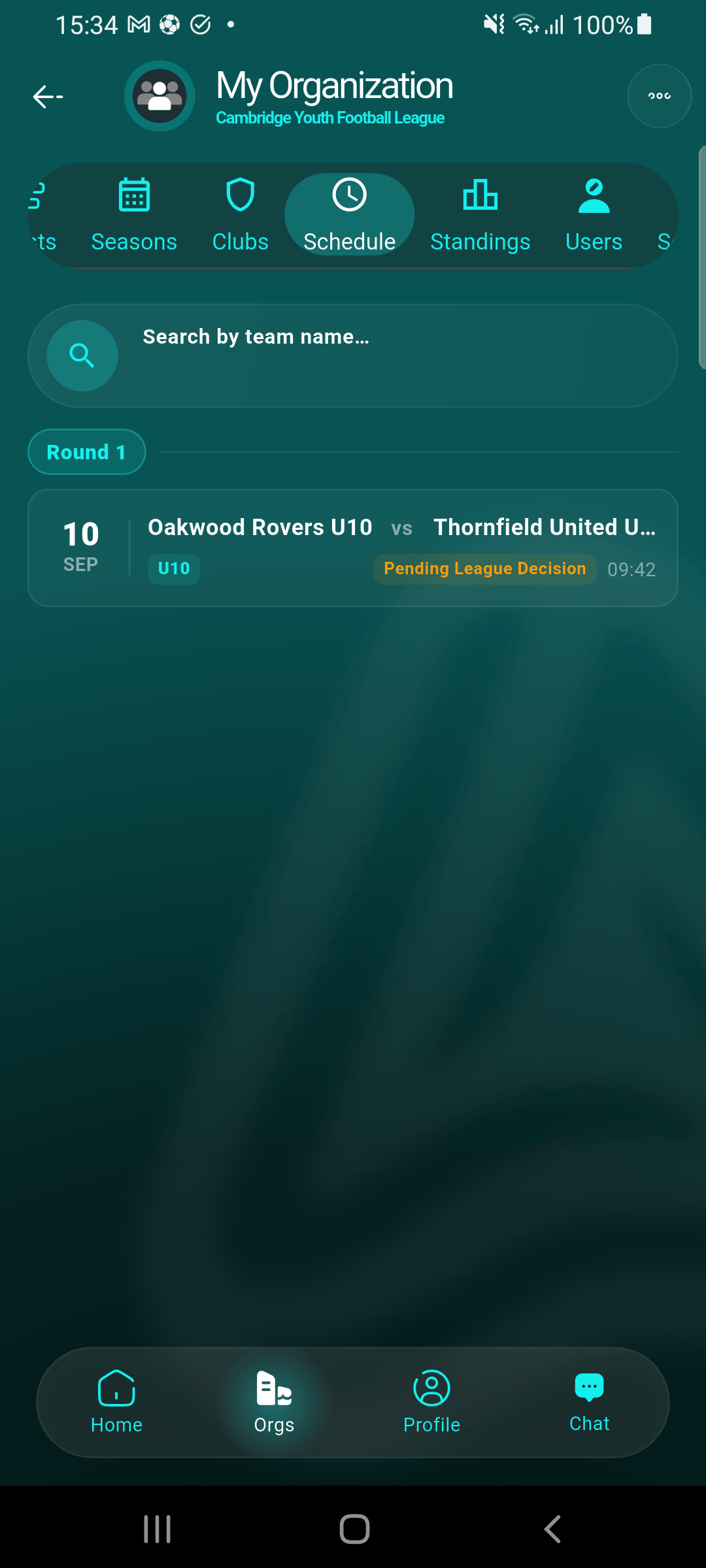
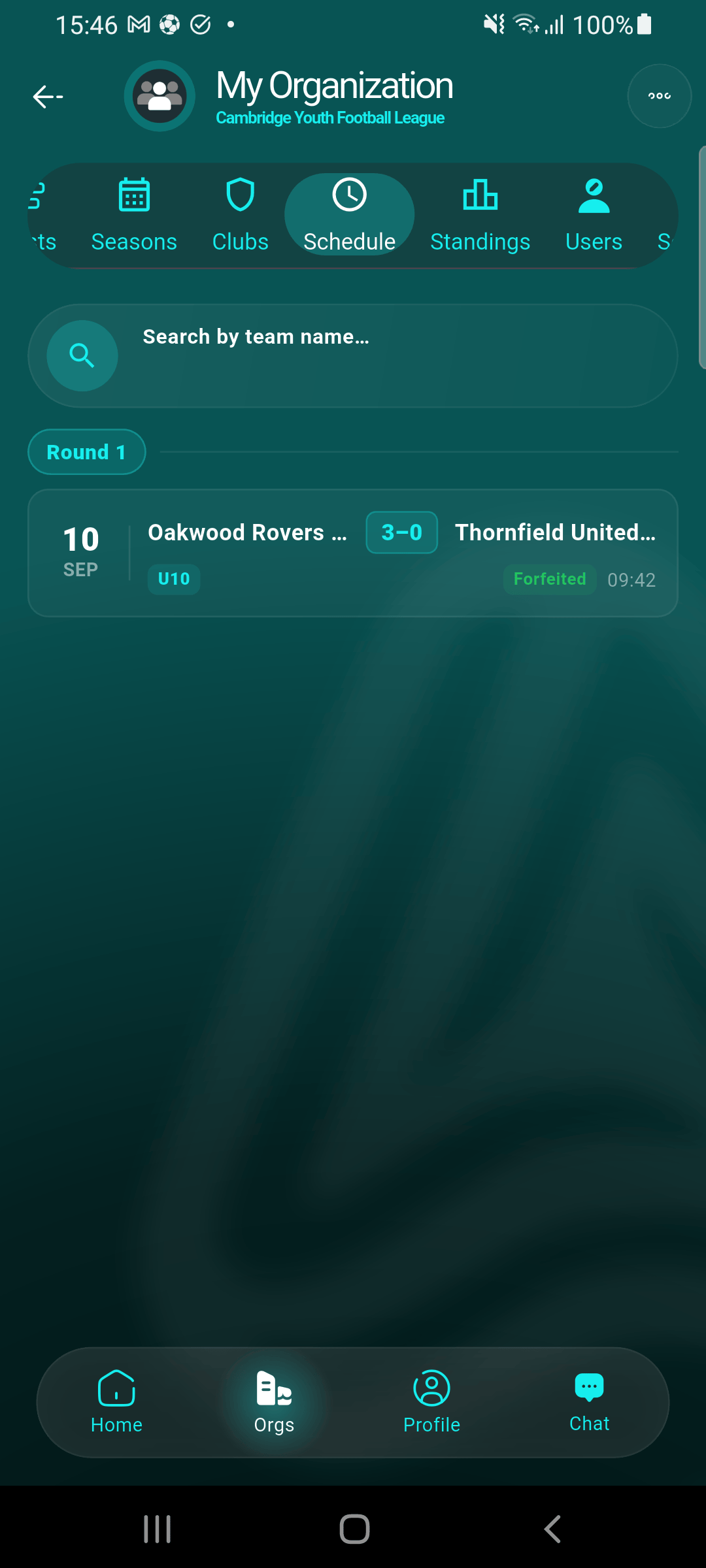
In your league's Schedule tab, a fixture with an unreviewed claim shows an amber Pending League Decision badge instead of its usual status.
Open the fixture
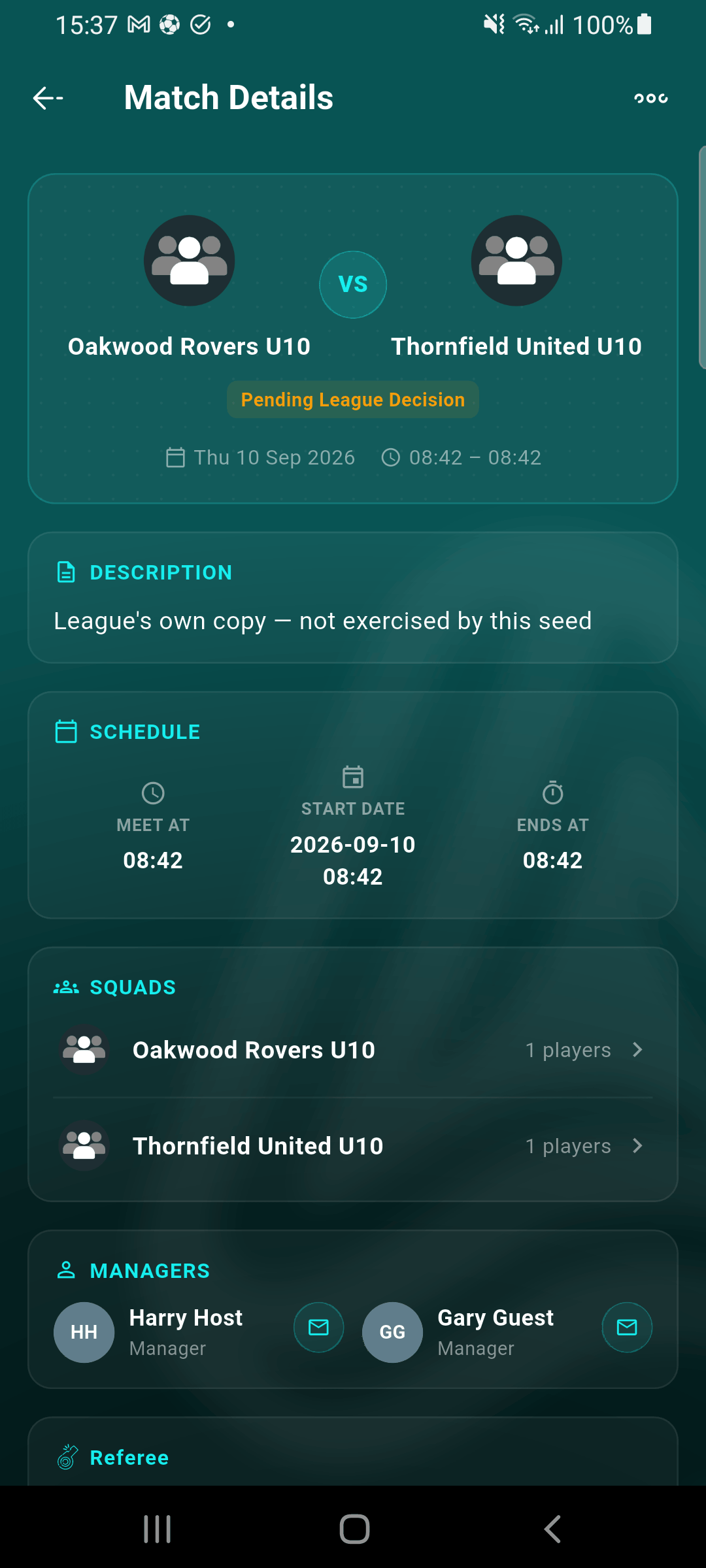
Tap the fixture to open its Match Details screen — the same pending badge is shown here too, alongside the full fixture info.
Open the overflow menu
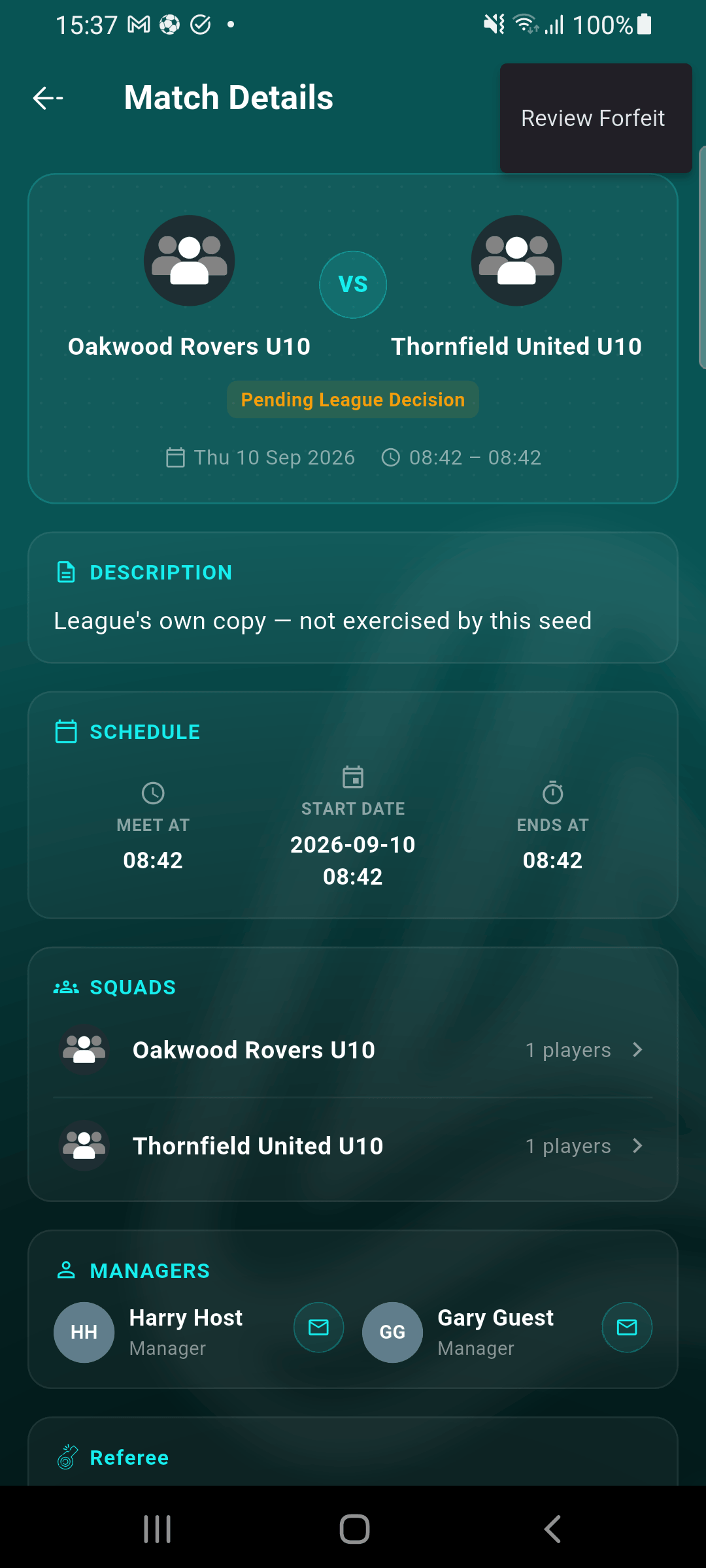
Tap the ⋮ menu in the top-right corner. Review Forfeit only appears while the fixture has a claim awaiting your decision.
Review the claim(s)
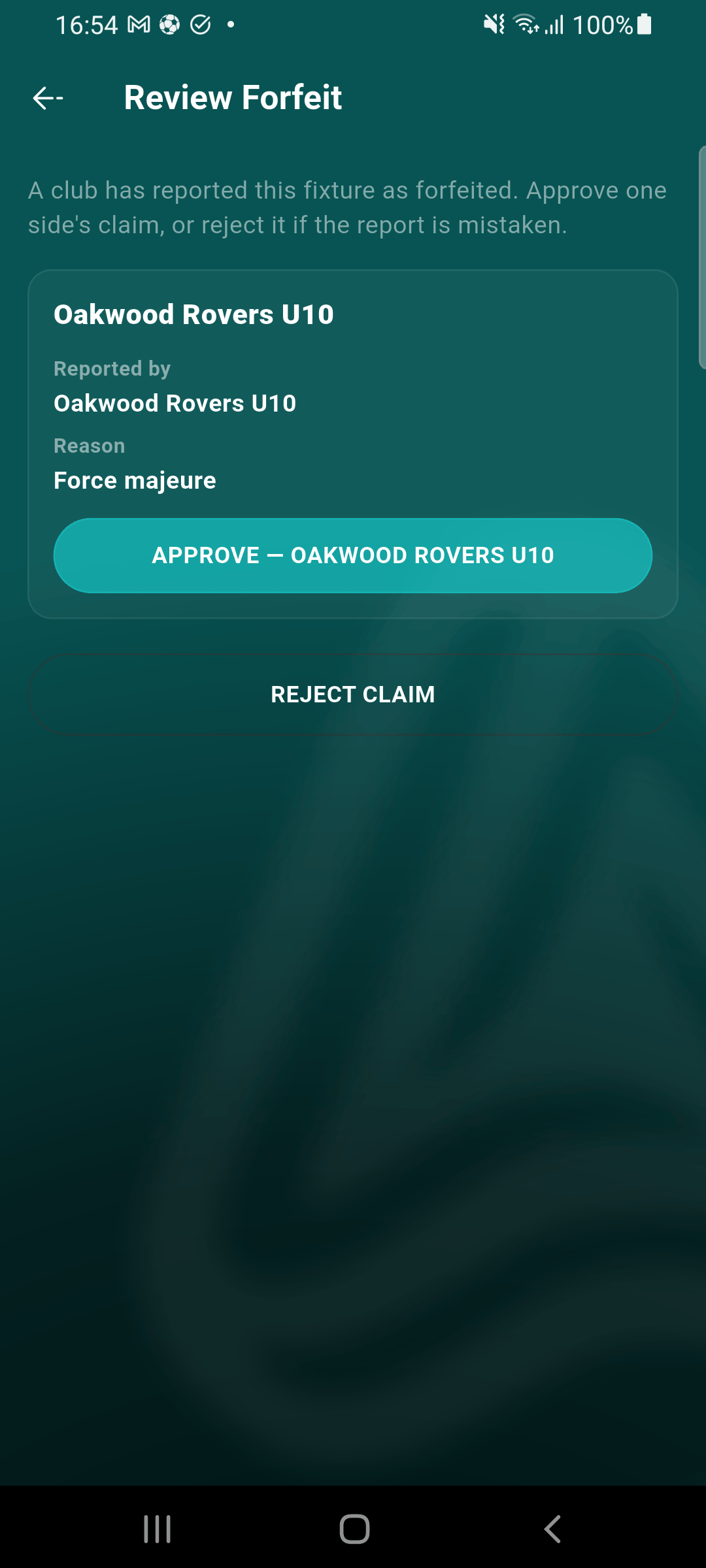
With one report, you'll see a single card with who reported it and why:
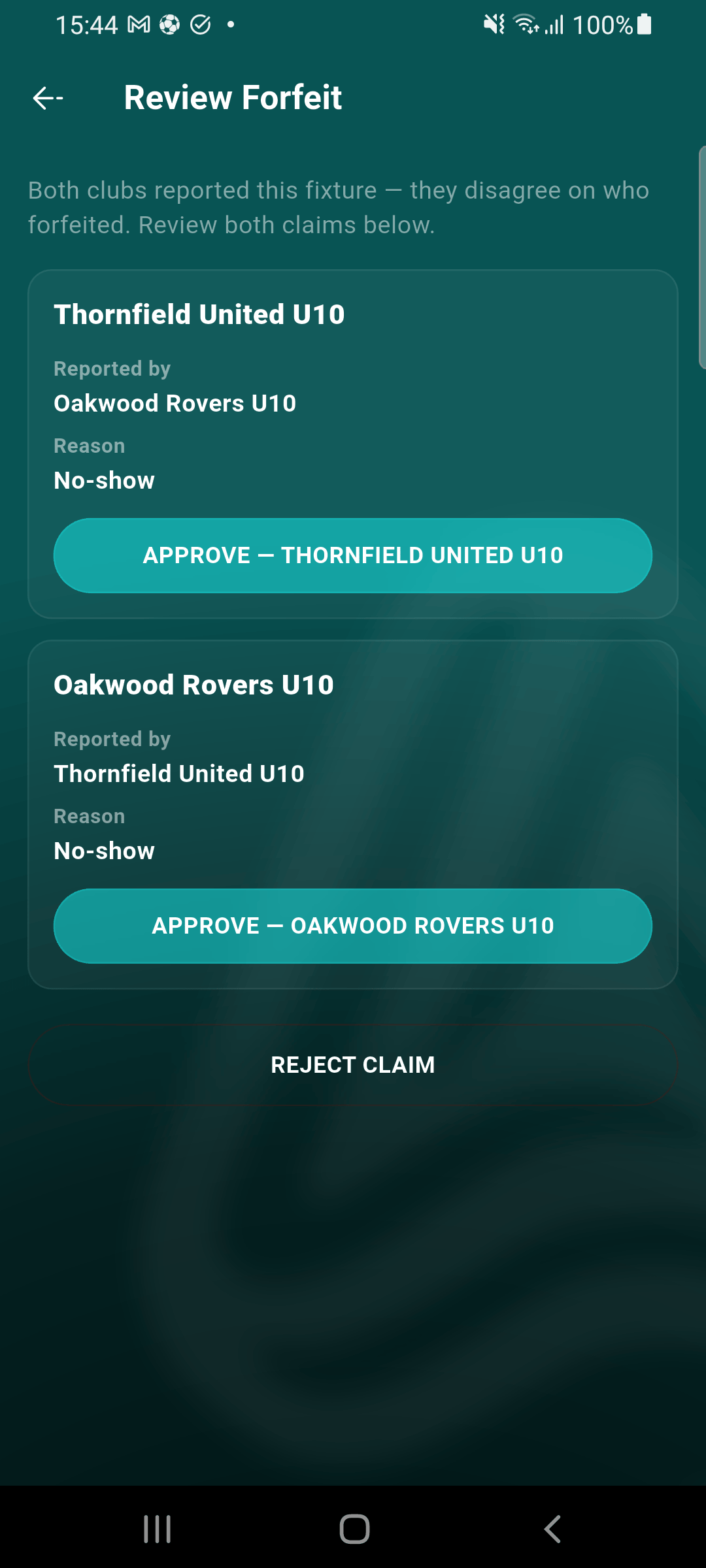
With reports from both clubs that disagree on who forfeited, you'll see both claims side by side, each with its own Approve button:
Approve one side
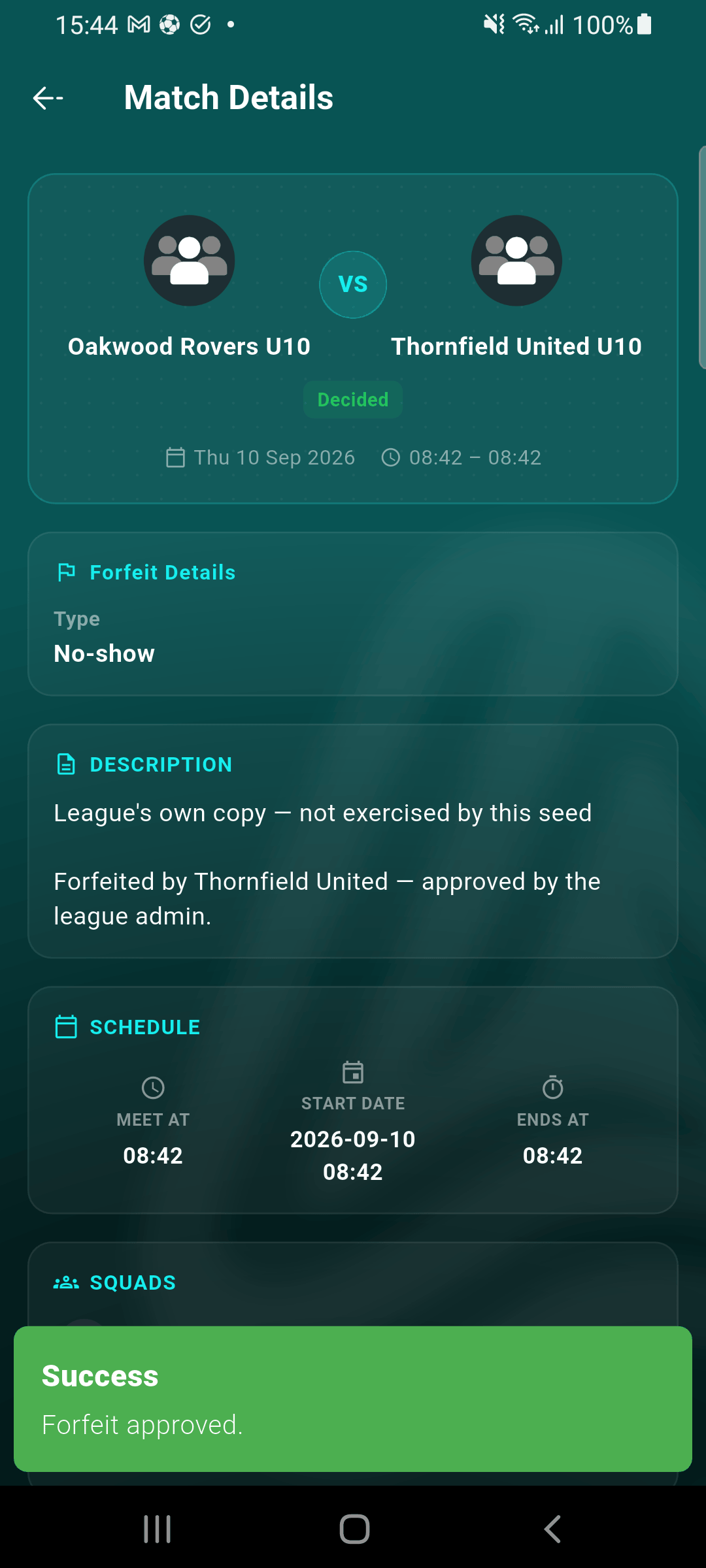
Tap Approve — [Club] for whichever claim is correct. This applies the league's forfeit score, marks the fixture Decided, and — if a second, conflicting claim existed — automatically marks it rejected as superseded.
Or, reject a mistaken report
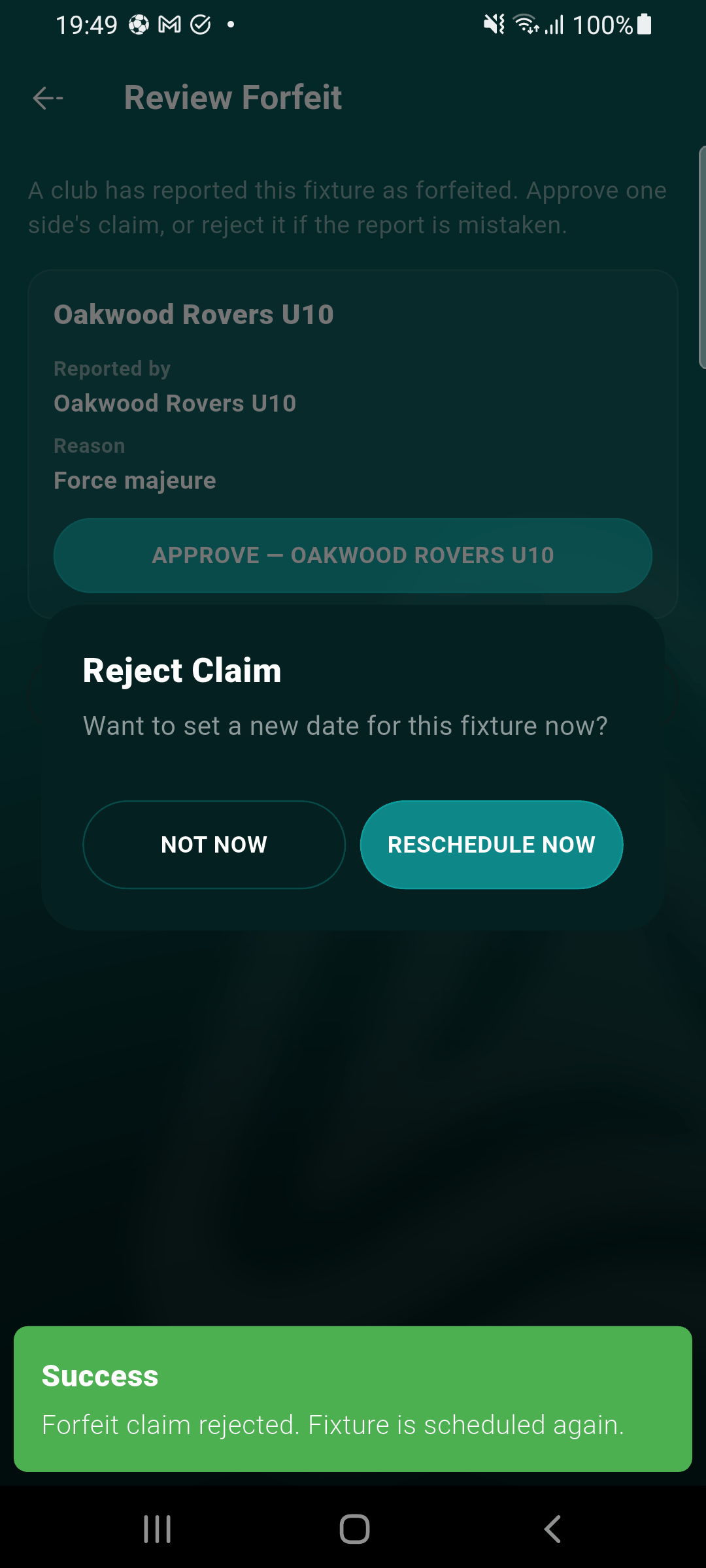
Tap Reject Claim instead if the report doesn't hold up — every pending claim on the fixture is rejected and it returns to whatever state it was actually in before (scheduled, in progress, or awaiting a reschedule decision).
Reschedule on the spot (optional)
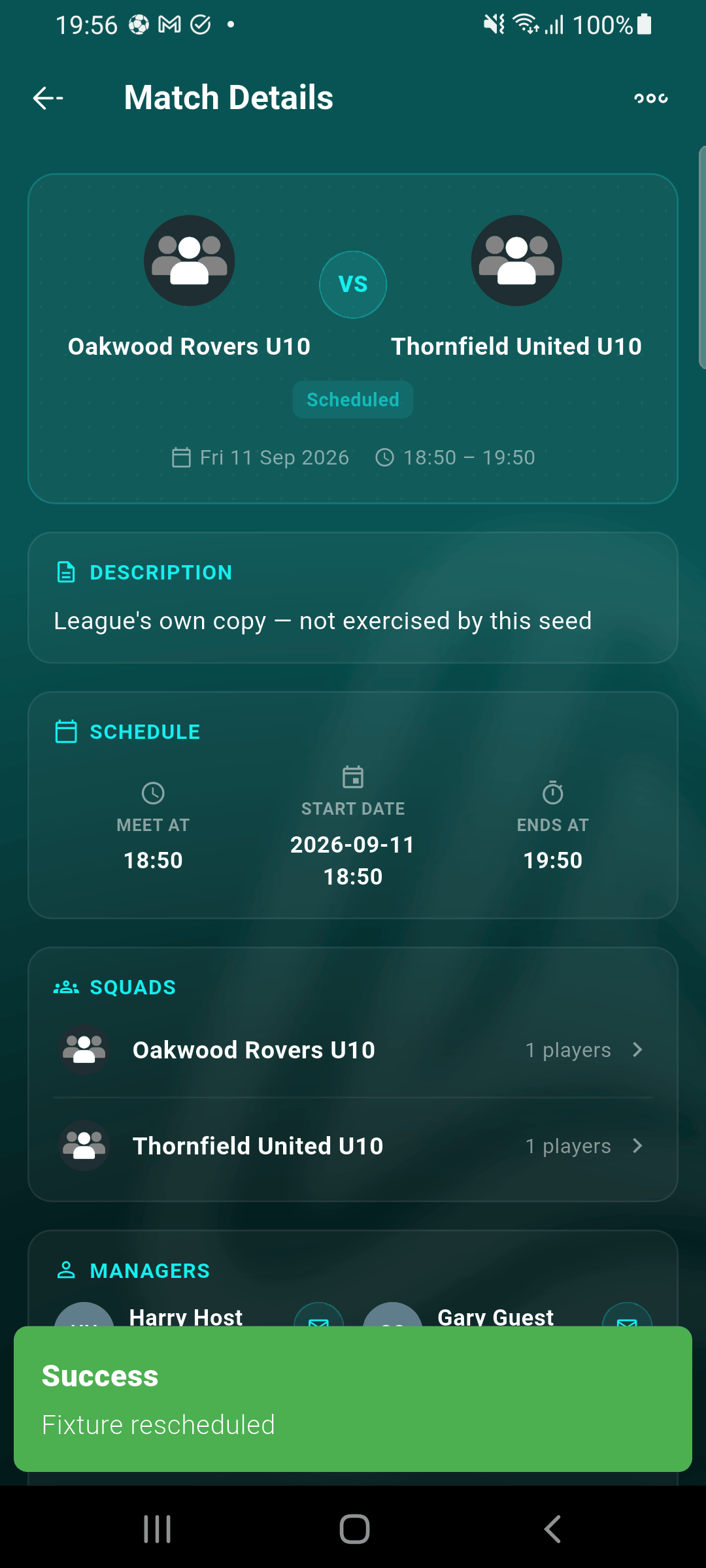
After a reject, you're offered the chance to pick a new date and time immediately — the same date/time picker used everywhere else in the app. Choosing Not now just leaves the fixture scheduled as it was; you can always reschedule later from the fixture's own edit-date action.
What happens when you approve
The forfeiting club's default forfeit score is applied (configurable per league), the fixture moves to a decided result, and both clubs' own calendar copies of the fixture flip to Cancelled — the same as any other decided result. Both clubs are notified of the outcome. A club's repeated-forfeit count (used for any consequence your league configures) only ever counts approved forfeits — a report you reject never counts against a club.
What happens when you reject
The fixture is restored to its real prior status — nothing is cancelled, and neither club's calendar is touched. Both clubs get a neutral notification that the claim was rejected and the fixture remains as scheduled. If the underlying problem is a scheduling conflict rather than a dispute over who's at fault, use the reschedule prompt (or the fixture's own edit-date action later) to resolve it properly instead of leaving it as a live dispute.
See Reporting a forfeit for the club-side half of this workflow — how a claim gets filed in the first place.