

Registration
Inviting people to your club
Share one link with parents and players and it takes them to your club's registration form, whether they're new to Athlo or already use it. Someone new is led through creating an account, adding their name and creating their player first. This guide follows two clubs inviting families, including what happens when the person registering shares a player with someone else.
Who can do this
Anyone at the club who can see the player-admin options in the Players tab can share the invite link. By default that's club admins, coaches and managers, plus anyone else your club has allowed to review registrations. Ordinary members don't see the option.
The person you invite doesn't need an Athlo account or the app beforehand. They can join from a phone or a computer.
Part 1: Share your club's invite link
Sam Carter, the admin of Northgate United FC, sends the club's link to a new family.
Open Invite to Athlo
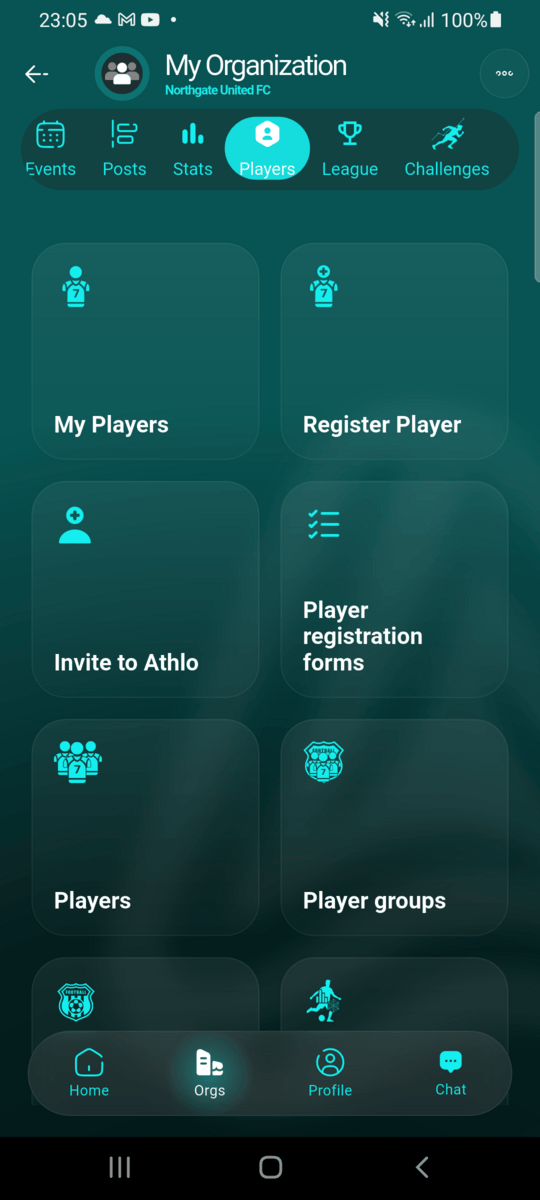
From your club's page, go to Players and tap Invite to Athlo. In the web app, it's one of the cards at the top of the Players page.
Share the link
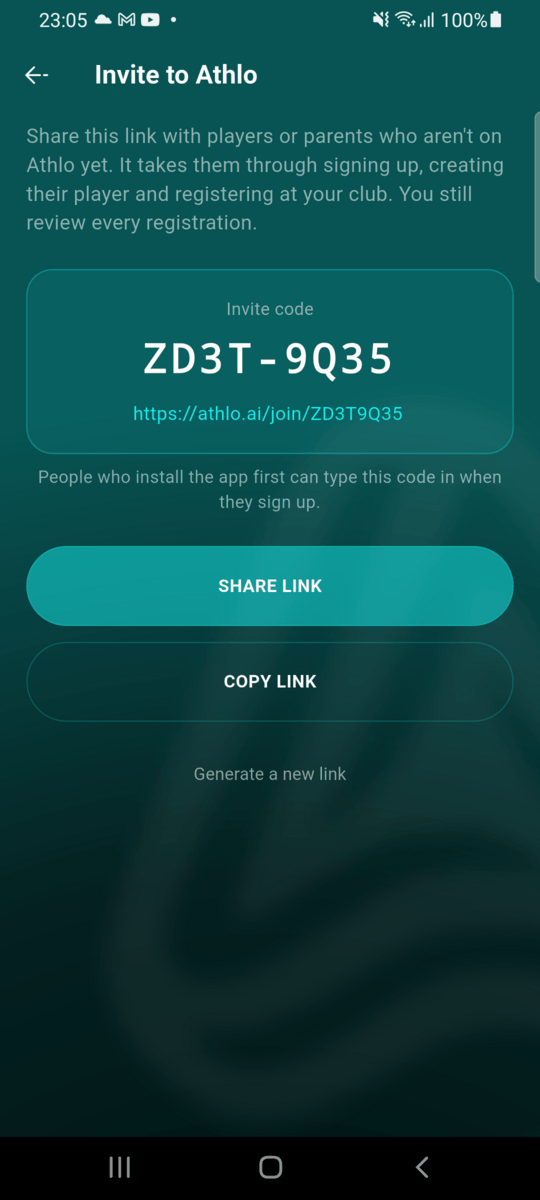
Your club has one invite link and a matching eight-character
code, for example ZD3T-9Q35. Tap
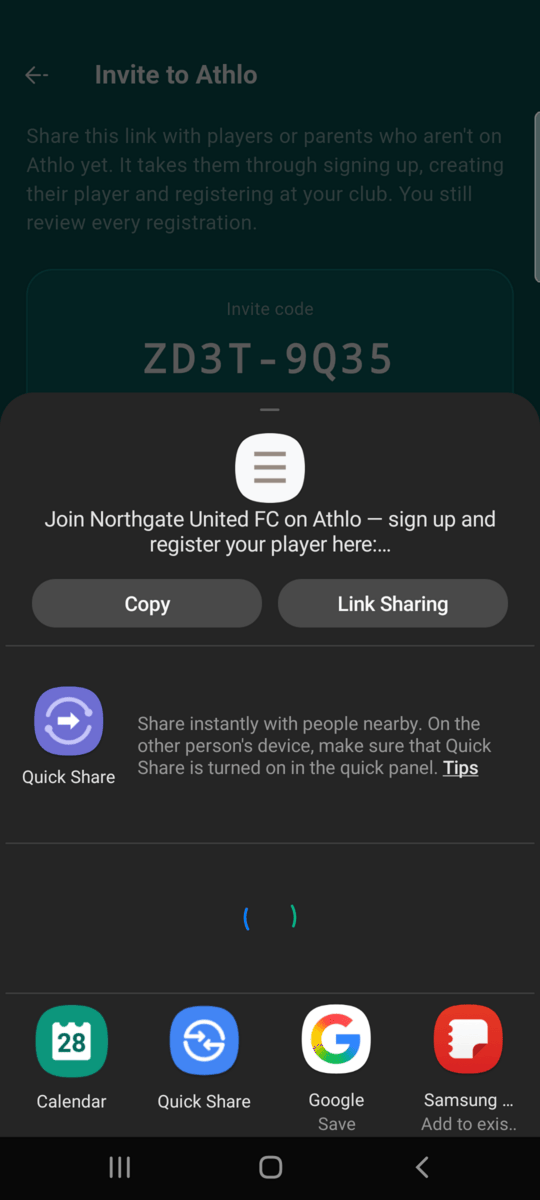
Share link to send it through WhatsApp, email
or any other app on your phone, or Copy link to
paste it into a newsletter or a poster. You can share the same
link with as many people as you like.
Replace the link if you need to
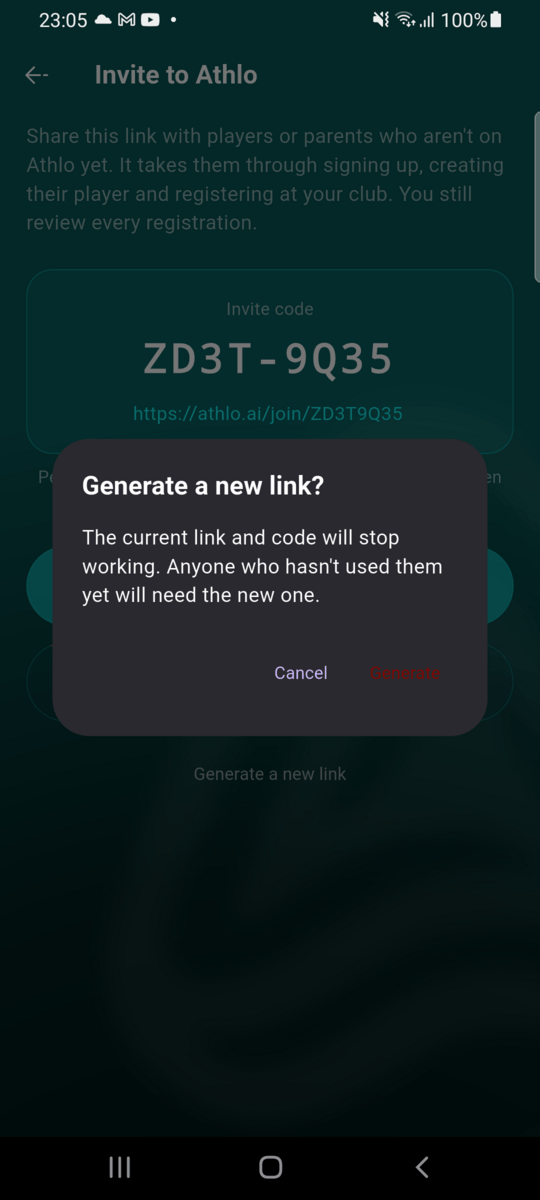
If a link has been shared somewhere it shouldn't have been, tap Generate a new link. The old link and code stop working straight away, and anyone who opens them is told to ask the club for the current one. Registrations already made through the old link aren't affected.
Part 2: Joining from an invite, new to Athlo
Emma Walsh opens Northgate United FC's link on her phone and registers her son, Leo.
Open the link
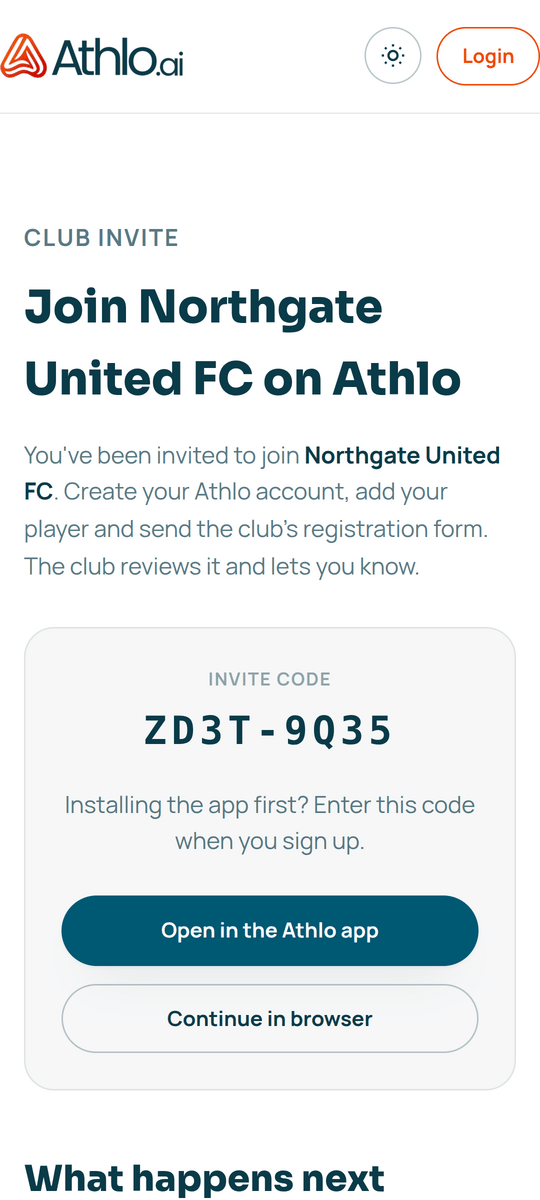
The link opens a page on athlo.ai that shows which club the invite is from and its invite code. On a phone, tap Open in the Athlo app. To carry on without the app, tap Continue in browser (see Part 5).
Create your account
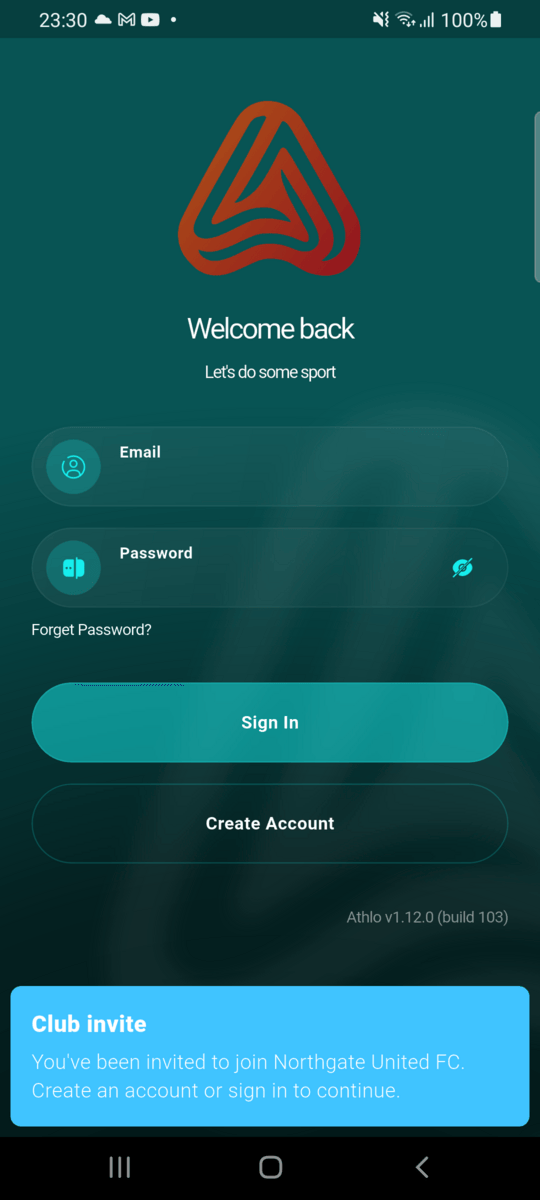
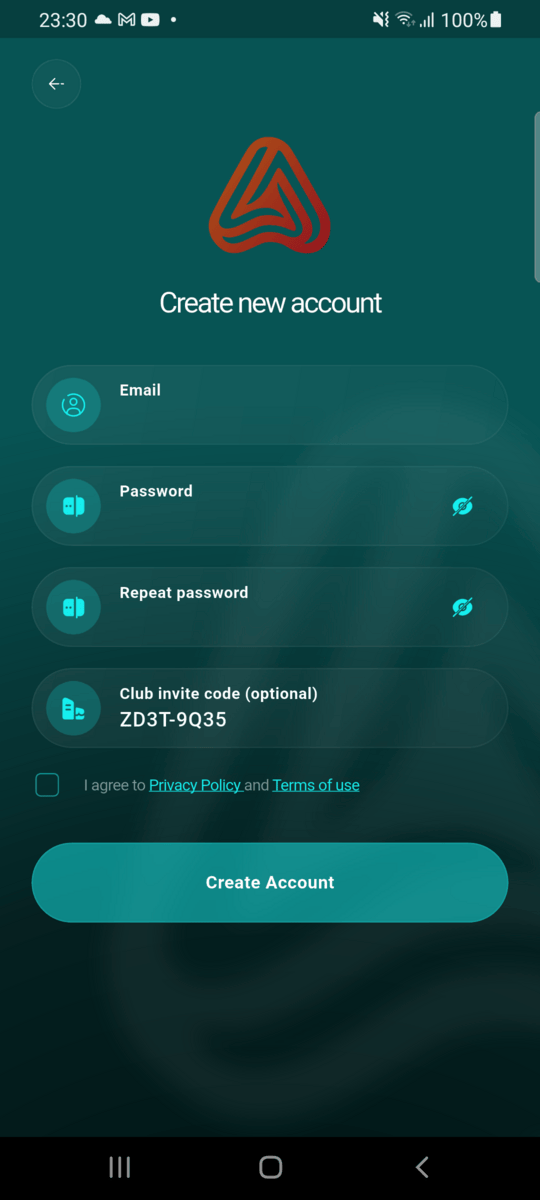
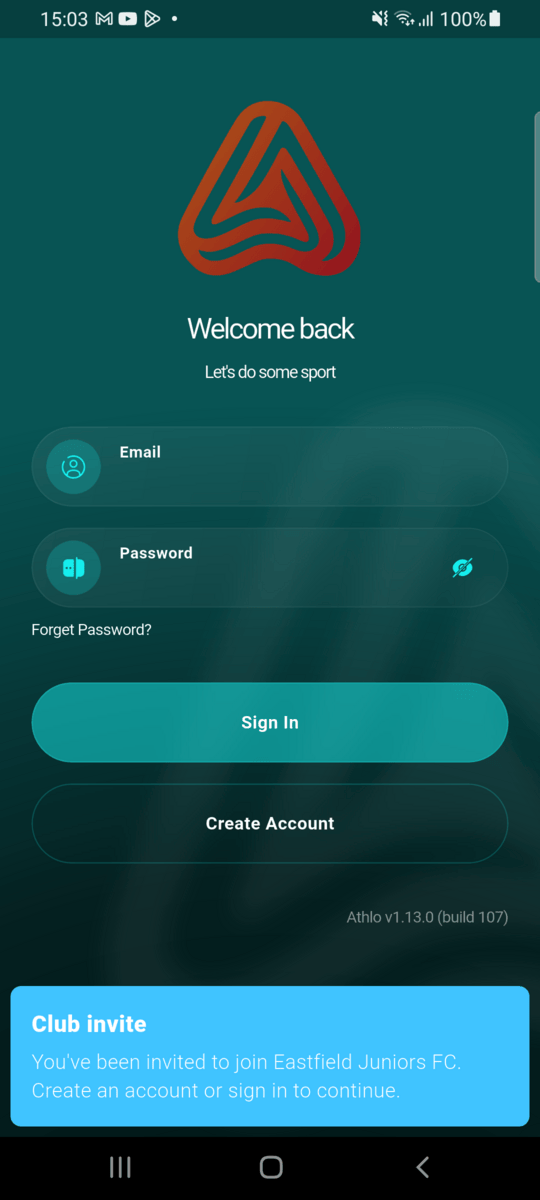
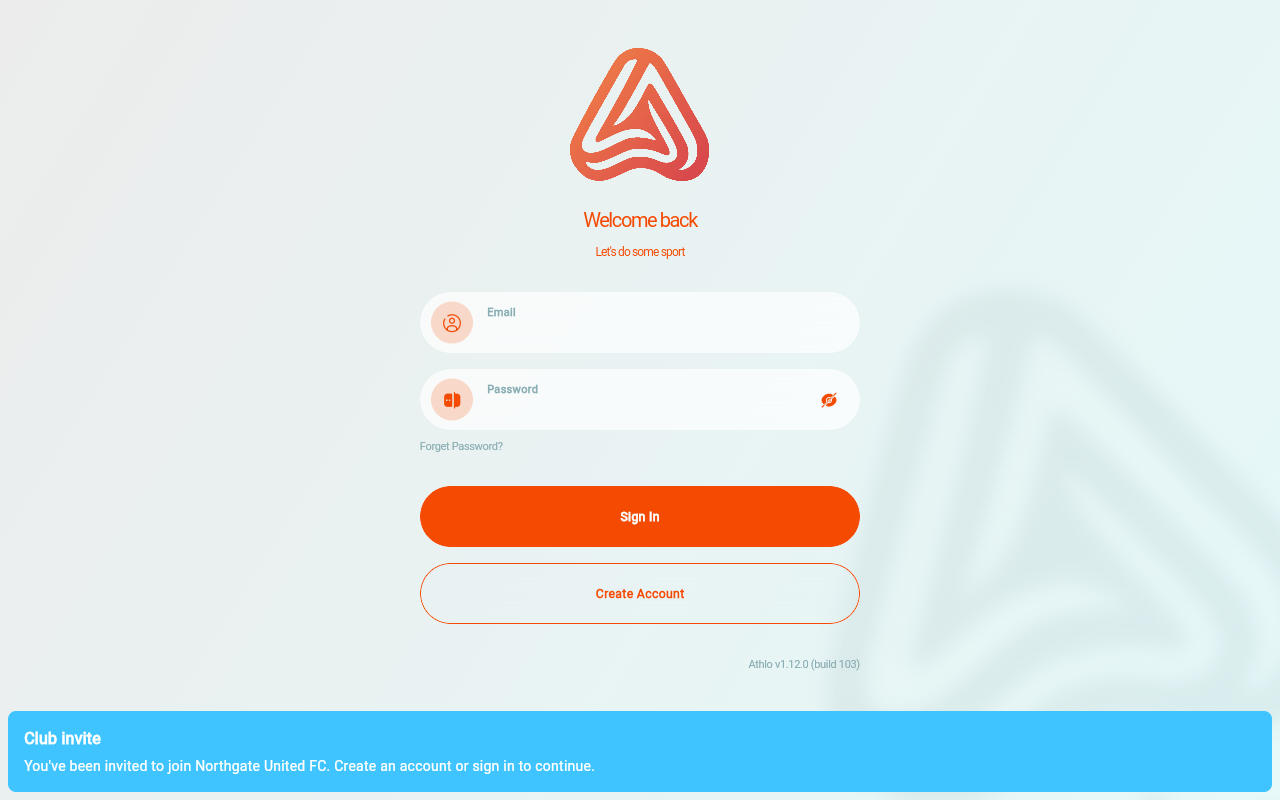
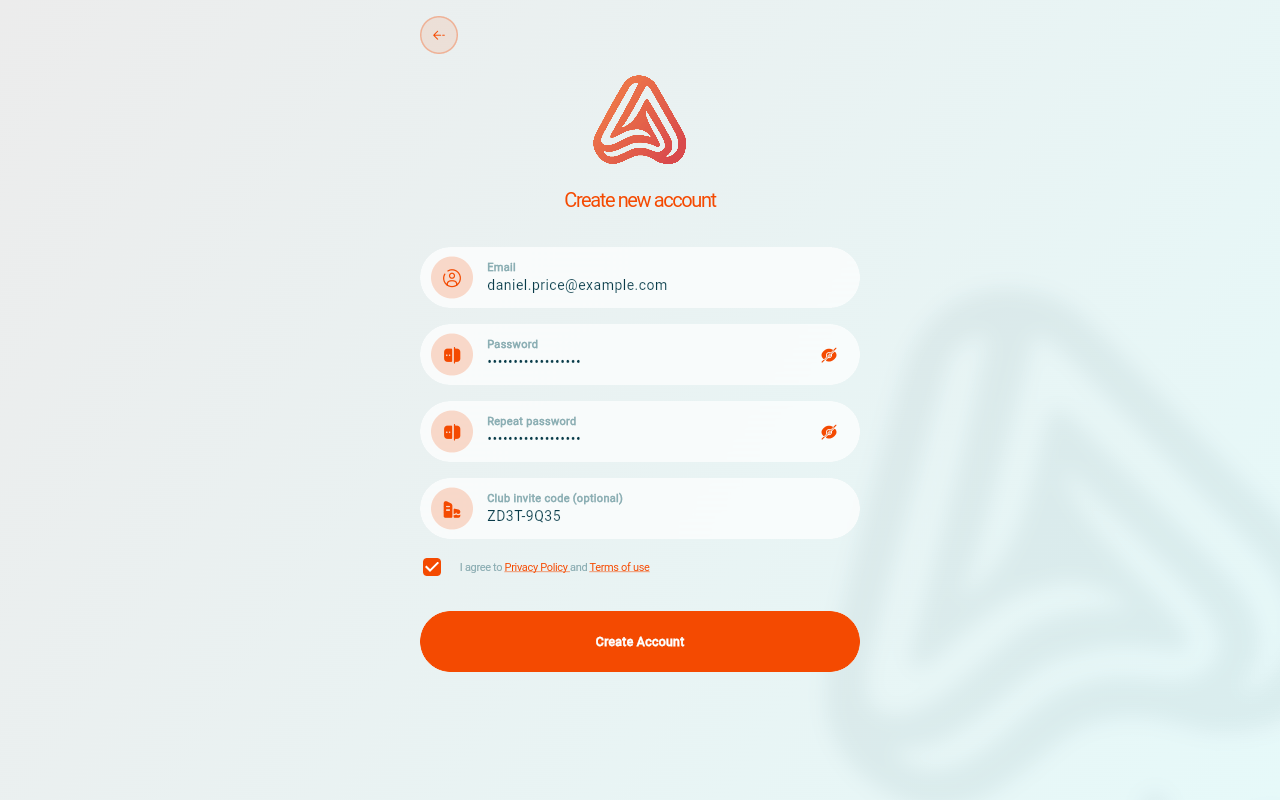
The app confirms which club you've been invited to. Tap Create Account. The Club invite code is already filled in, so all you need is your email address and a password. If you already use Athlo, just sign in instead and the invite carries on from there.
Confirm your email
Athlo sends you an email with a confirmation link. Open it on the same phone and Athlo signs you straight in. It's fine to open it on a different device instead: just sign in afterwards. Your invite is saved with your account, so it's still waiting.
Add your name
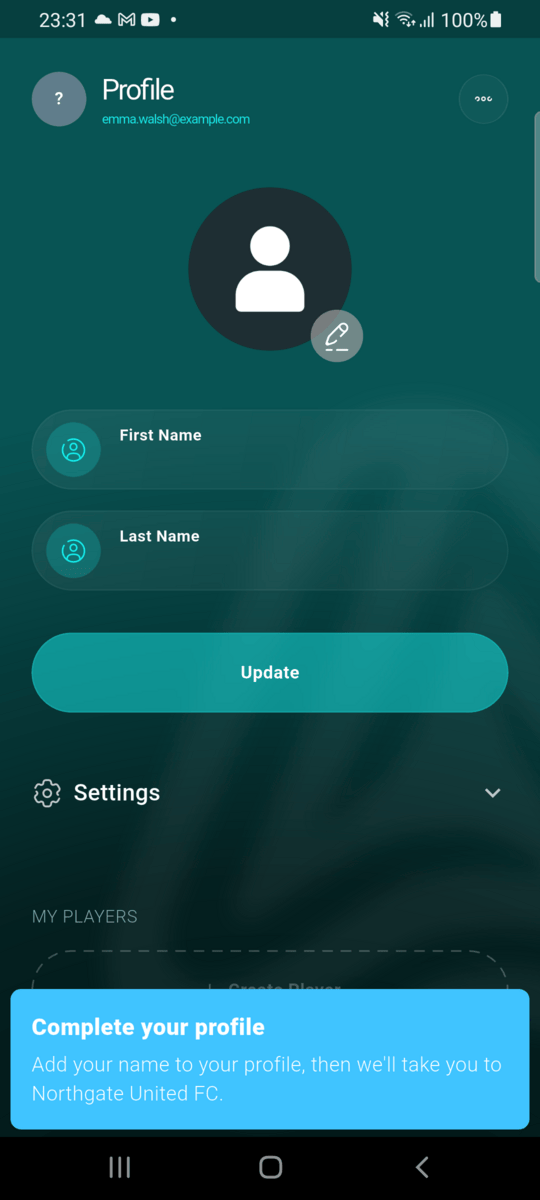
Athlo opens your Profile and asks you to add your first and last name. Tap Update and the invite continues.
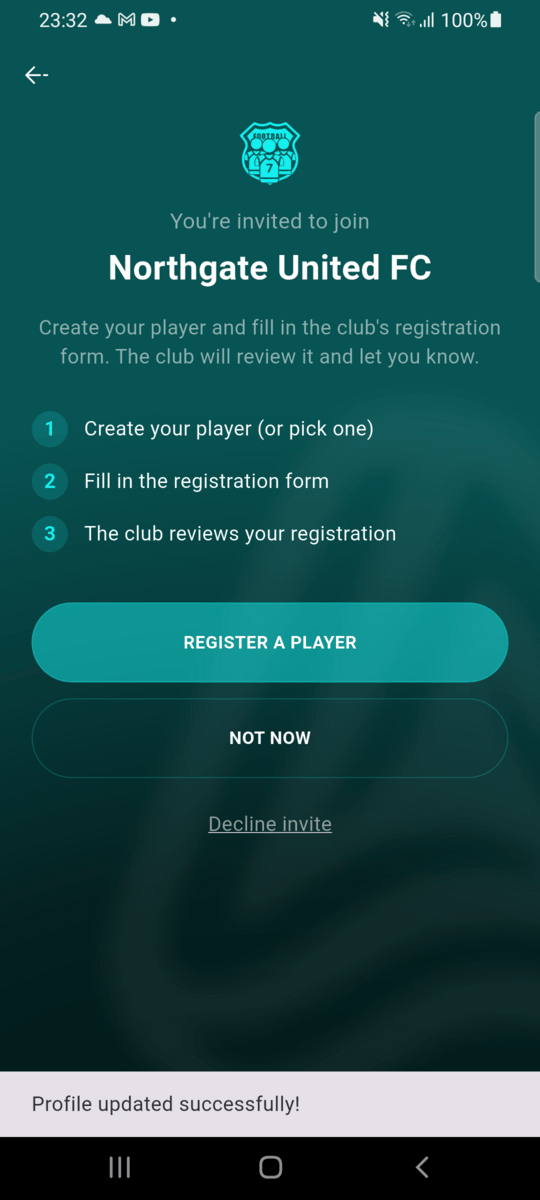
Register a player
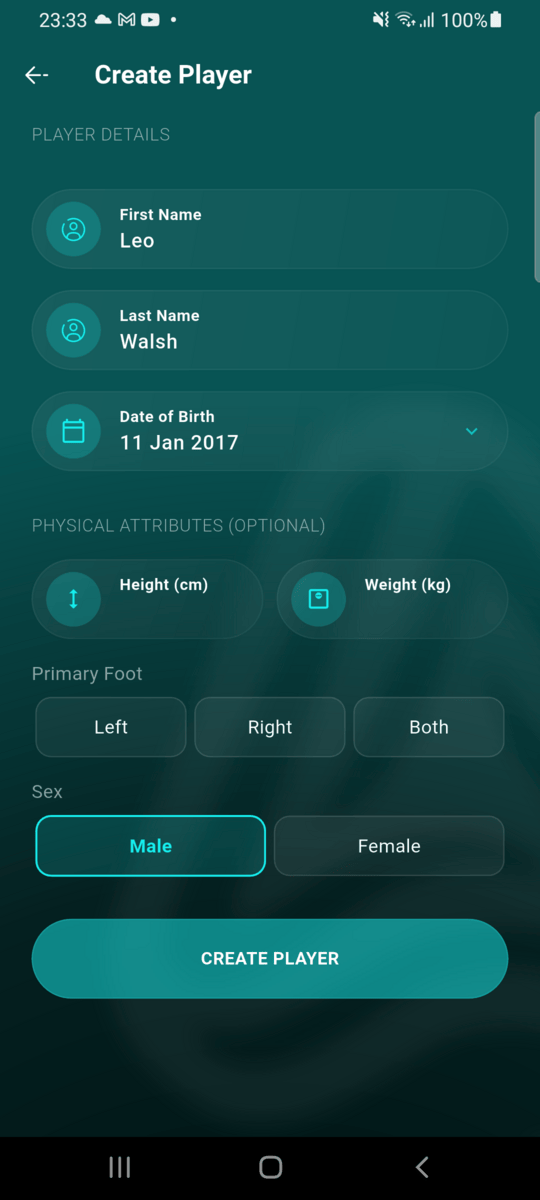
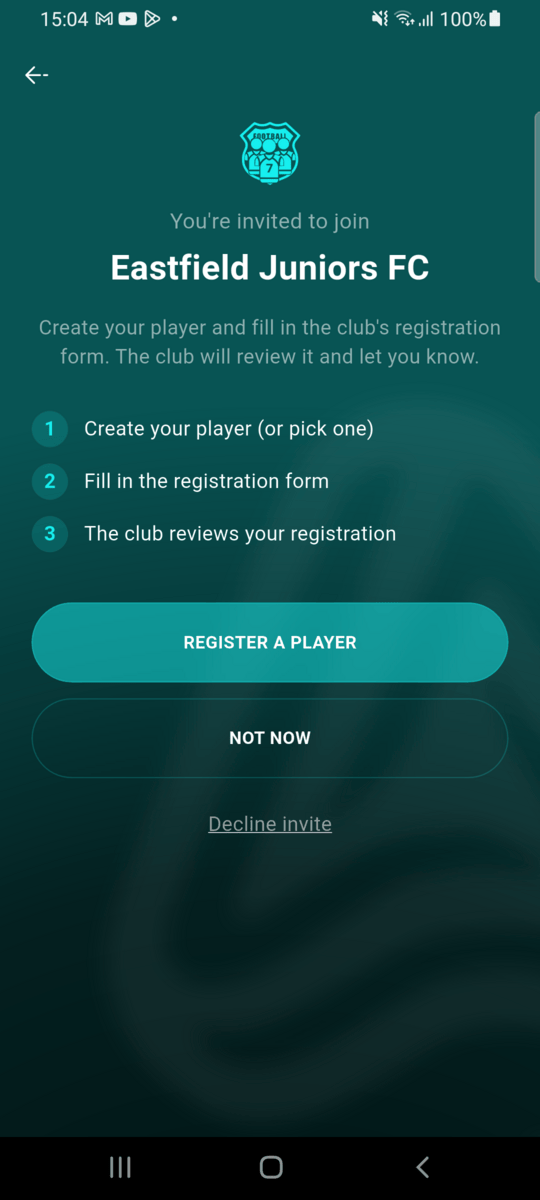
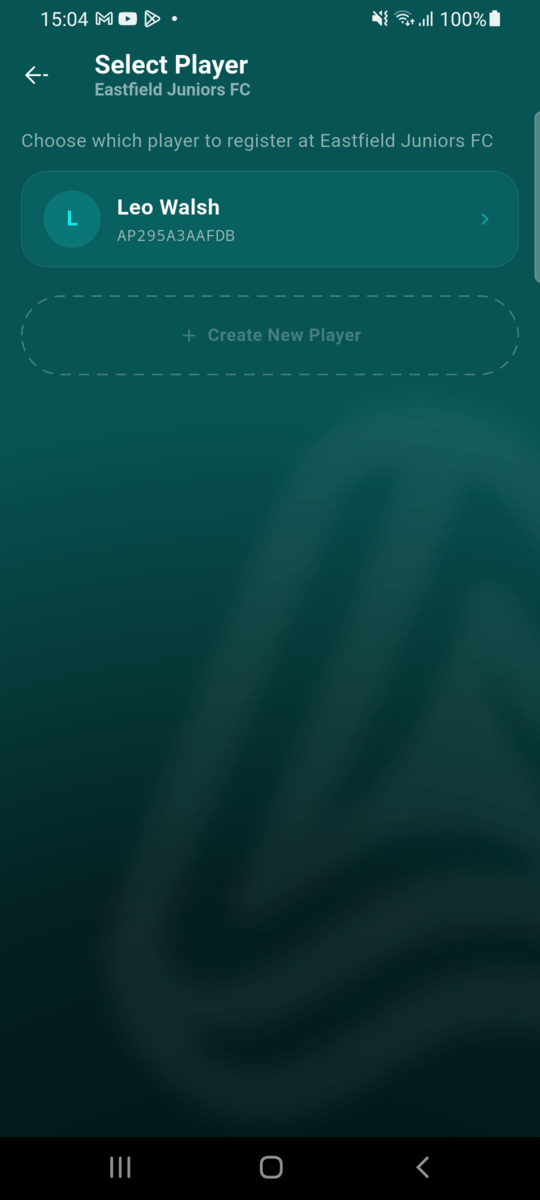
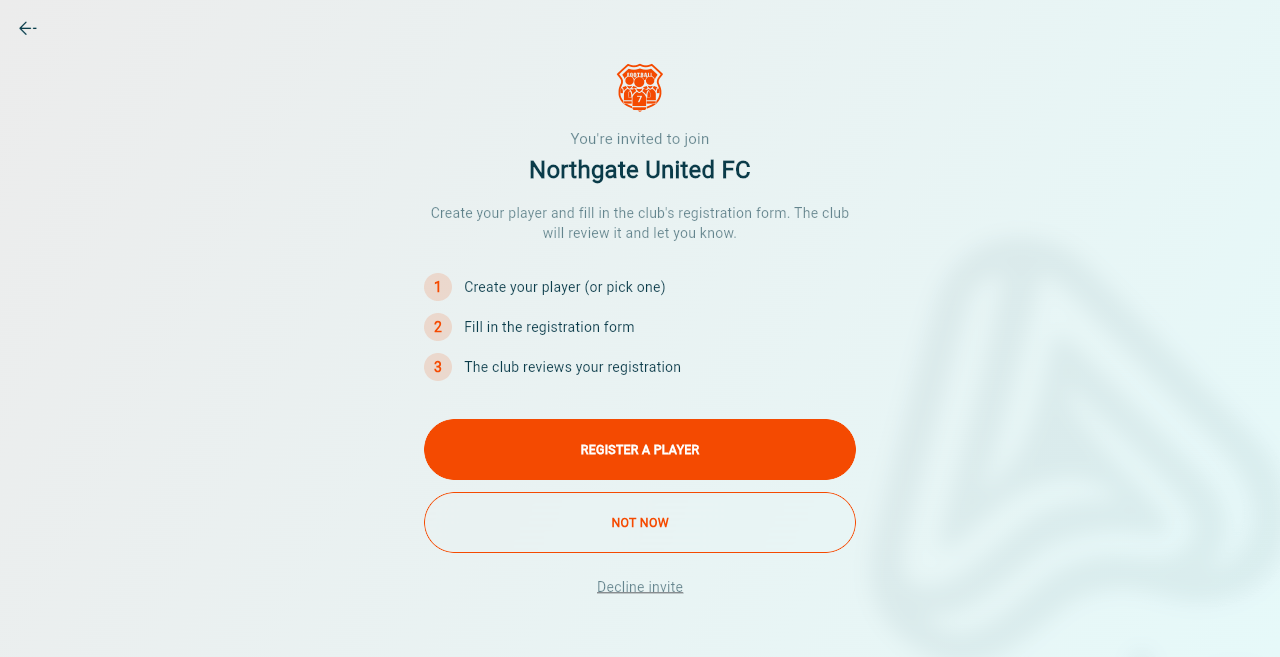
Tap Register a player. If you don't have any players on Athlo yet, Athlo takes you straight to Create Player: enter your child's (or your own) name and date of birth, then tap Create player. If you already have players, pick the one you're registering.
Fill in the club's registration form
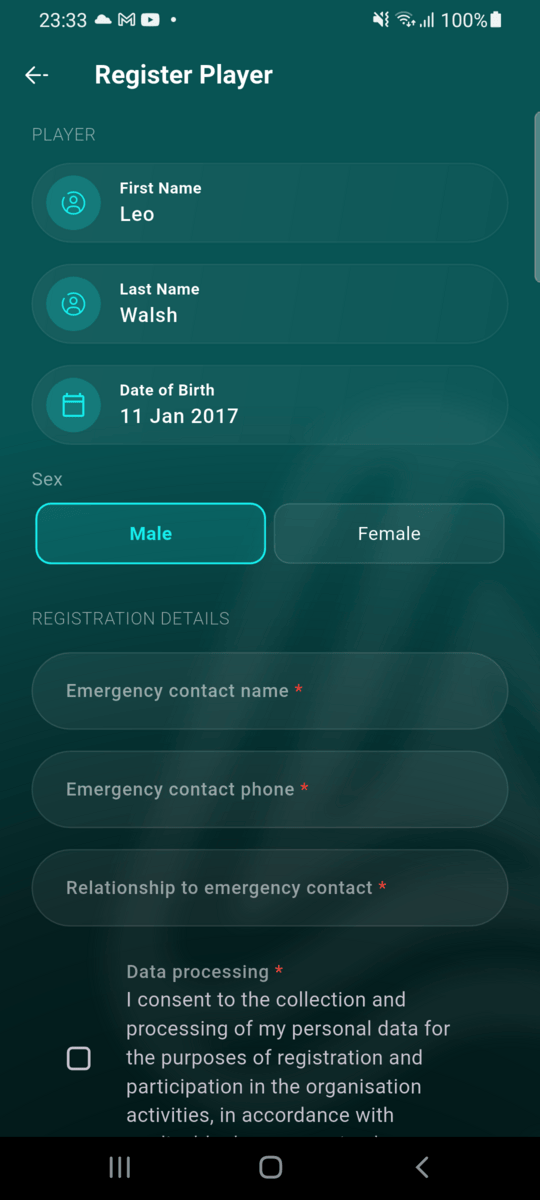
The club's registration form opens with the player's details already filled in. Complete the rest, for example an emergency contact and the consents, and tap Register.
Registration sent
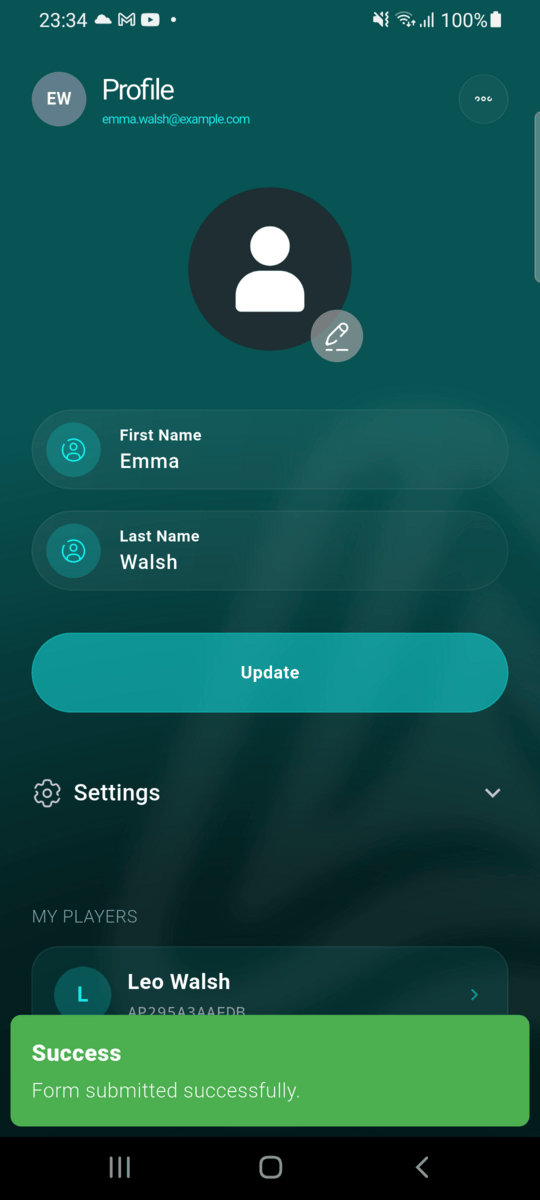
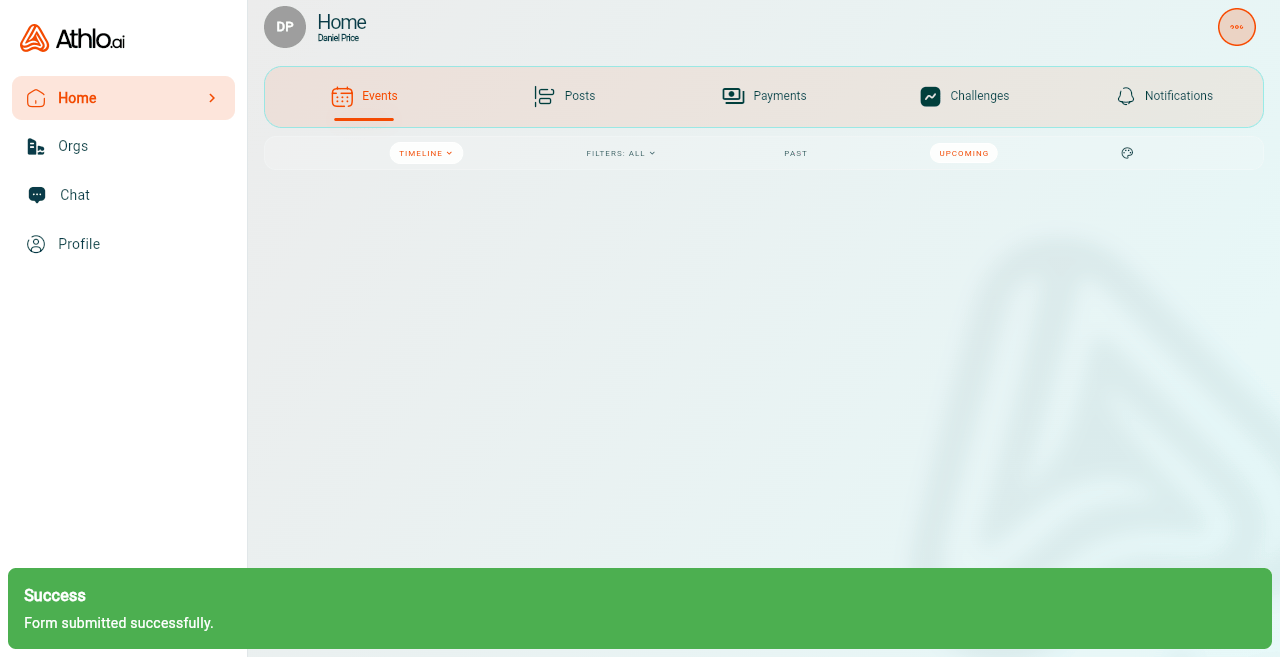
The registration is on its way to the club, and the player now appears under My Players on your profile. The club reviews the registration and lets you know.
Part 3: Joining from an invite, already on Athlo
The same link works for someone who already has an Athlo account. The steps they don't need are skipped.
Open the link and sign in
Tap Open in the Athlo app on the invite page. If you're signed in, the invite opens straight away. If you're signed out, the app says which club invited you: tap Sign In, not Create Account, and the invite continues once you're in.
Pick the player to register
Tap Register a player. Your existing players are listed: pick the one joining this club, or tap Create New Player for someone who isn't on Athlo yet. Then fill in the club's registration form as in Part 2.
Part 4: Registering a player you co-own
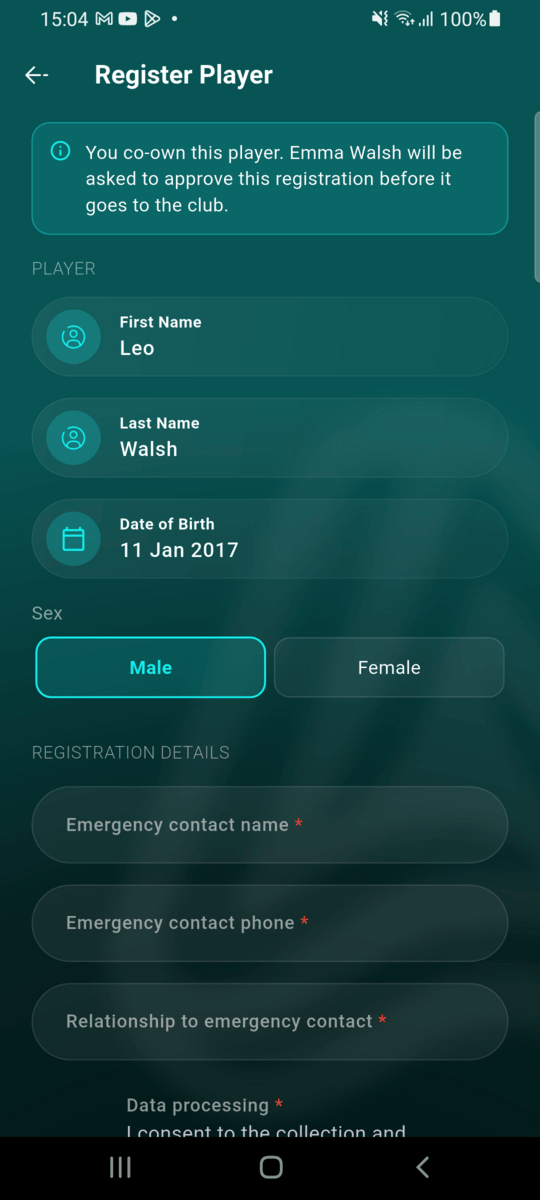
A player's profile can be shared: the owner (usually the parent who created it) can give another adult access as a co-owner. A co-owner can fill in a club's registration form, but the owner decides whether the player joins a new club.
Tom Walsh co-owns Leo Walsh's profile; Emma Walsh is the owner. Eastfield Juniors FC sends Tom its invite link.
Fill in the club's form
Follow the invite and pick the shared player, as in Part 3. The form tells you up front that the owner will be asked. Fill it in and tap Register as usual.
The request goes to the owner
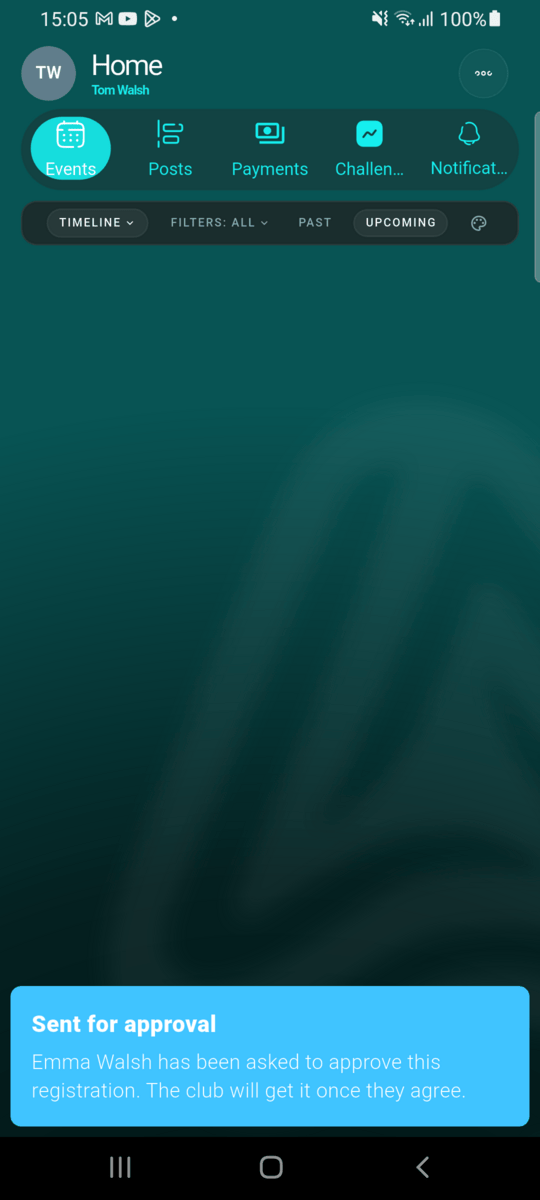
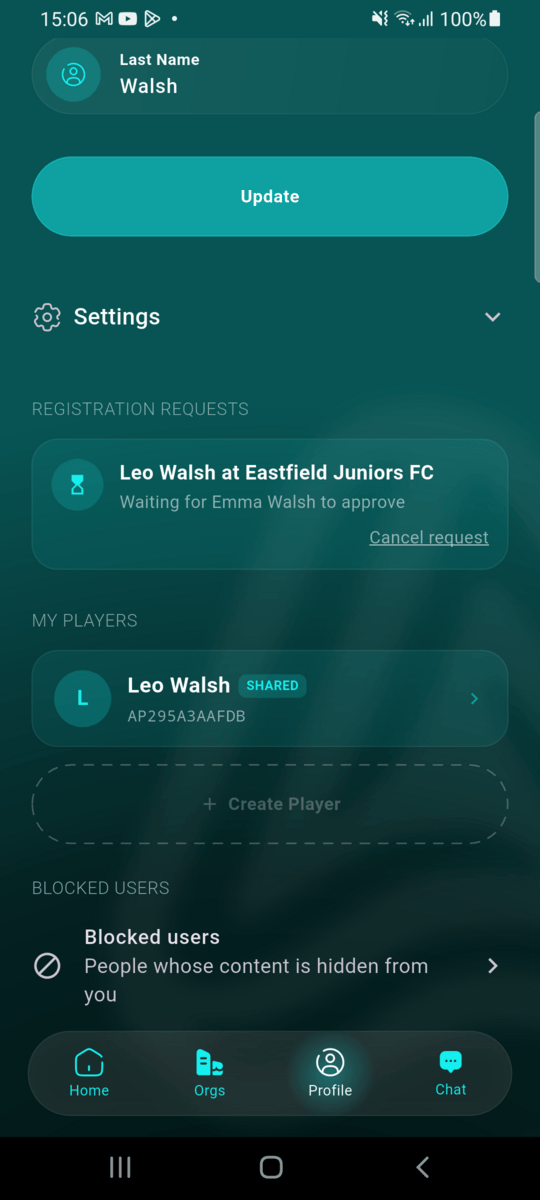
Instead of "Form submitted" you see Sent for approval. Nothing has reached the club yet. Your Profile shows the request under Registration requests while you wait, and you can withdraw it with Cancel request.
Open the request
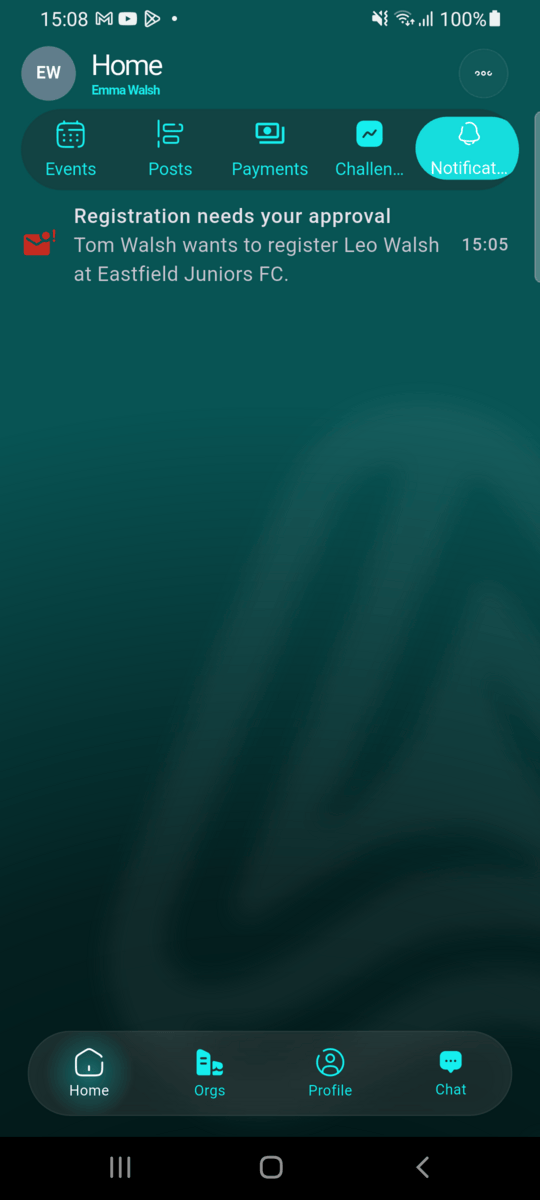
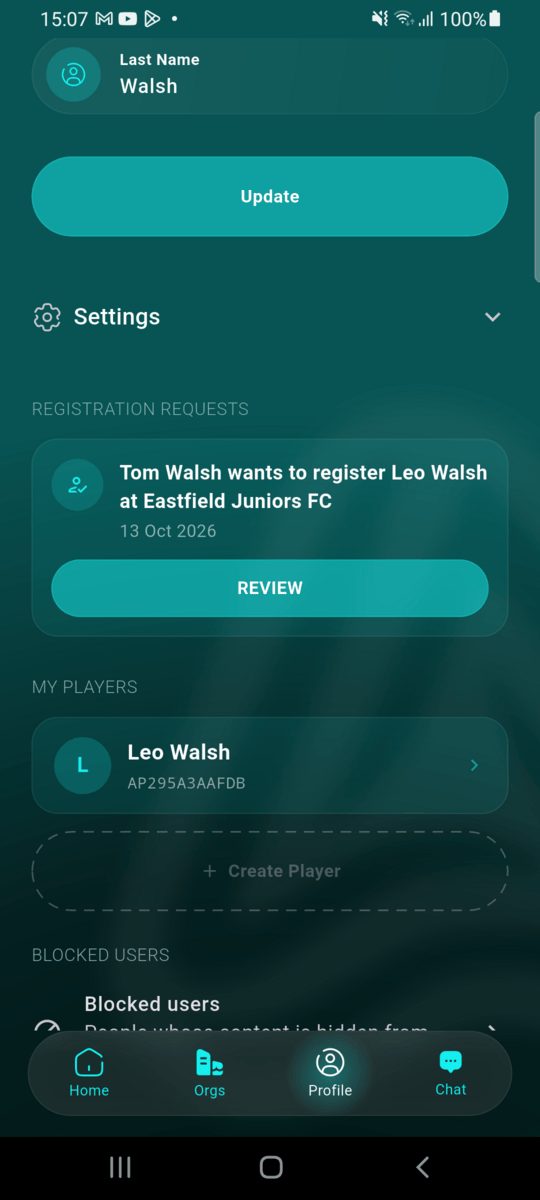
The owner gets a notification, Registration needs your approval. The request is also on their Profile under Registration requests. Tap Review.
Check the answers
The owner sees the club's form exactly as the co-owner filled it in, including the emergency contact and each consent as Yes or No. Approving means agreeing to those answers on the player's behalf.
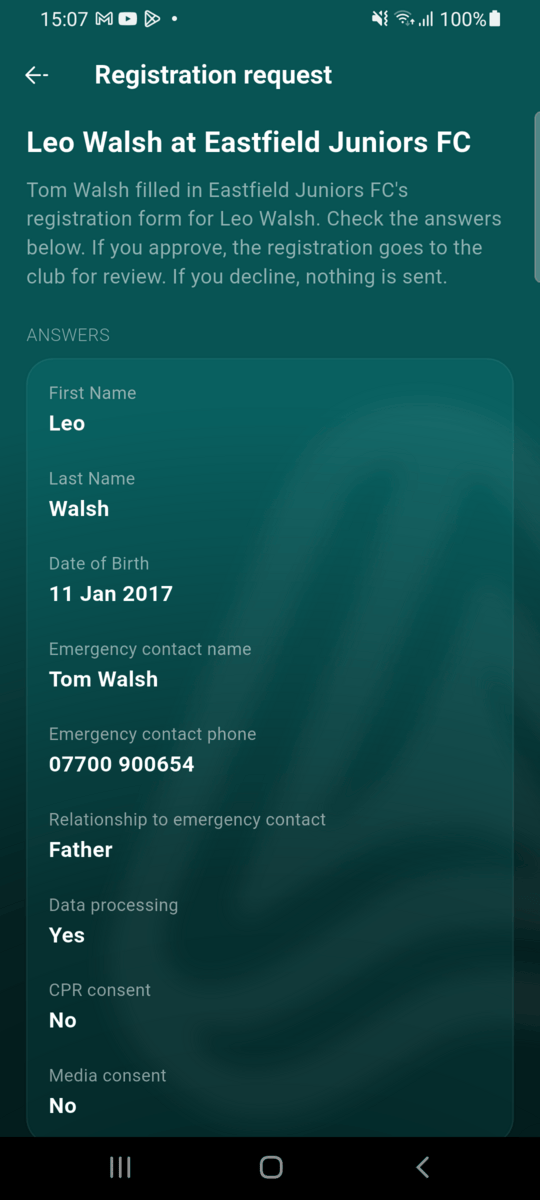
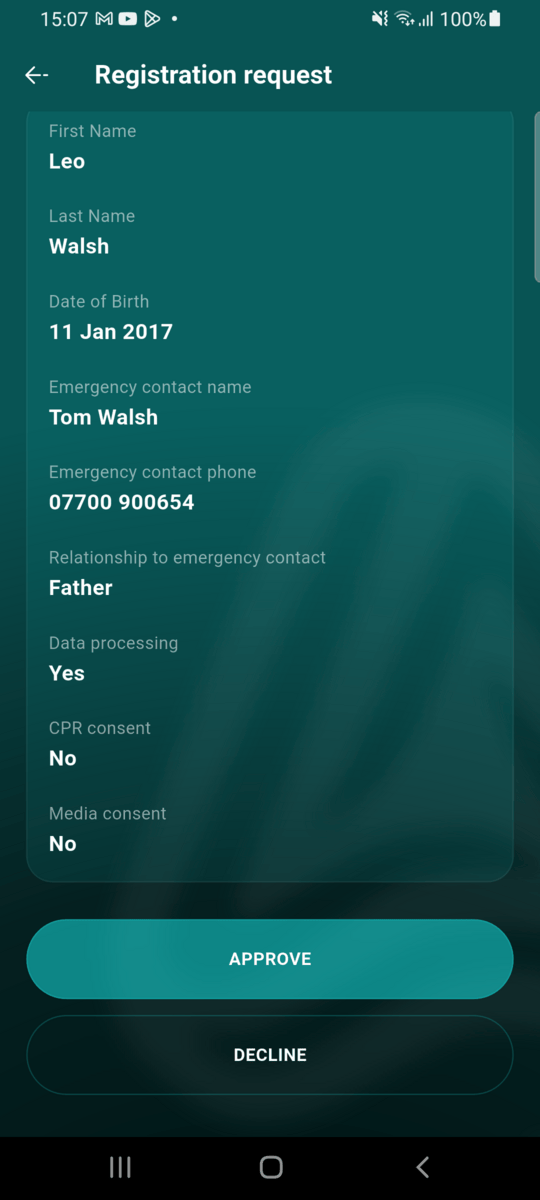
Approve or decline
Approve sends the registration to the club, where it waits for review like any other, and tells the co-owner. Decline sends nothing to the club and tells the co-owner. Either way the co-owner's Profile shows the outcome.
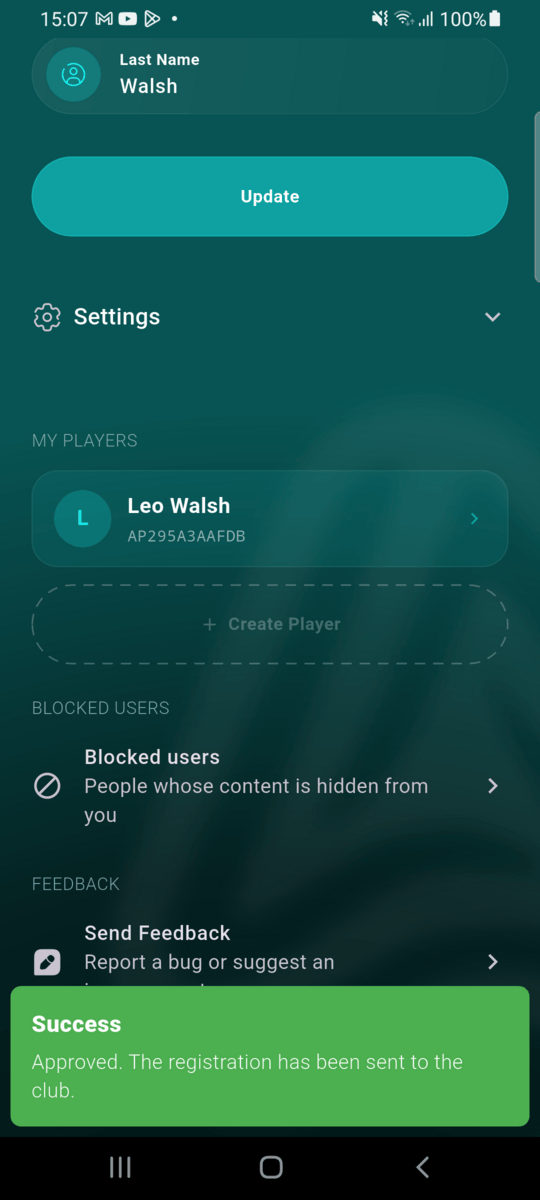
Part 5: Joining in a web browser
No phone handy? Everything above also works on a computer. Daniel Price opens the same link on his laptop:
Continue in browser
On the athlo.ai invite page, click Continue in browser. The Athlo web app opens and shows which club invited you.
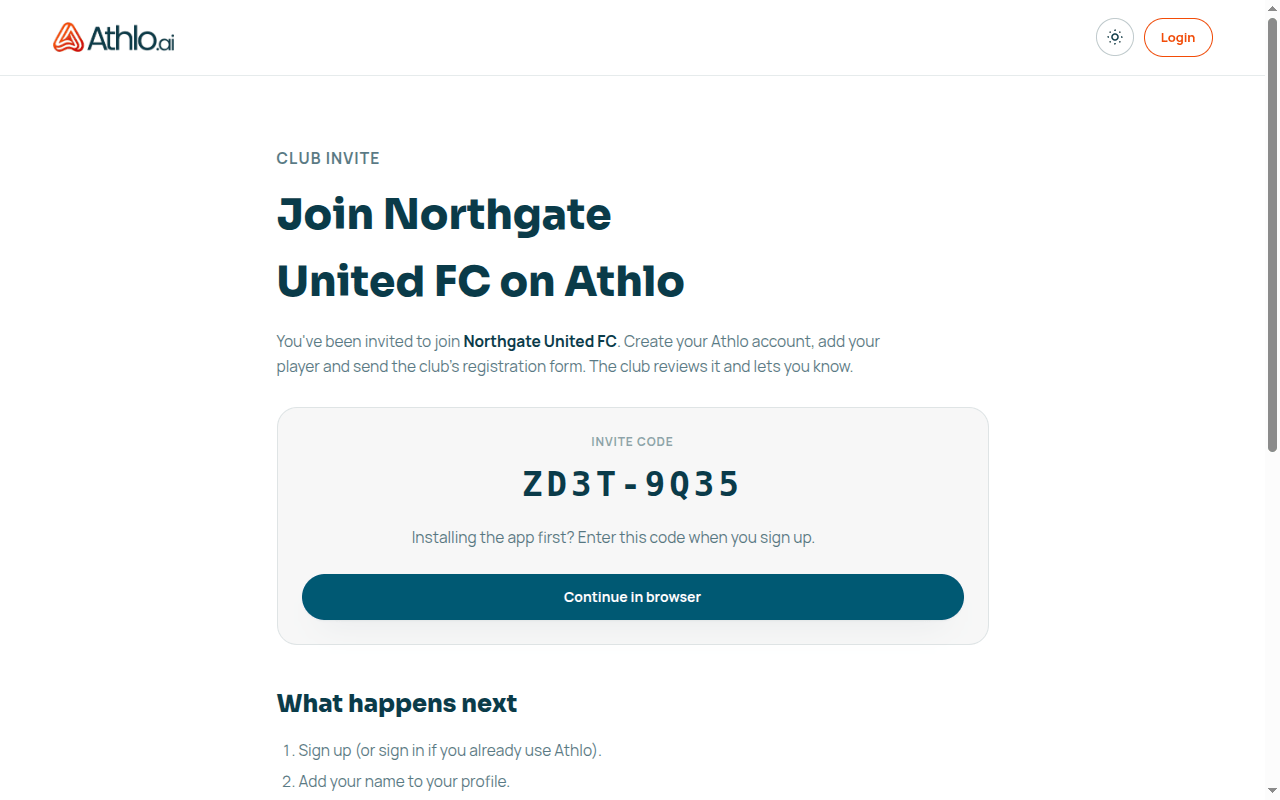
Create your account and register
Create your account (the invite code is filled in here too), confirm your email and add your name. The invite screen then opens, and the rest is the same as on the phone: create your player, fill in the form, and click Register.
Part 6: Reviewing the registration (club admin)
Find it in Player registration forms
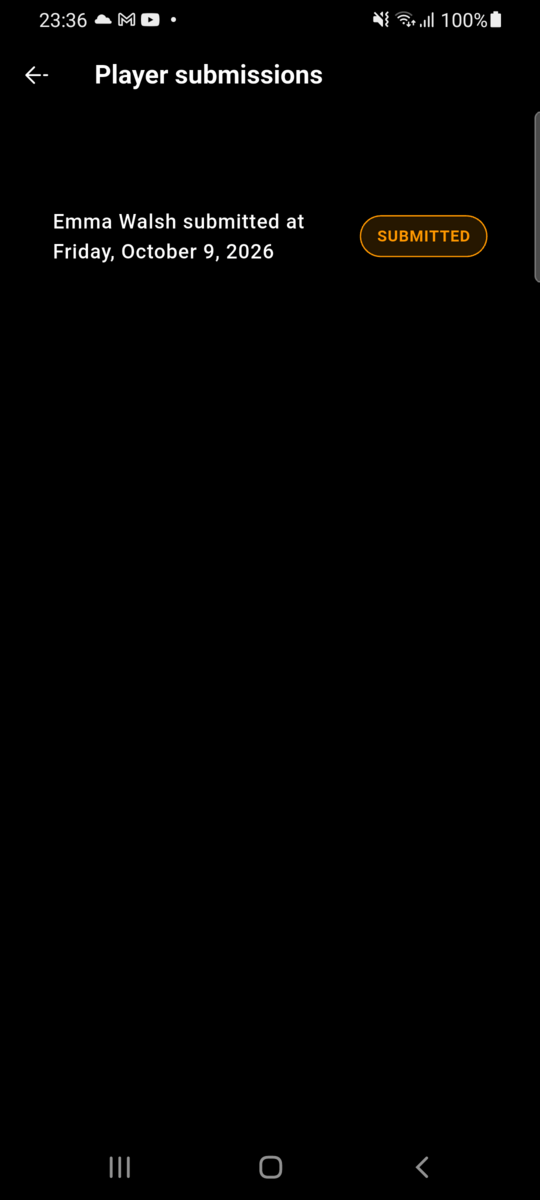
Registrations made through your invite link show up in Players → Player registration forms, ready for you to approve or reject like any other registration.
A few things worth knowing
- "Not now" keeps the invite. If someone taps Not now, the invite comes back the next time they open Athlo. Decline invite removes it for good.
- One registration per invite. Once a registration has been sent, the invite is used up for that person. To register another child at the same club, they can use Register Player or open the link again. See Registering a player for the other ways to register.
- A co-owner's request uses the invite too. Once a co-owner's registration has gone to the owner, the invite is used up. If the owner declines, the invite doesn't come back; to ask again, the co-owner opens the club's link again.
- "This invite link isn't valid" means the club has generated a new link since this one was shared. Ask the club for the current link or code.