

Player Performance
Development goals
A development goal is a specific, time-bound target a coach sets for a player — "improve first touch by the end of the season," for instance — tracked as a percentage over time, with a comment on each update. It lives in the Performance tab of a player's club profile, alongside their stats and match history.
Who can do what
| Action | Who |
|---|---|
| Create a goal | The player's parent/guardian, or a coach |
| Update progress (with an optional comment) | The player's parent/guardian, a coach, or an admin |
| Delete a goal | The player's parent/guardian, a coach, or an admin |
| Edit a goal's title, description, or deadline | Coach only |
| Mark a goal completed or failed | Coach only |
| View a player's goals | The player's parent/guardian, a coach, a manager, or an admin |
A player can have at most 3 active goals at a time — resolve one (mark it completed or failed) before adding a fourth.
Step by step
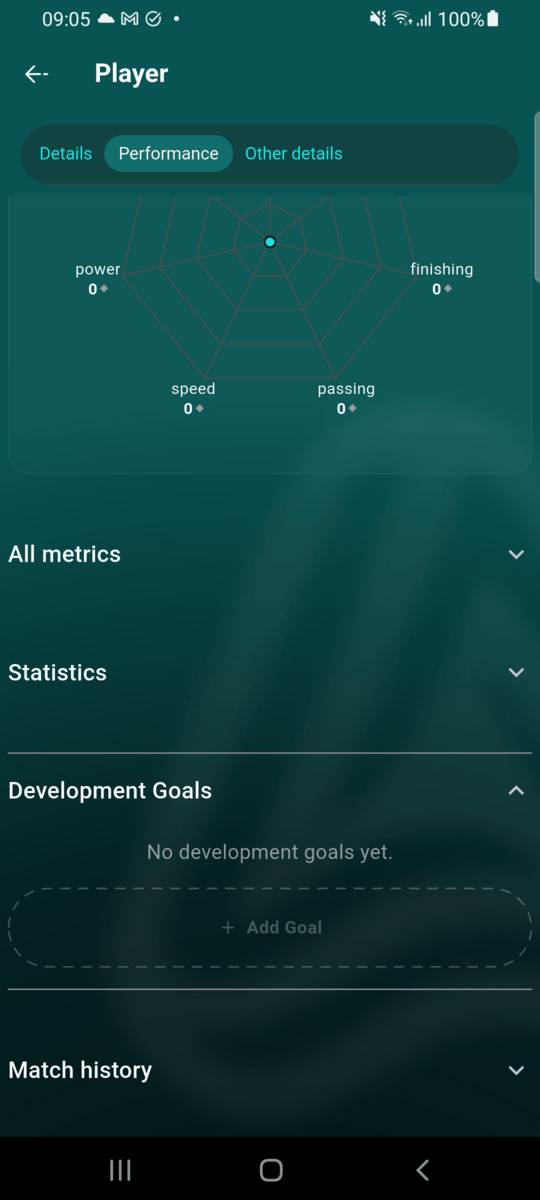
Open the Development Goals section
From a player's Performance tab, scroll past All Metrics and Statistics to Development Goals. If you can't create or manage goals for this player, you'll still see this section if you're allowed to view it — otherwise it doesn't appear at all.
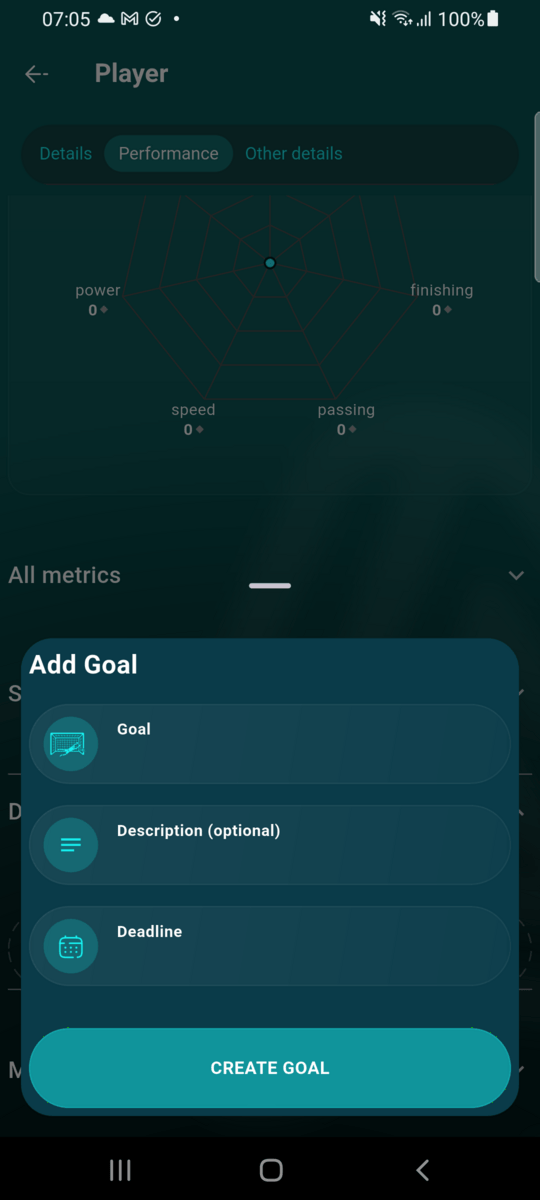
Add a goal
Tap Add Goal and fill in a title, an optional description, and a deadline.
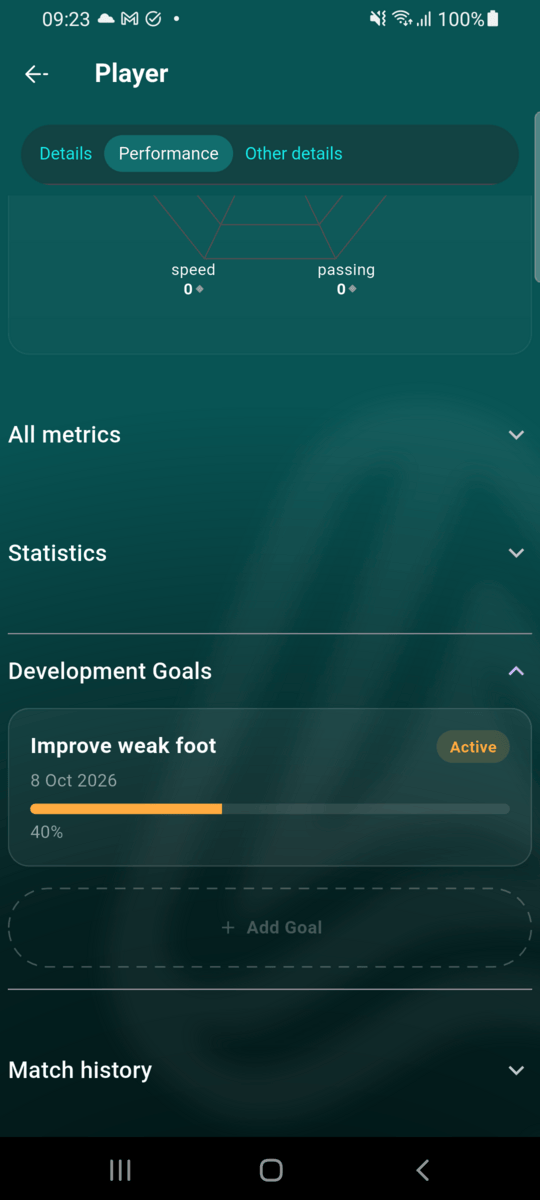
The goal appears on the player's Performance tab
Each goal shows its title, deadline, status, and a progress bar. Tap a goal to open it.
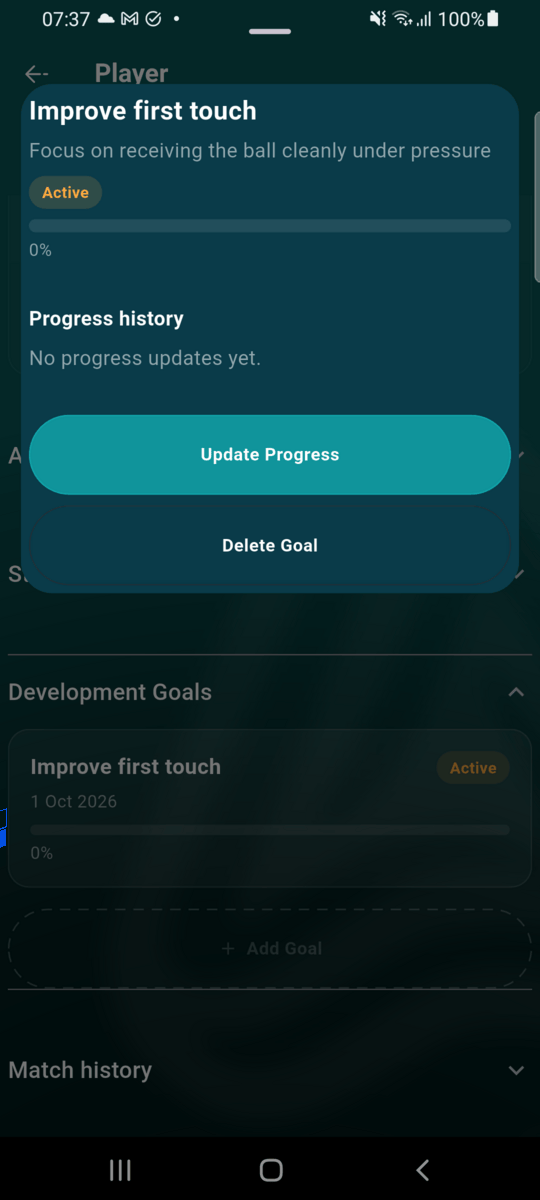
Track progress
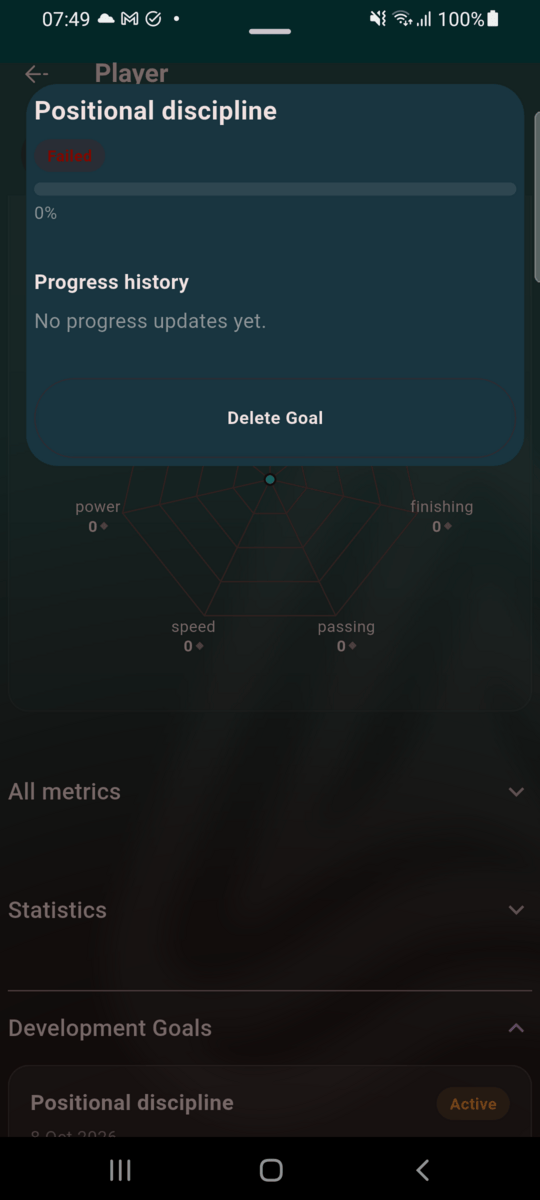
A parent/guardian sees the goal's description, its full progress history, and can Update Progress or delete the goal — but not edit its details or resolve it, which stay with the coach.
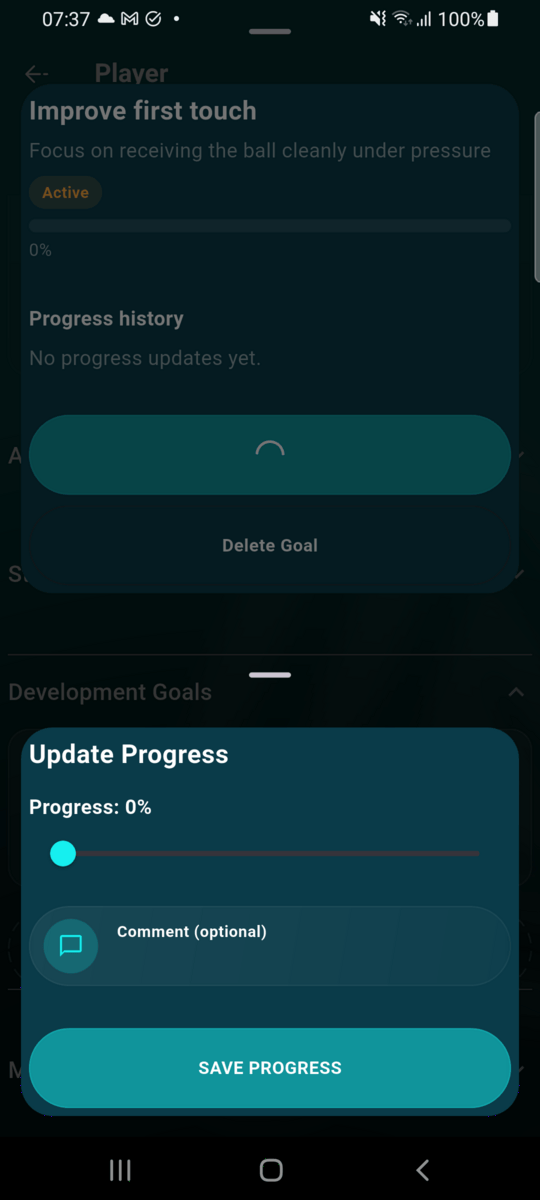
Update progress
Set the new percentage on the slider and leave an optional comment — useful for noting what changed since the last update. Every update is kept, building a full history on the goal.
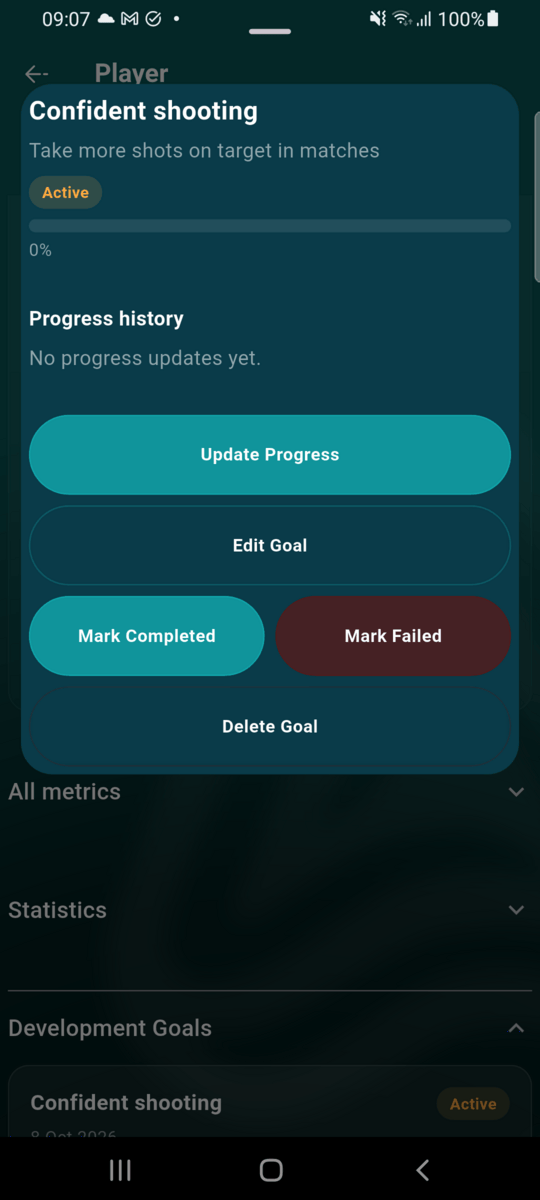
Edit or resolve a goal
A coach sees two extra actions: Edit Goal to change the title, description, or deadline, and Mark Completed / Mark Failed to resolve it. Once resolved, a goal's progress is frozen and only the coach or admin can still delete it.
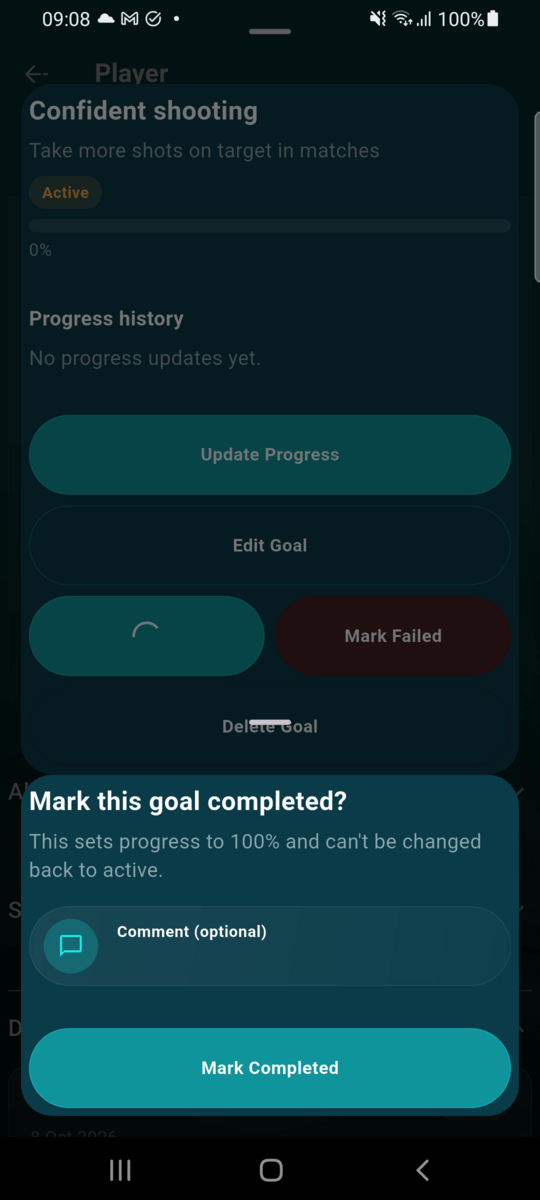
Marking a goal completed
Completing a goal always sets its progress to 100% — a completed goal is, by definition, fully reached, so there's no percentage to choose. A coach can leave an optional closing comment, which is added to the goal's progress history alongside the 100% entry.
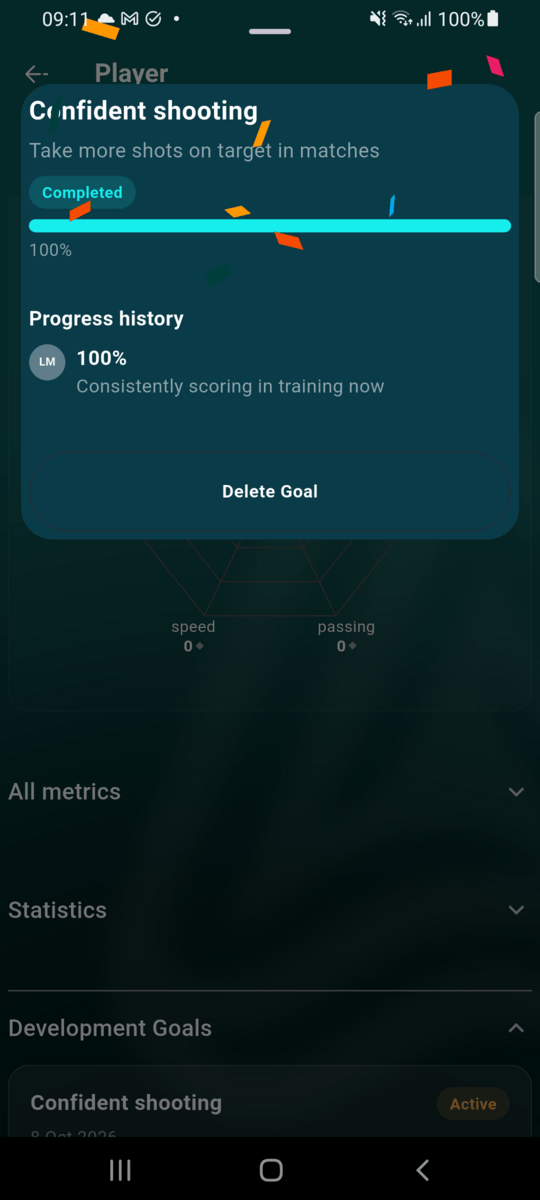
Completing or failing a goal
Marking a goal completed plays a short celebration and jumps its progress bar straight to 100%; marking it failed gives a clear visual cue instead. Either way, the player's coaches and parent/guardian are notified immediately.
Deadline reminders
A player's parent/guardian gets a reminder notification 3 days and again 1 day before an active goal's deadline, so a goal doesn't quietly expire unnoticed. Each reminder is sent once per goal.