

Club Admin
Drills in a training
Plan a training from your drills, see how long it takes and what equipment to bring, then run it on the pitch with the drill player, which keeps time and shows each drill's video and instructions.
Who can use it
| Who | What they can do |
|---|---|
| The training's coaches | Plan the session and run the drill player |
| Other club staff invited to the training | See the plan and open the drill player |
Plan the session
Open the training's Drills tab
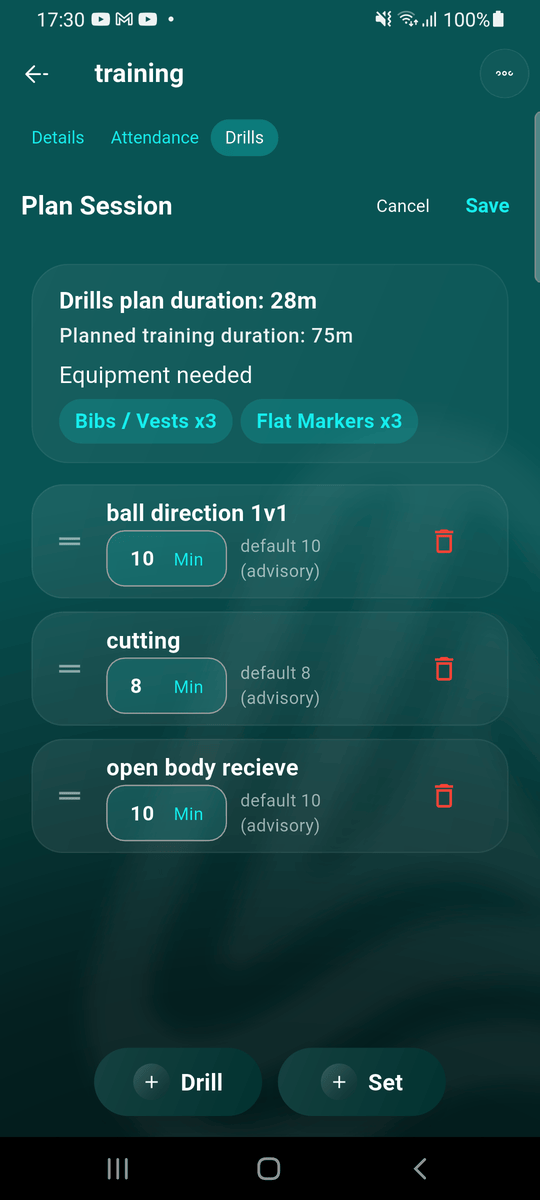
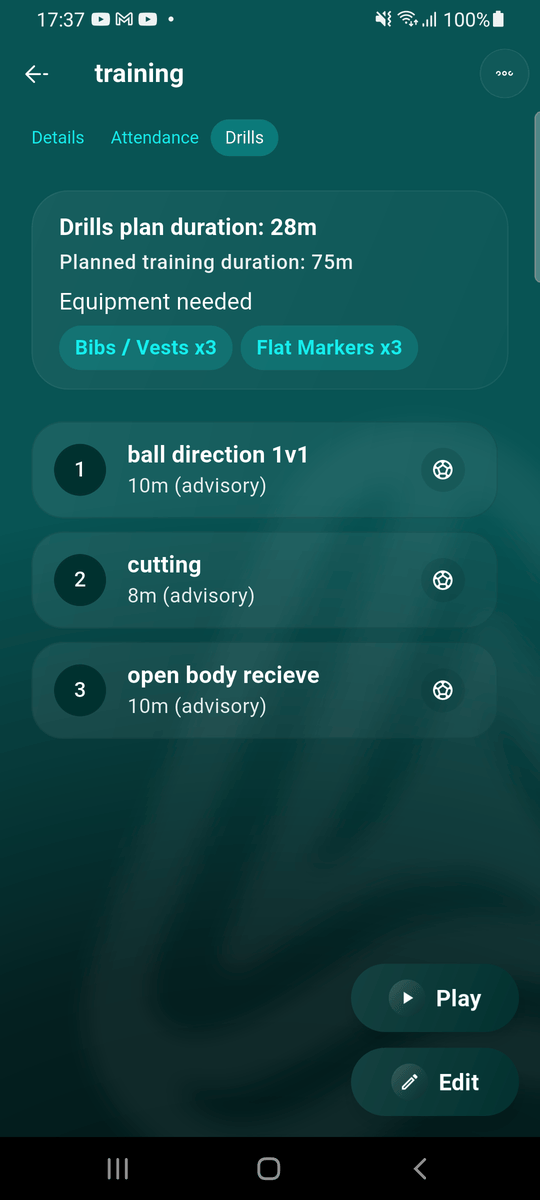
Open the training and go to its Drills tab. The card at the top shows the training's planned length. Tap Plan Session.
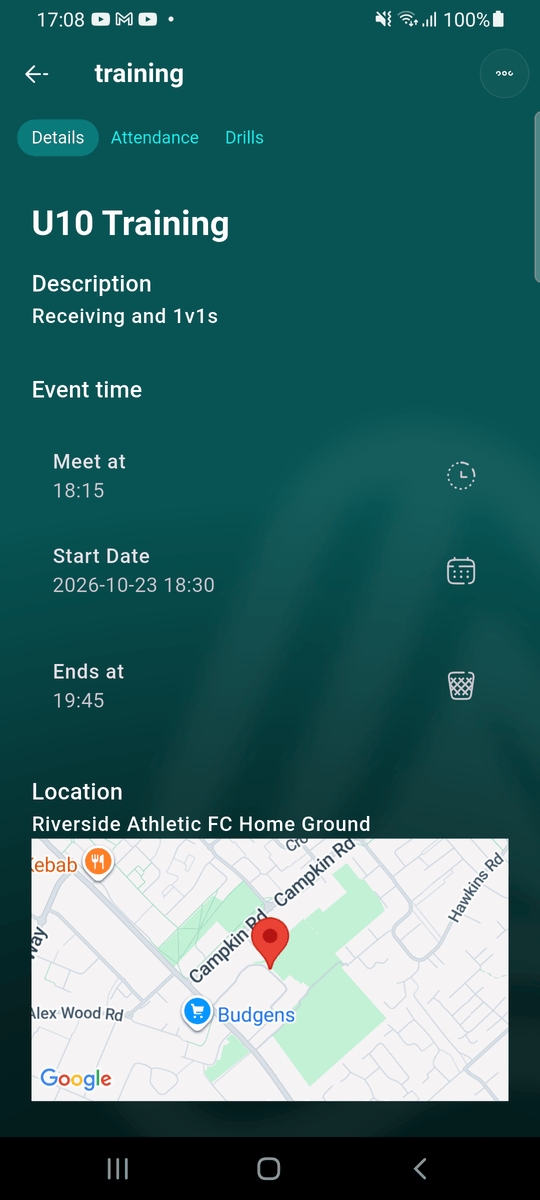
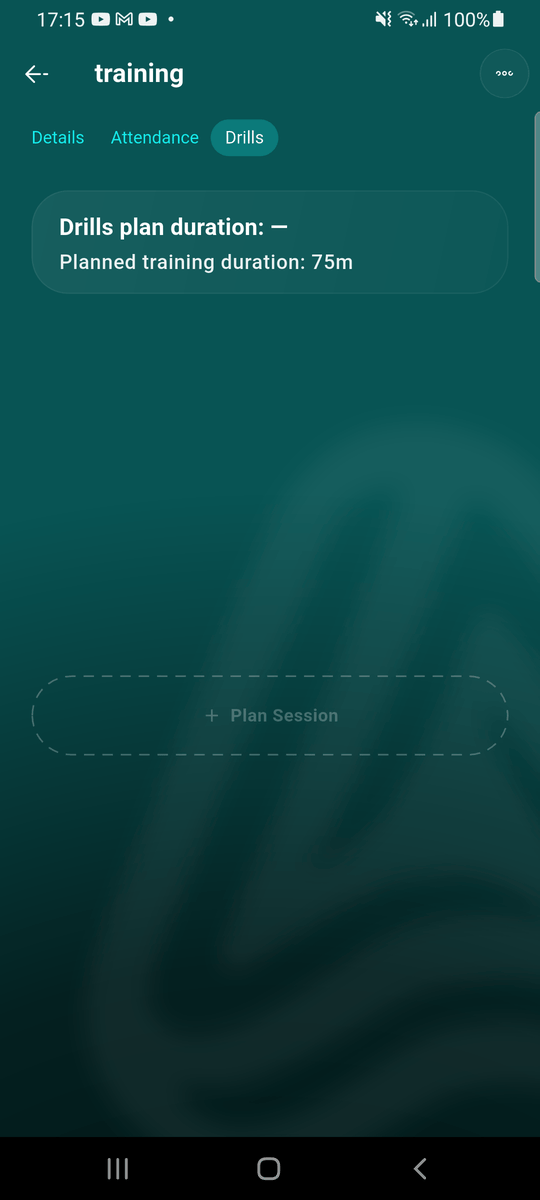
Add drills
Tap + Drill and pick a drill. Tap the eye to preview one first. Use + Set to add a whole set of drills at once.
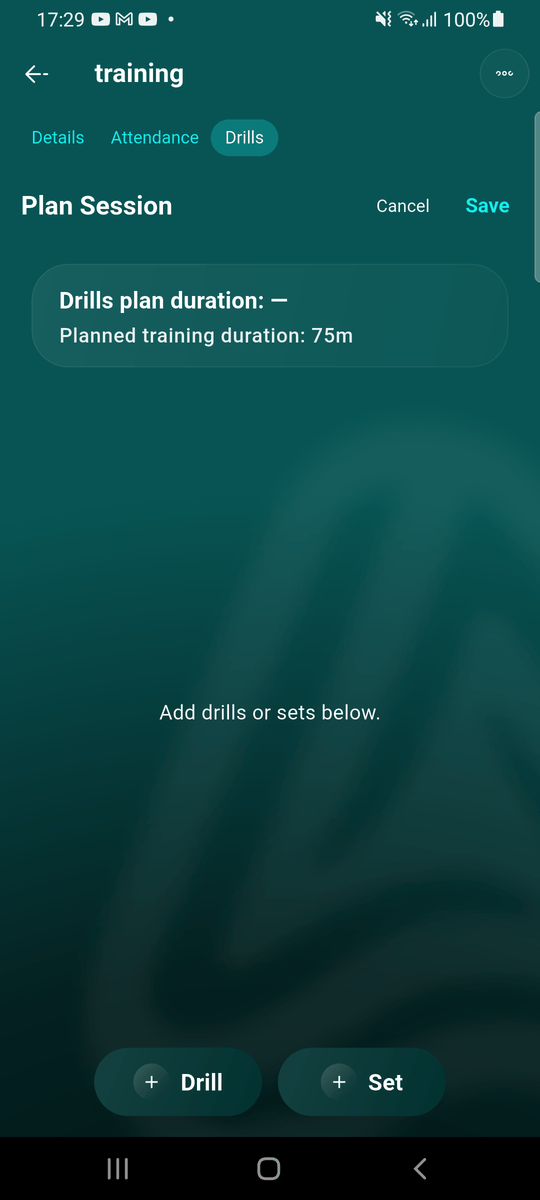
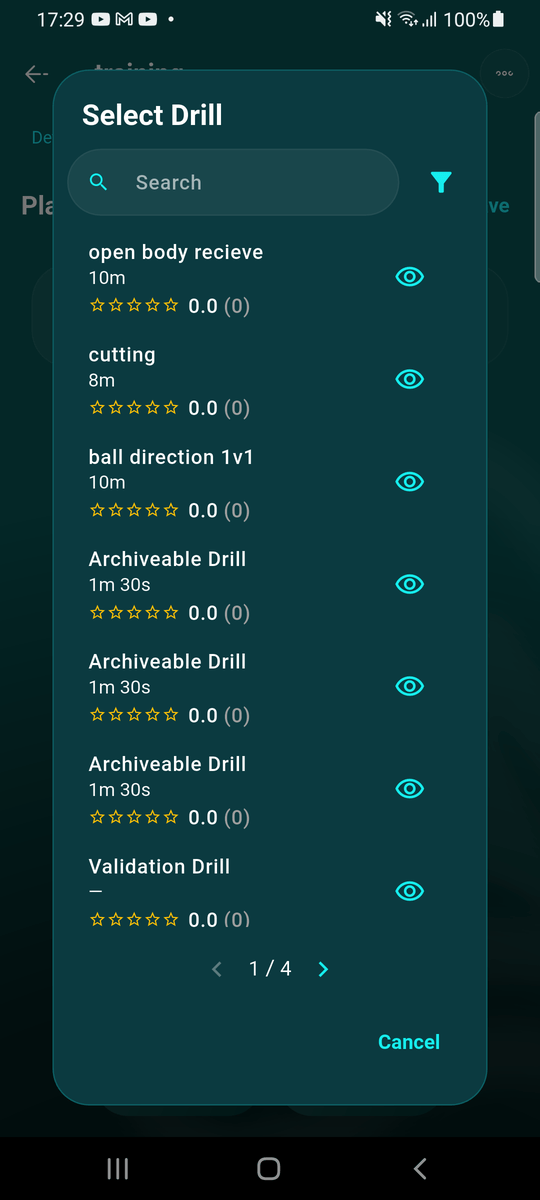
Adjust and save the plan
Each drill starts with its default length; change the minutes for this session if you need to. Drag the ≡ handle to reorder, or tap the bin to remove one. The card at the top adds up the plan and the equipment needed, and turns red if the plan runs longer than the training. Tap Save.
Run it with the drill player
Open the drill player
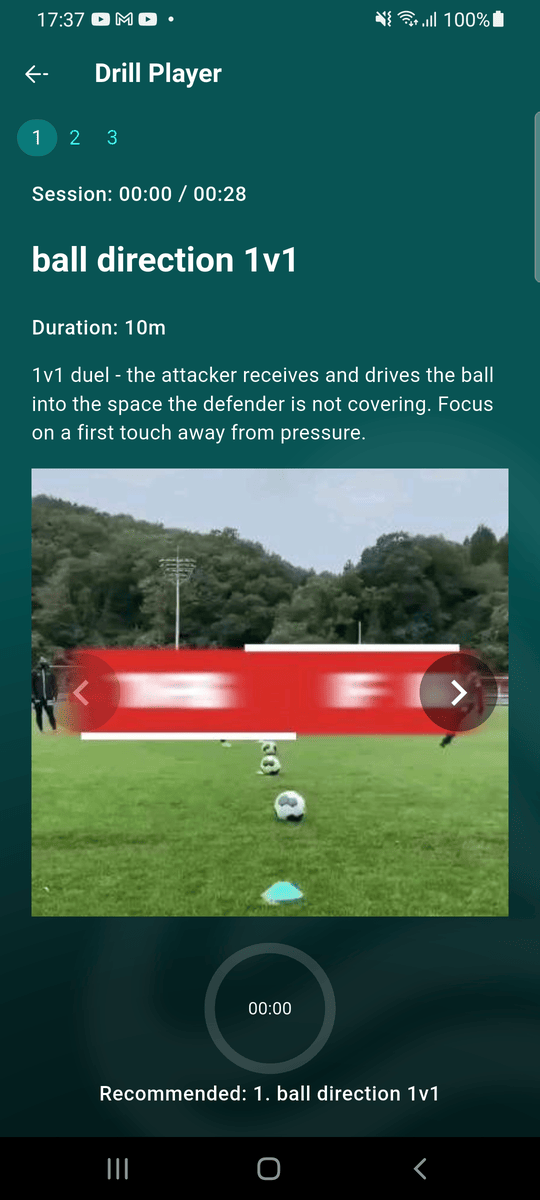
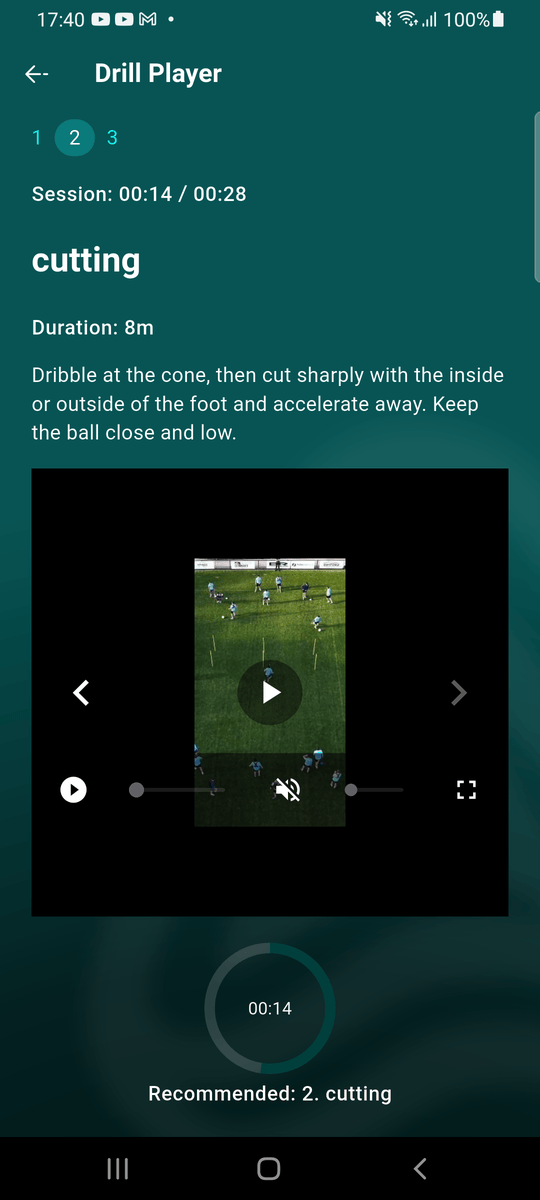
On the pitch, open the training's Drills tab and tap Play. Each drill has its own page with its instructions and video; swipe or tap the numbers at the top to move between them.
Follow the session clock
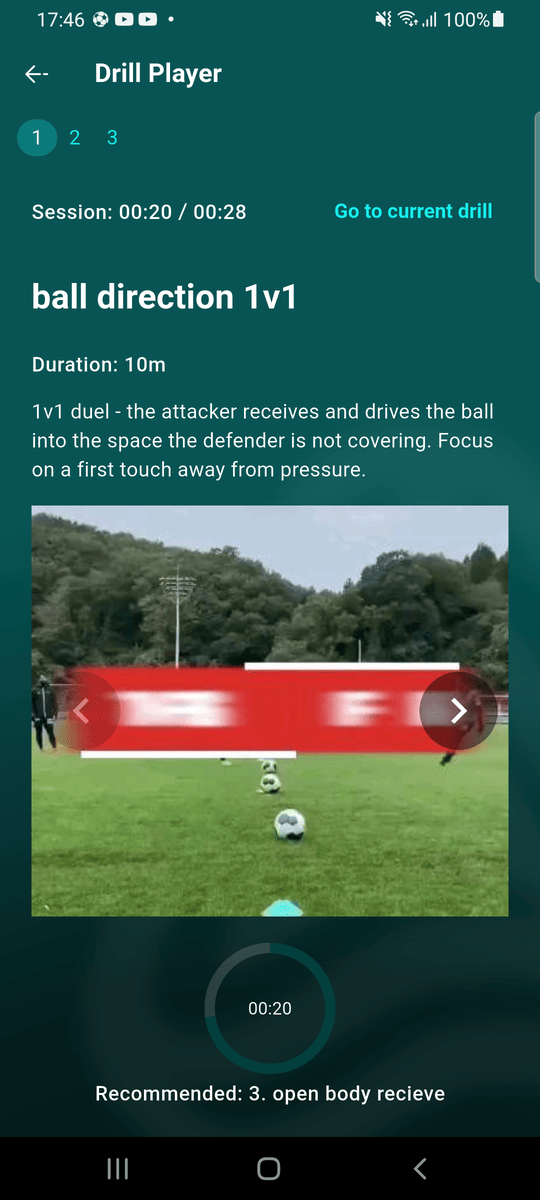
Once the training has started, the player keeps time from the training's start: Session shows how far into the plan you are (hours:minutes), the ring follows the time, and Recommended names the drill you should be on. If you're on a different drill, tap Go to current drill.
Good to know
- Drill lengths in a plan are advisory: the player recommends a drill but never stops you moving on.
- Before the training starts, the player opens on the first drill so you can walk through the session in advance.
- Videos play with the sound off; tap the speaker to unmute.