

Club Admin
Creating drills
Build your club's library of drills: a name, how to run it, how long it takes, the equipment it needs, and a video or photos to show the players. Drills can then be planned into your trainings.
Who can use it
| Who | What they can do |
|---|---|
| Club admins and coaches allowed to manage drills | Create, edit and archive the club's drills |
| Club staff | Browse, preview and rate drills |
Step by step
Open Create Drill
Open your club, go to the Drills tab and tap + (Create Drill).
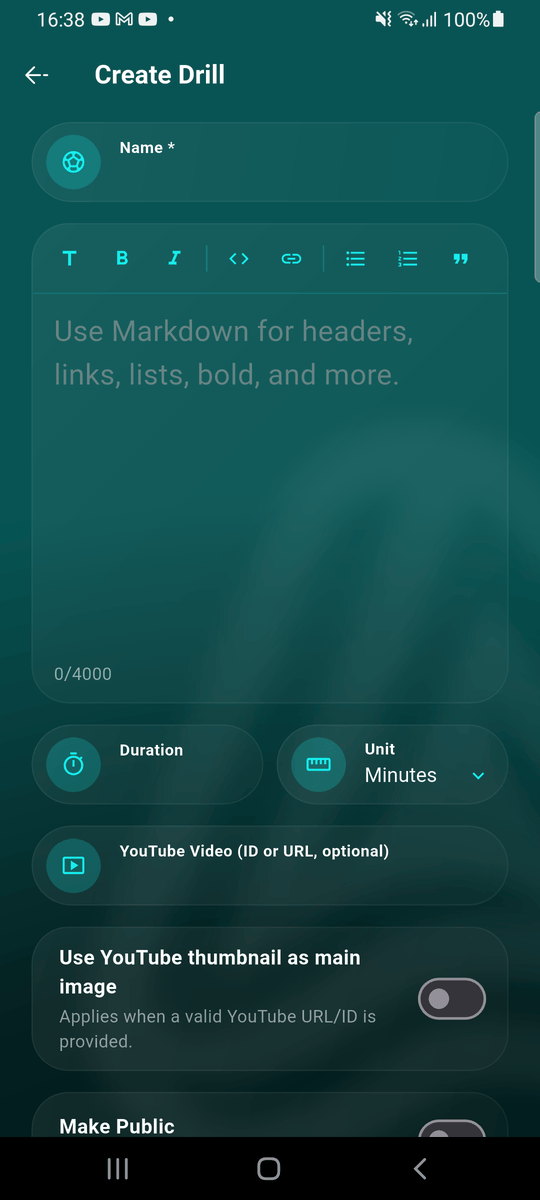
Name it and describe how to run it
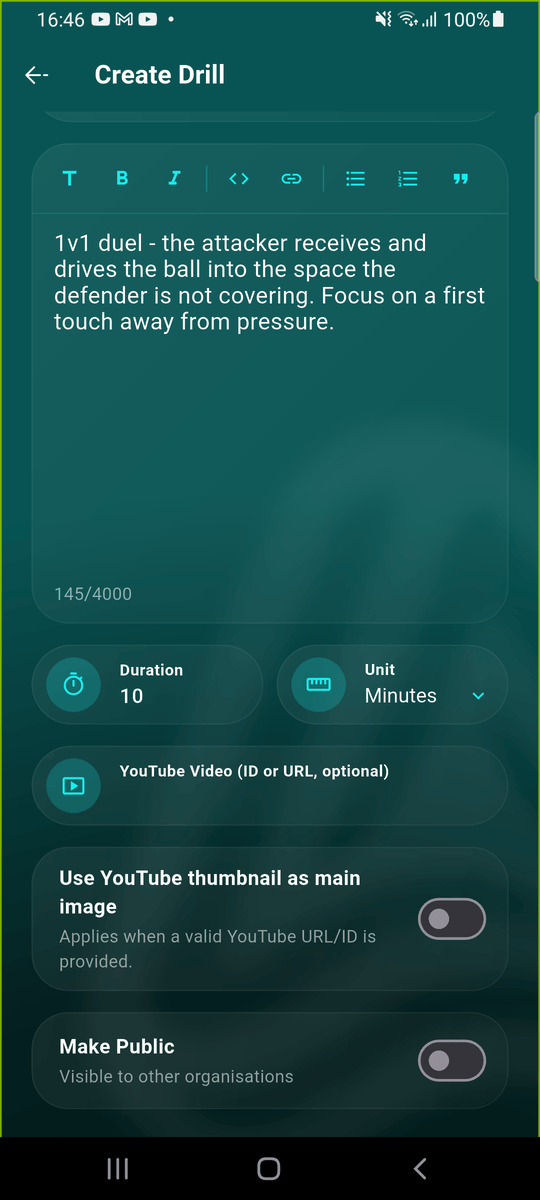
Enter the drill's name and describe how to run it. The description supports headings, bold, lists and links, using the toolbar. Set the duration and choose minutes or seconds.
Leave Make Public off to keep the drill to your club, or switch it on to share it with other clubs.
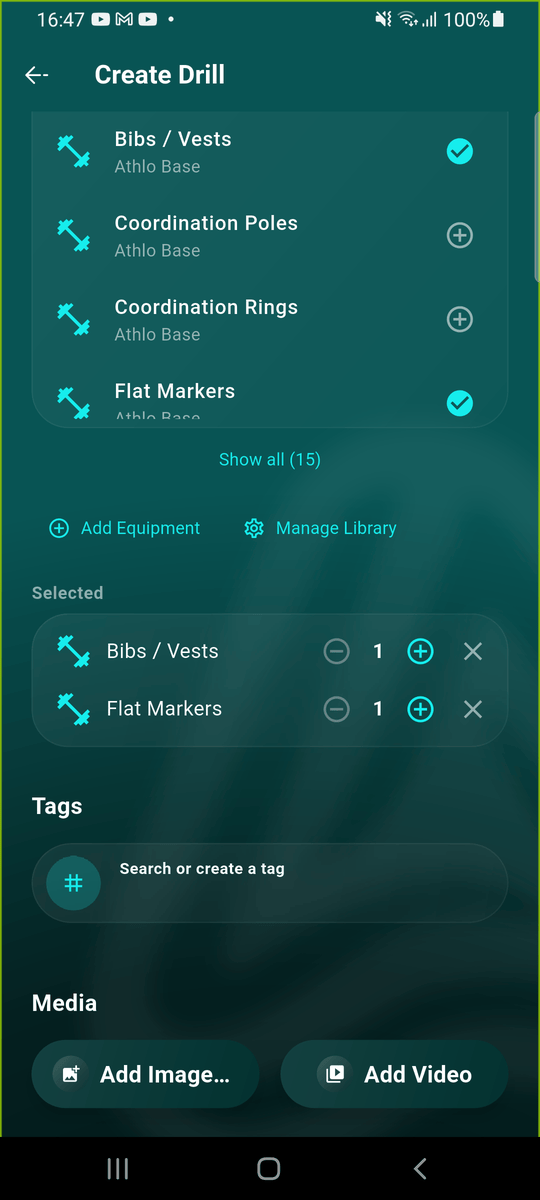
Add the equipment
Under Equipment, tap the items the drill needs and set how many with − and +. You can search the library, or add your own equipment with Add Equipment.
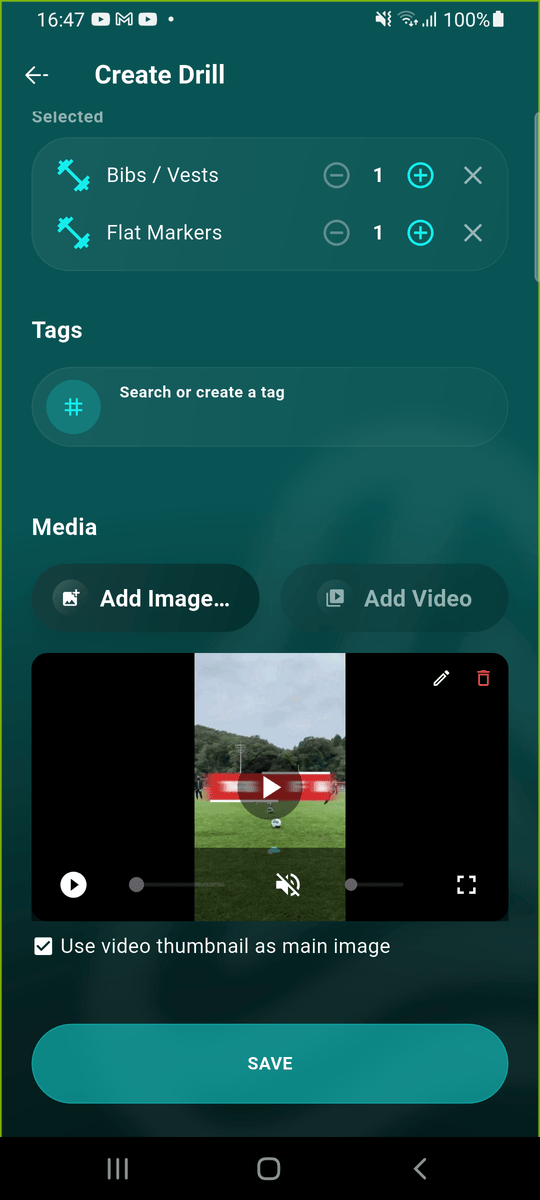
Add a video or photos
Under Media, tap Add Video to attach a clip of the drill from your phone, or Add Images for up to five photos. A frame from the video is used as the drill's picture unless you untick Use video thumbnail as main image. You can also paste a YouTube link instead.
Tap SAVE. Large videos can take a moment to upload.
Find it in your library
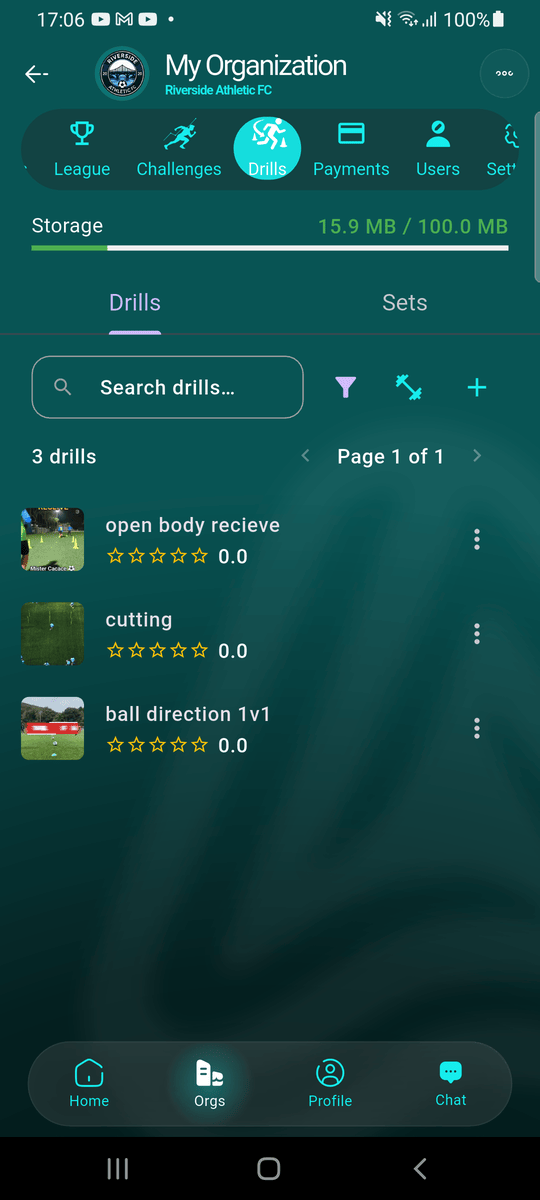
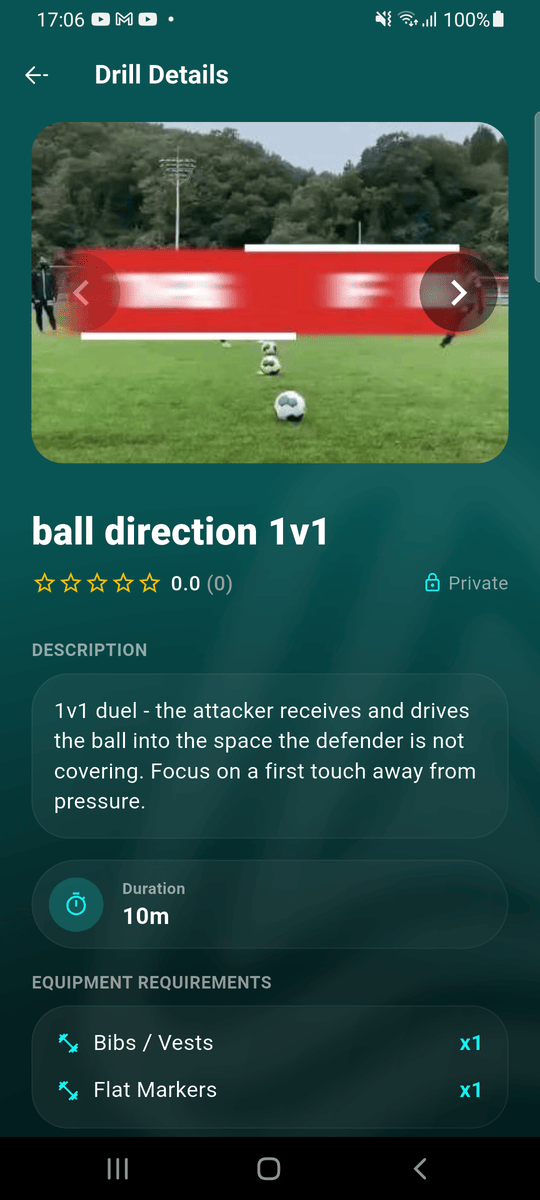
Your drill appears in the Drills tab. Use the filter button and Only my org drills to see just your club's drills. Tap a drill to see its details.
Good to know
- Your club has 100 MB of storage for drill videos and photos; the bar at the top of the Drills tab shows how much is used.
- Group drills into Sets (the Sets tab) to plan a whole block of a session in one go.
- Ready to use your drills? See Drills in a training.