

Club Admin
Posting to your club
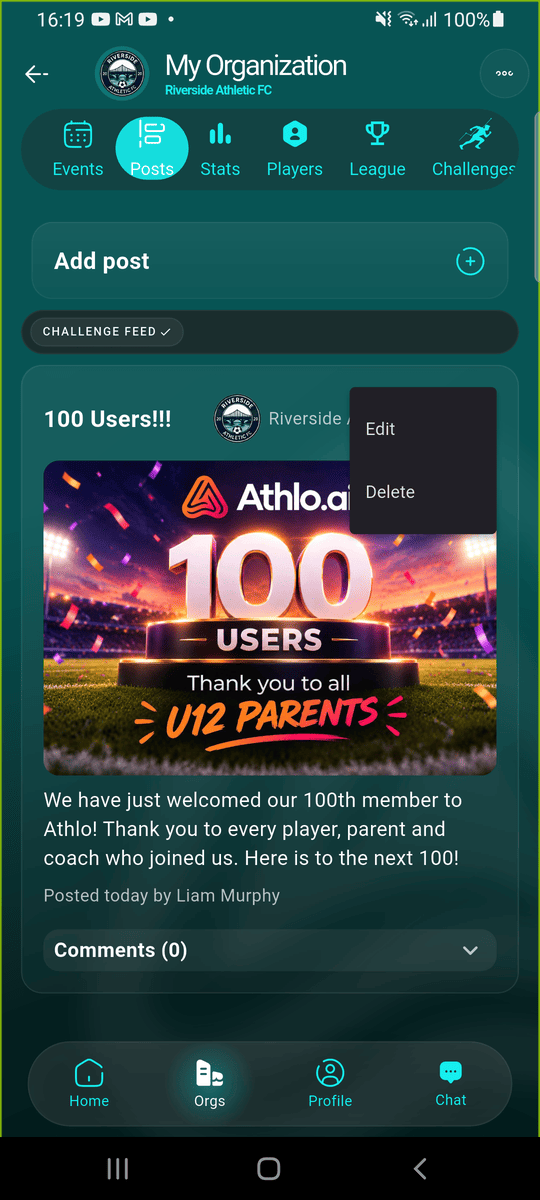
Share news with everyone in your club: a result, a kit reminder, a milestone. A post can have a title, a message and up to five images, and members can react and comment on it.
Who can use it
| Who | What they can do |
|---|---|
| Club admins and staff allowed to post | Create, edit and delete posts |
| Club members | Read posts, react, comment, and report or block |
Step by step
Open your club's Posts
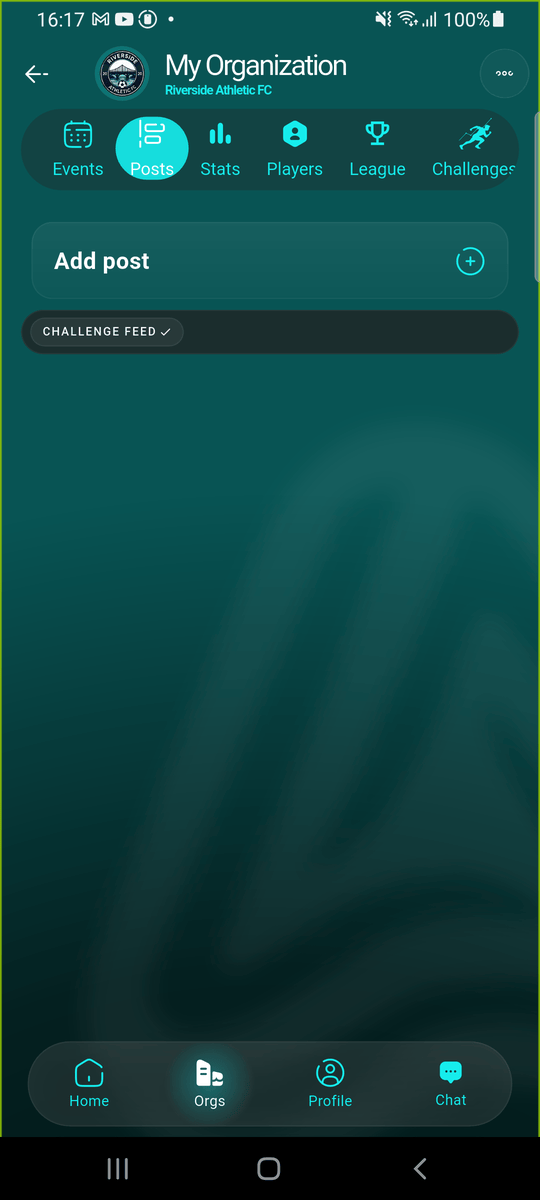
Open your club and go to the Posts tab. Your club's posts are listed newest first. Tap Add post.
Write your post
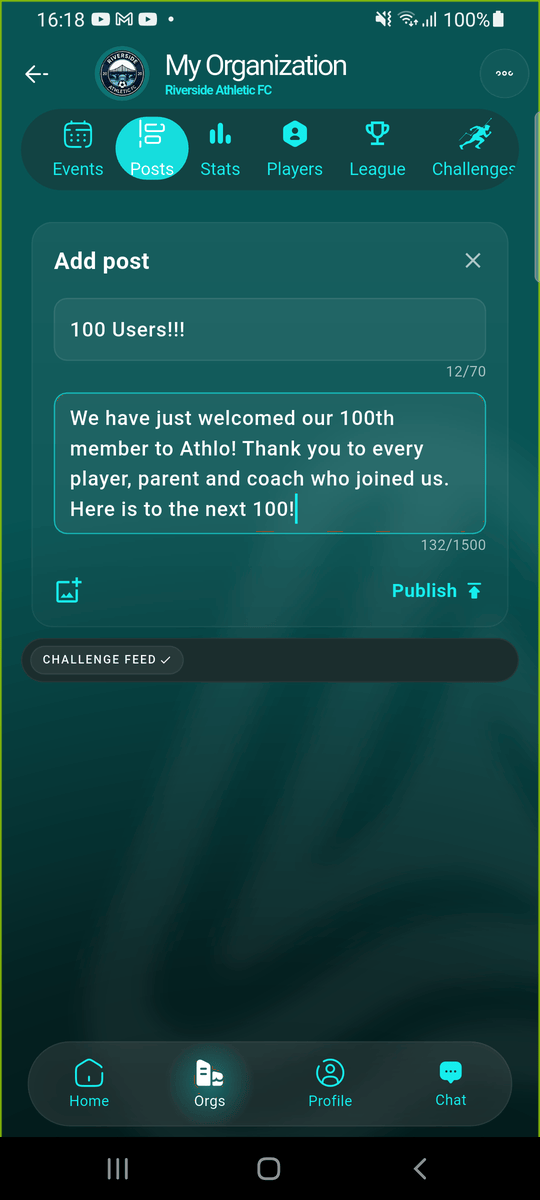
Give the post a title (up to 70 characters) and write your message (up to 1,500 characters).
Add images
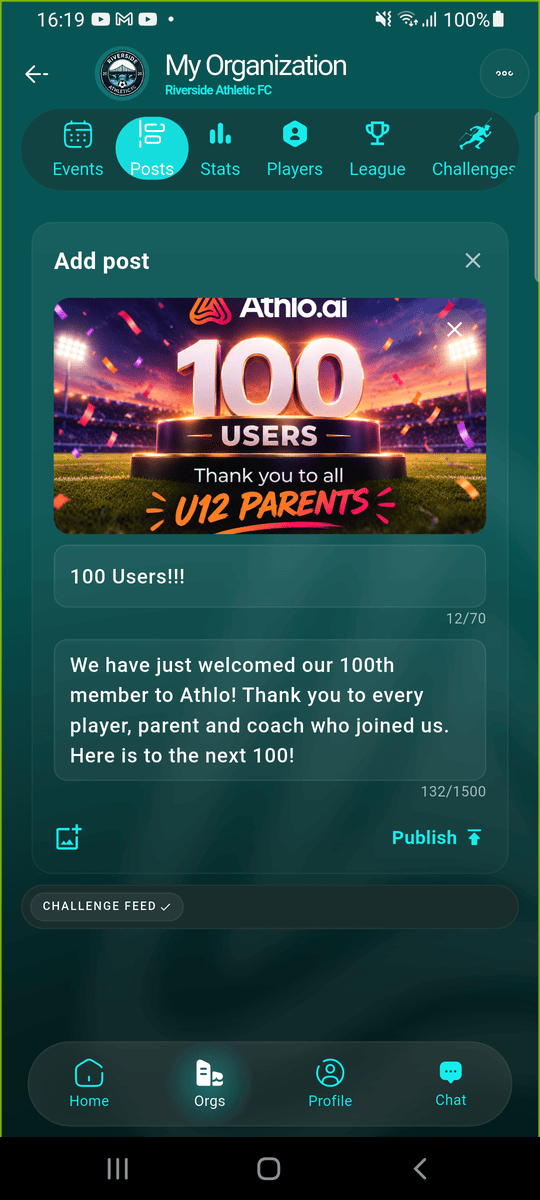
Tap the image button and pick up to five photos from your phone. They're added below the message; tap the × on one to remove it before publishing.
Publish
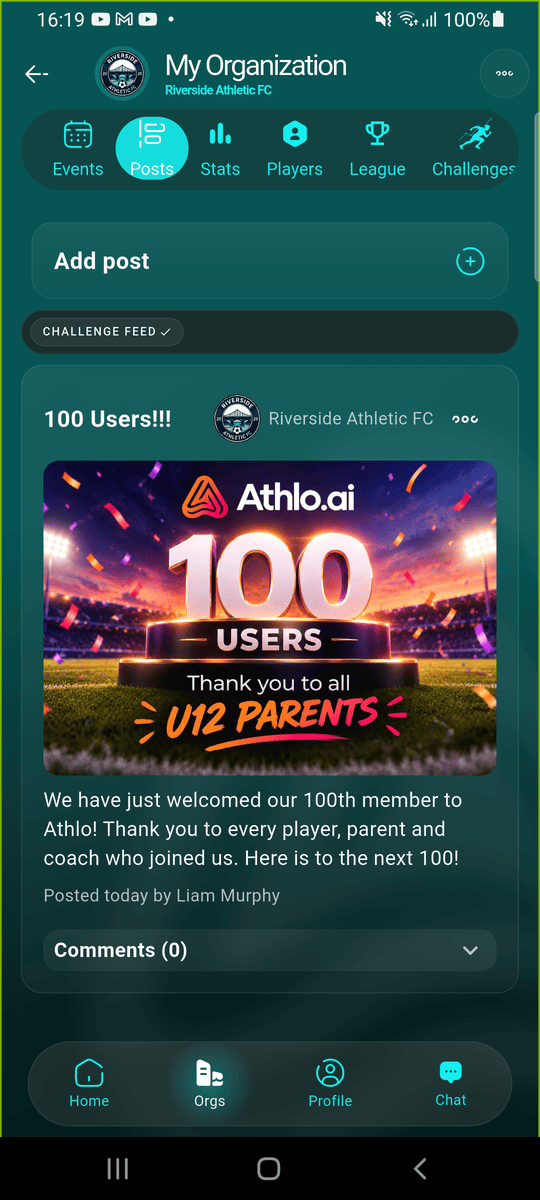
Tap Publish. The post appears at the top of the Posts tab for everyone in your club, with its images.
Edit or delete a post
Tap the ⋯ menu on your post to Edit or Delete it.
Good to know
- Photos are resized before they're uploaded, so even large photos post quickly.
- If an image can't be uploaded, the post isn't published, so you never end up with a post missing its pictures. Check your connection and publish again.
- Members can report a post or block its author; see Reporting and blocking.