

Club Admin
Tactics board
Plan and explain movements on the pitch, before kick-off or at half time. Move your players, draw passes, runs and pressing zones, set up both teams' formations, and play a move step by step to show the team exactly where to go. Save as many scenarios as you like on each match.
Who can use it
| Who | What they can do |
|---|---|
| Match staff (anyone who can run the match tracker) | Create, edit, present and delete the match's scenarios |
| Players and parents | Not yet: sharing boards with the squad is coming |
Step by step
Open the tactics board
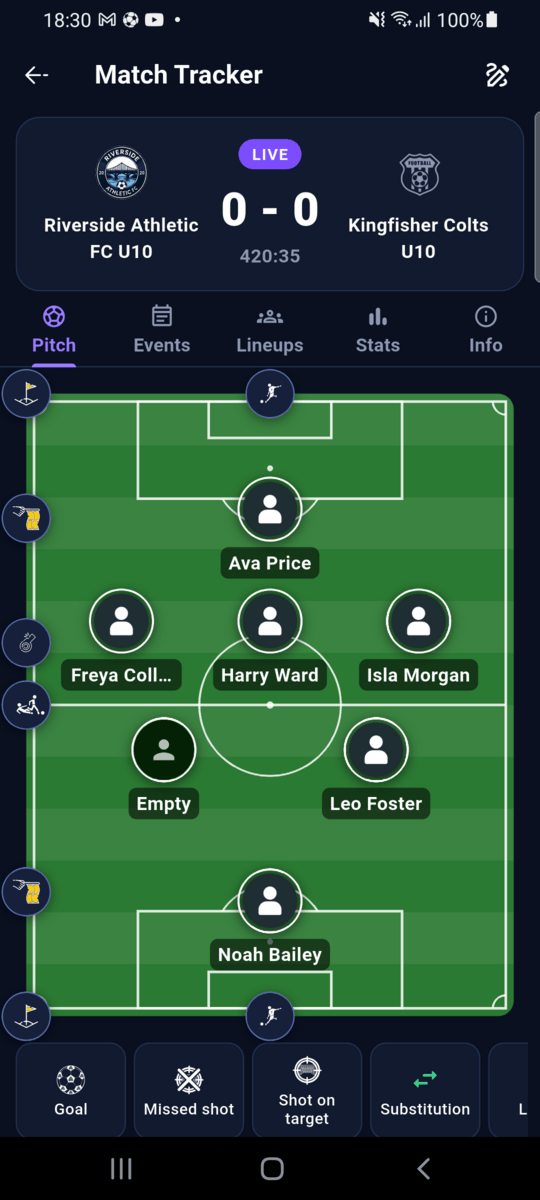
Before the match, open it from the match's Match control tab with TACTICS BOARD. During the match, tap the board icon at the top right of the match tracker. It works at half time too, and the tracker keeps running in the background.
The board
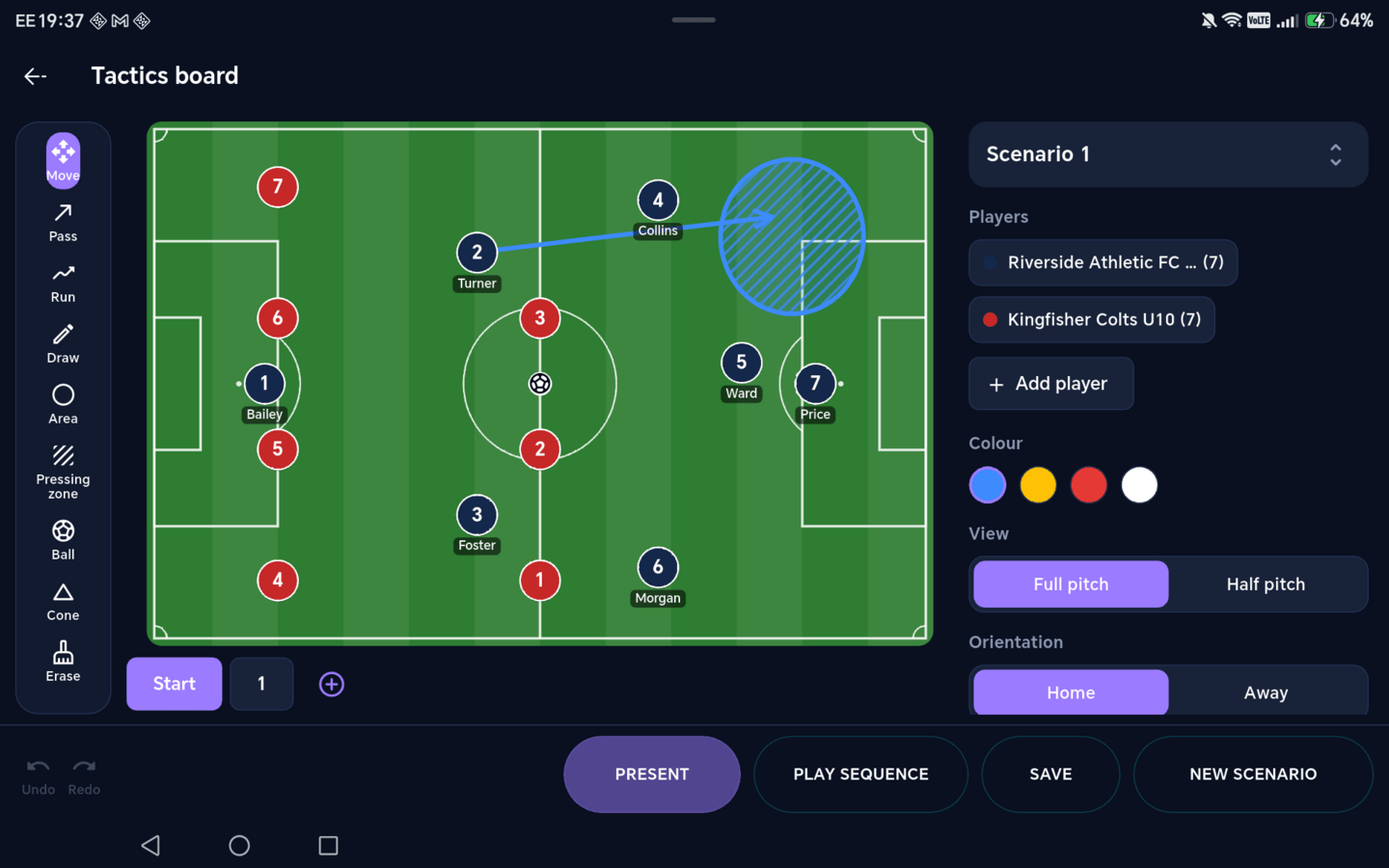
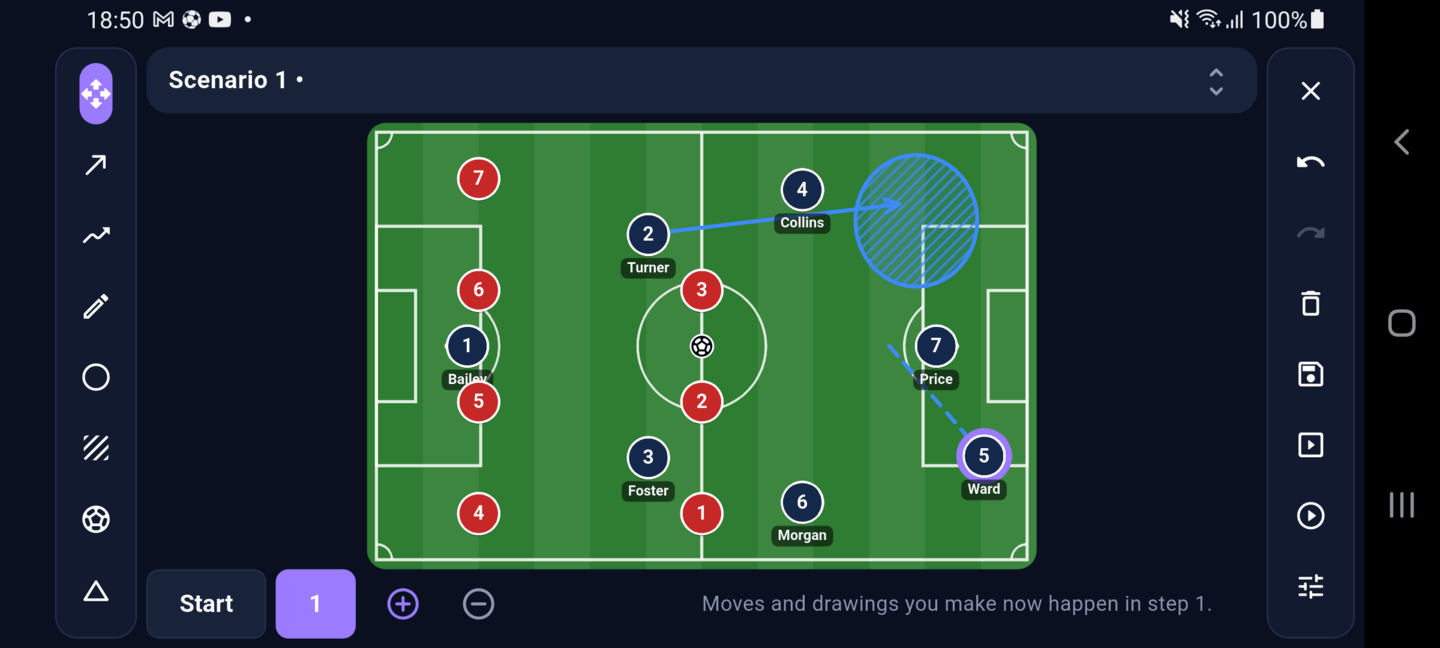
Your players start where the match lineup puts them, numbered from the goalkeeper (1) with their surnames. The tools are down the left, the pitch in the middle and, on a tablet in landscape, the players, colours, view and formations on the right.
Add player puts another squad member or an opposition player on the pitch. Formation lines up either team in one of your club's formations for the match's format. Switch between the Full pitch and Half pitch, and turn the pitch round with Home / Away.
Draw the tactic
Pick a tool and draw on the pitch:
- Move: drag players, the ball and cones.
- Pass and Run: solid and dashed arrows that follow your finger.
- Draw: a freehand line.
- Area and Pressing zone: circle a space, or hatch the zone to press.
- Ball and Cone: tap to place.
- Erase: tap anything to remove it.
Choose the colour in the panel (on a phone, under the settings button). Undo and Redo fix mistakes.
Build a sequence in steps
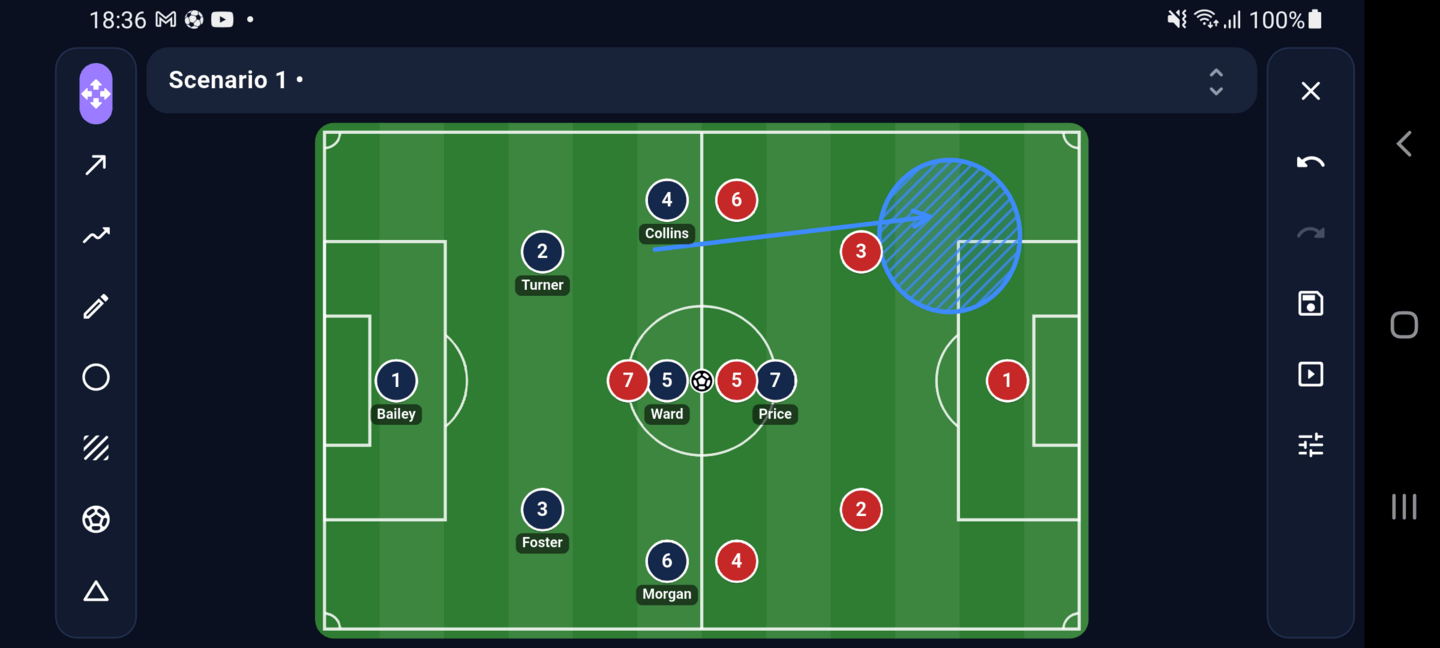
Under the pitch, tap + to add a step. While a step is selected, players you move and arrows you draw happen in that step; the start stays as it was. Add as many steps as the move needs, and tap Start or a step number to go back to it.
Play it and present it
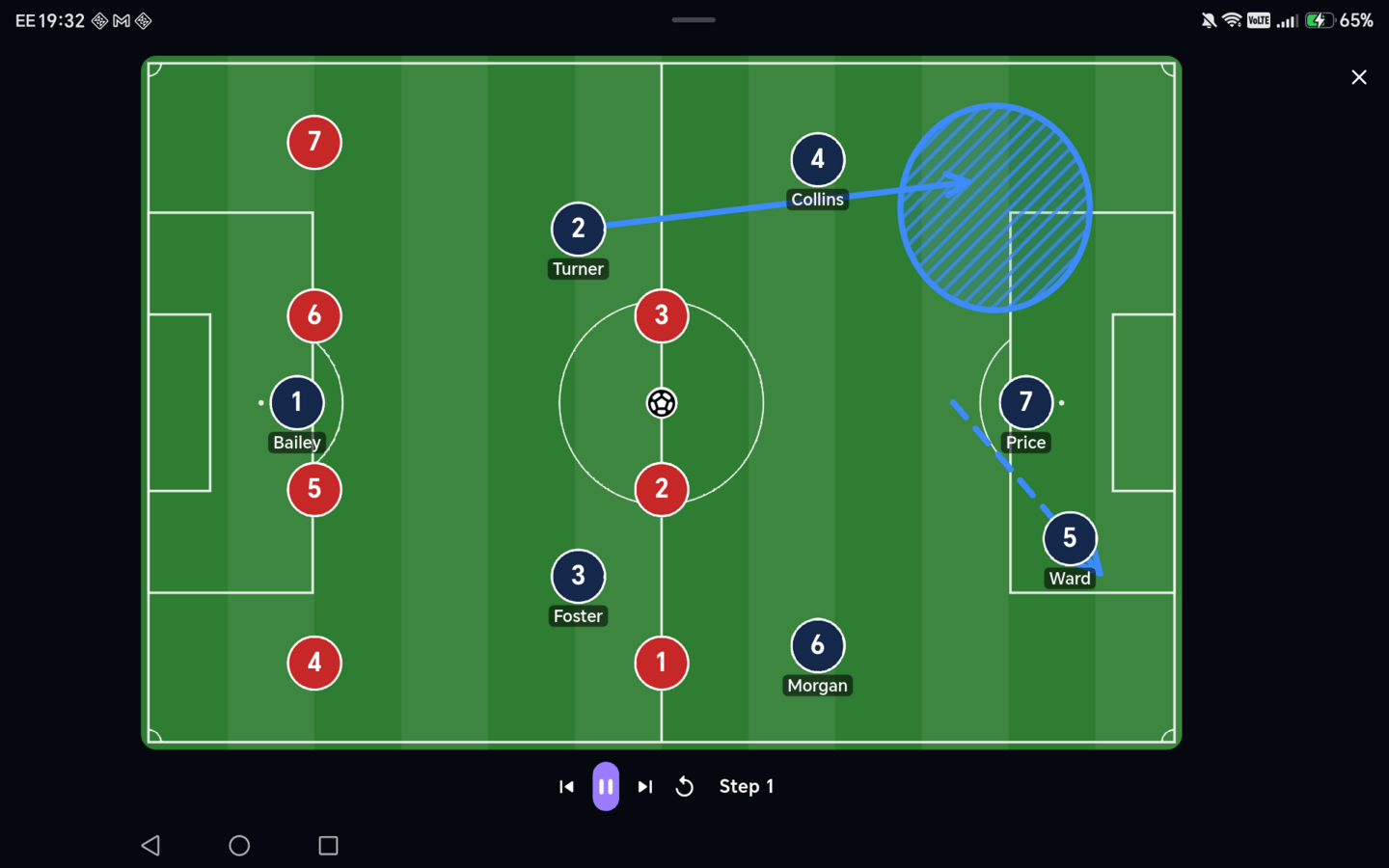
Play sequence shows the board full screen and plays the move: in each step the arrows draw in first, then the players move. Pause, go to the previous or next step, or replay from the start. Present shows the same clean board, paused at the start, for talking it through with the team.
Save your scenarios
Tap Save to keep the scenario on the match. Tap the scenario name to switch between scenarios, start a New scenario (from the match lineup, a formation or a blank pitch), rename it and add notes, duplicate or delete it. If you leave with unsaved changes, Athlo asks first.
If another coach saved the same scenario while you were editing it, Athlo asks whether to keep their version or save yours as a new scenario, so nobody's work is lost.
On a phone
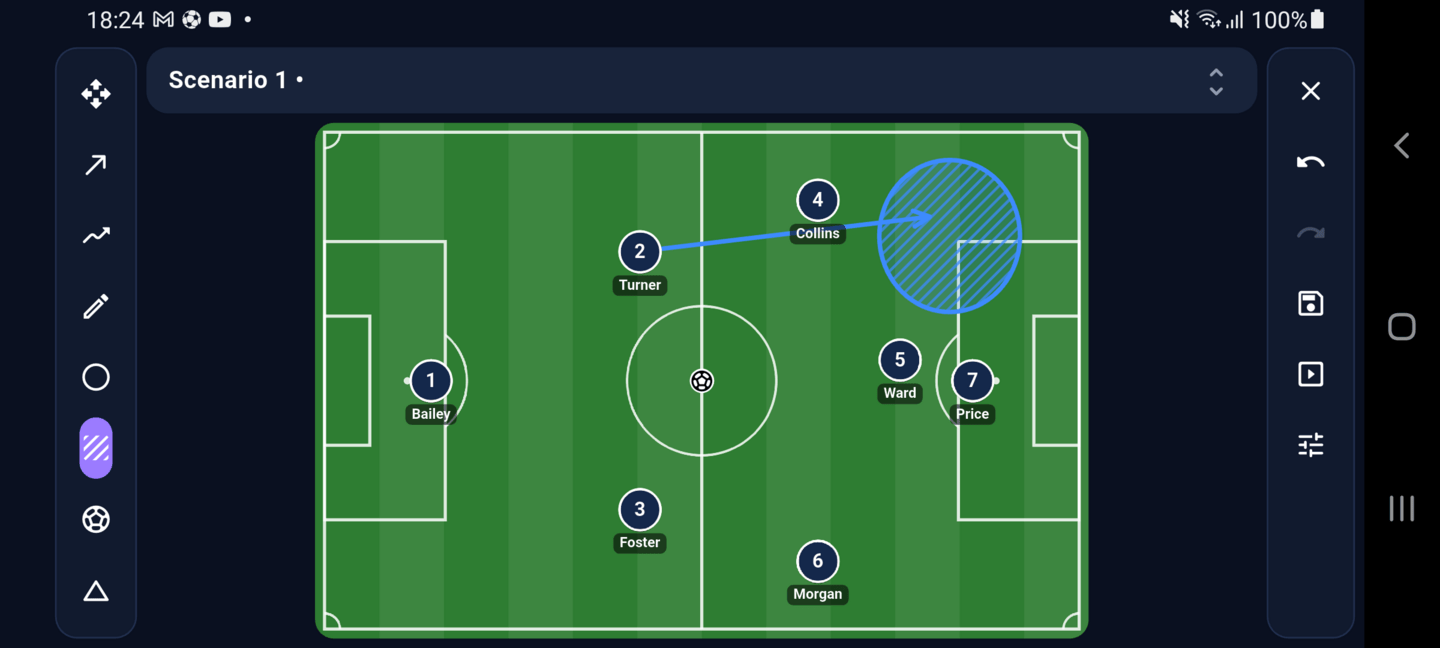
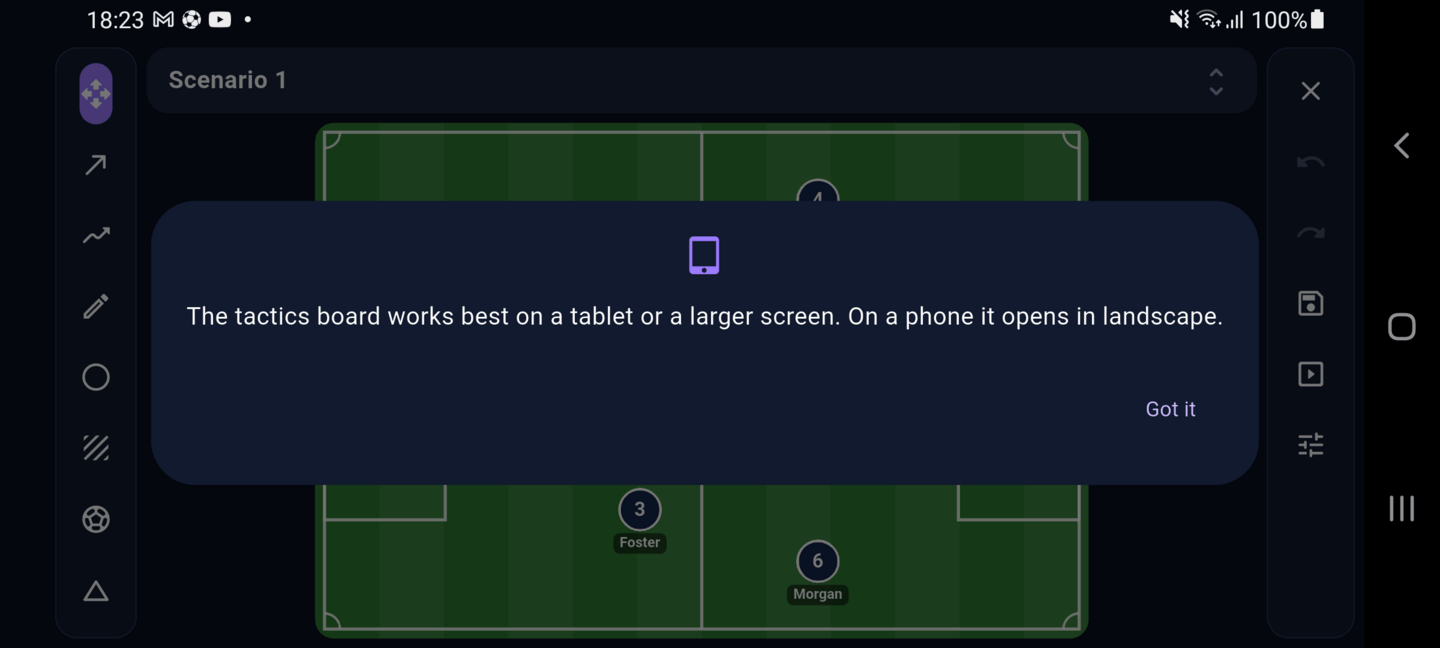
The board opens full screen in landscape, with the tools on the left and Close, Undo, Redo, Save, Present, Play sequence and the settings on the right. The first time, Athlo suggests using a tablet for the full layout. Your phone goes back to portrait when you close it.
Good to know
- Up to 30 scenarios per match, each with up to 20 steps.
- A board looks the same on every device: positions are saved relative to the pitch, not your screen.
- Nothing on the board is recorded as a match event: drawing a goal-scoring move doesn't change the score or anyone's stats.
- On a tablet held upright the pitch is vertical, with the tools and buttons arranged to fit.