

Club Admin
Managing teams
Teams group your club's players by squad, age group, or competition. This guide covers creating a team and adding players to its roster — and which roles are able to do it — using a real club from a live season: adding Oskar Wieczorek to Tester U8.
Who can do this
Team rosters can be managed by admins and by anyone in a club's managers group. Coaches and regular members can view teams but not edit them.
Step by step
Open your club's Teams list
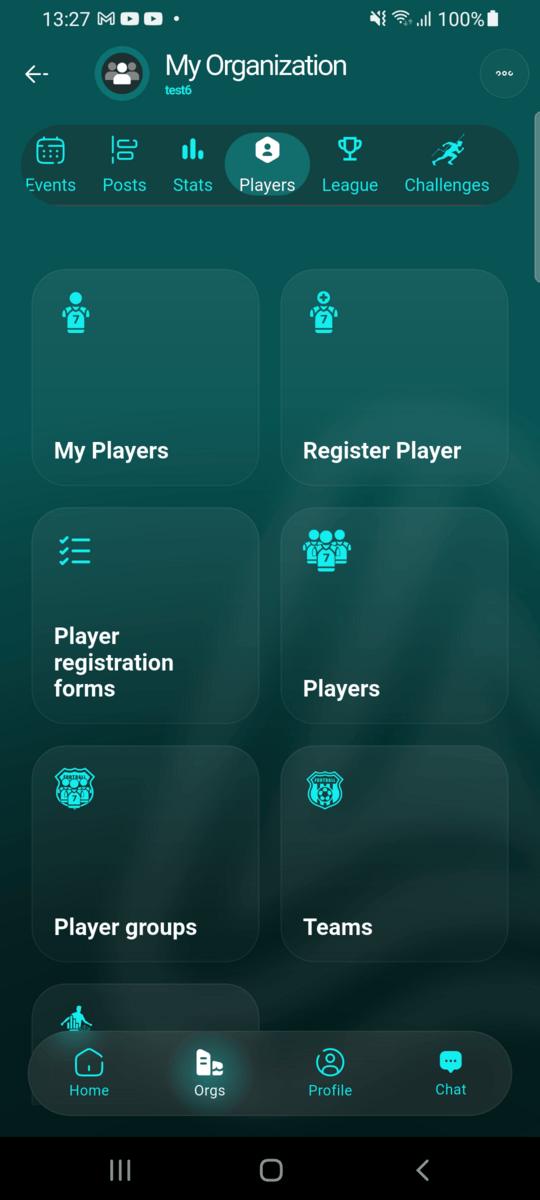
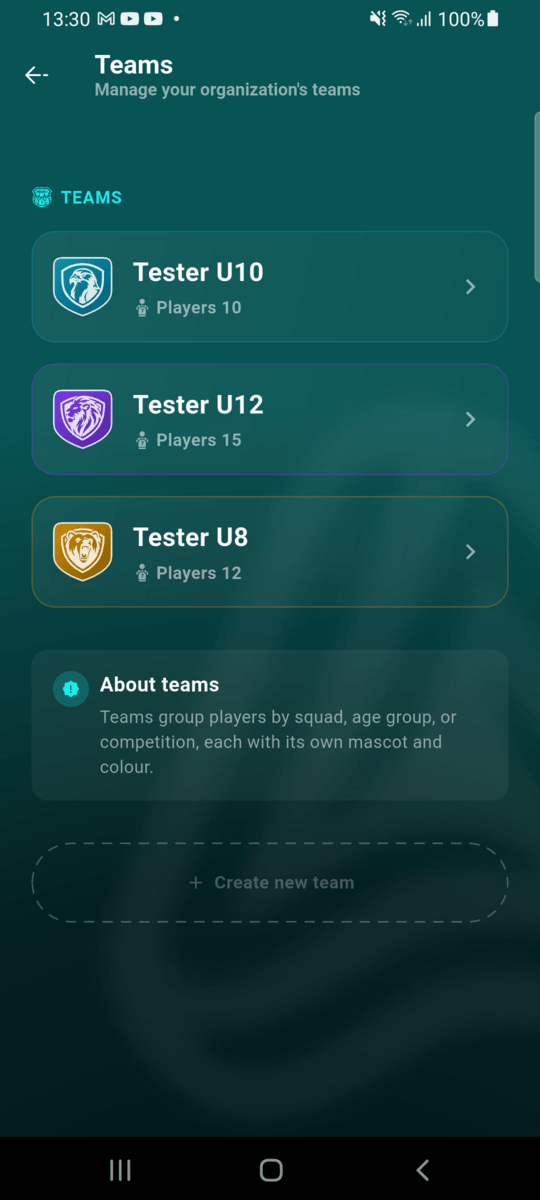
From your club's page, go to Players, then tap Teams to see every team in your organisation, or Create new team to start a new one.
Open a team and tap Edit
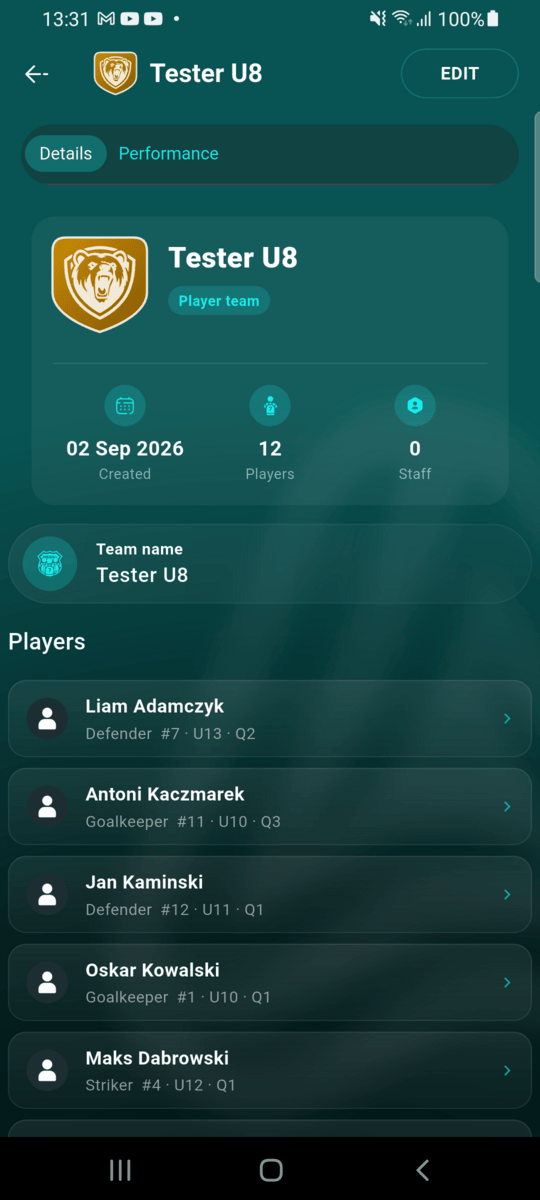
Tap into a team to see its details and current roster, then tap Edit in the top-right corner. If you don't have permission to manage rosters, this button won't appear.
Add a player from the roster editor
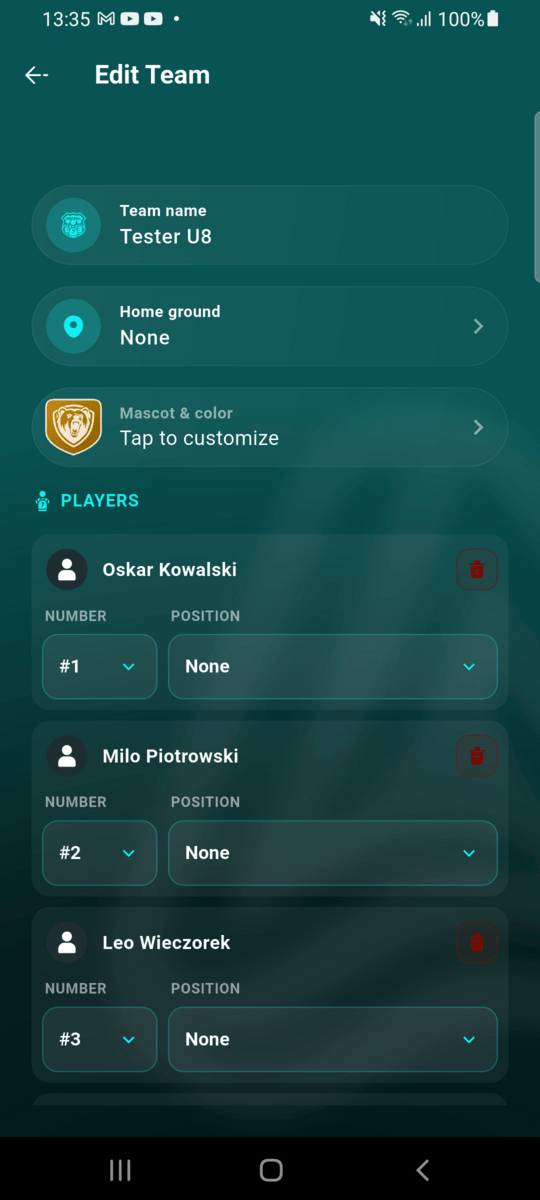
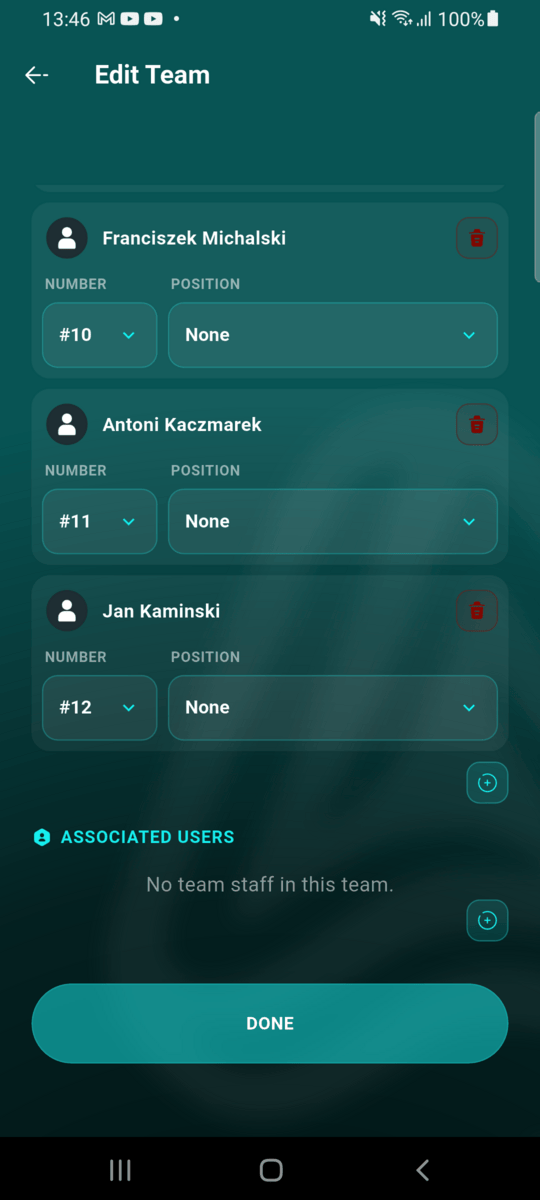
The edit screen lets you rename the team, set a home ground, customise its mascot and colour, and set each player's shirt number and position. To add someone new, scroll to the bottom of the players list and tap the small + button.
Pick the player
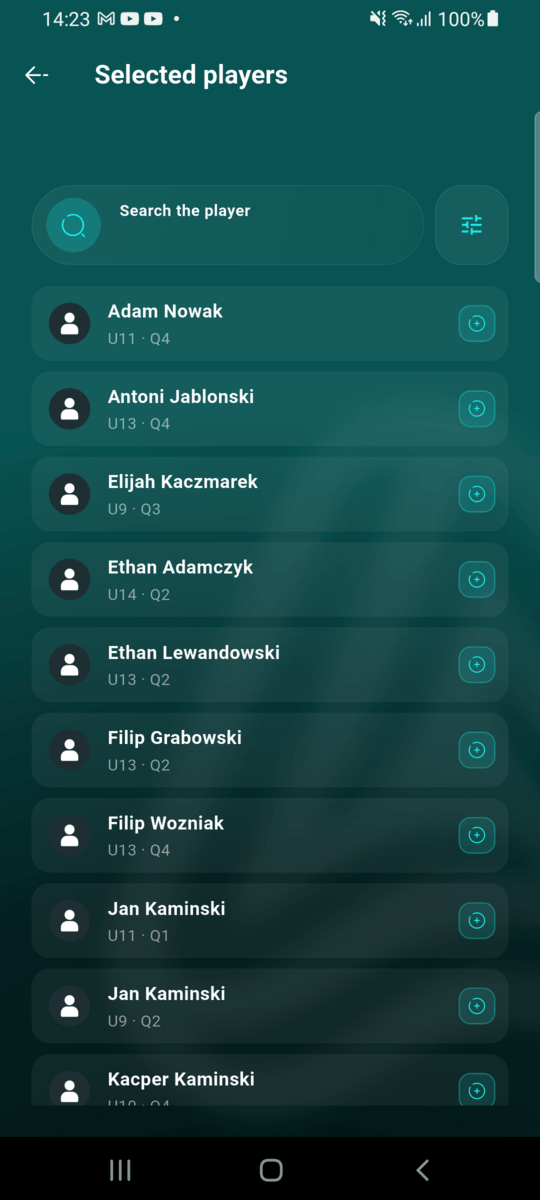
Search for the player and tap them to add them straight to the roster — there's no separate confirm step.
Invite them to upcoming events
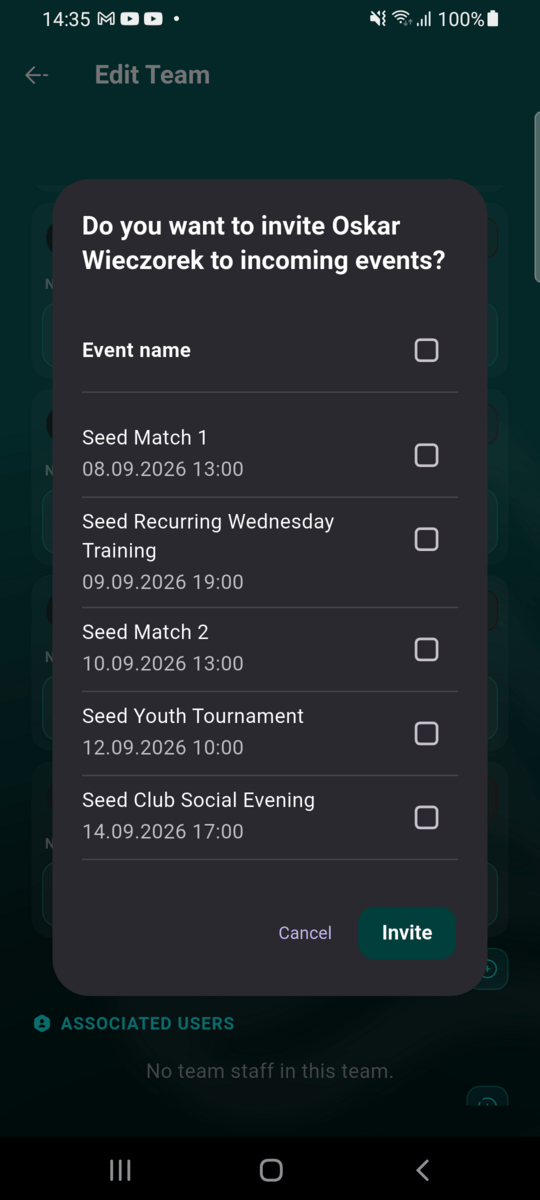
Adding a player to a team with events already scheduled offers to invite them to those events on the spot, so they don't miss training or a match just because they joined the roster after it was created.
Save and confirm
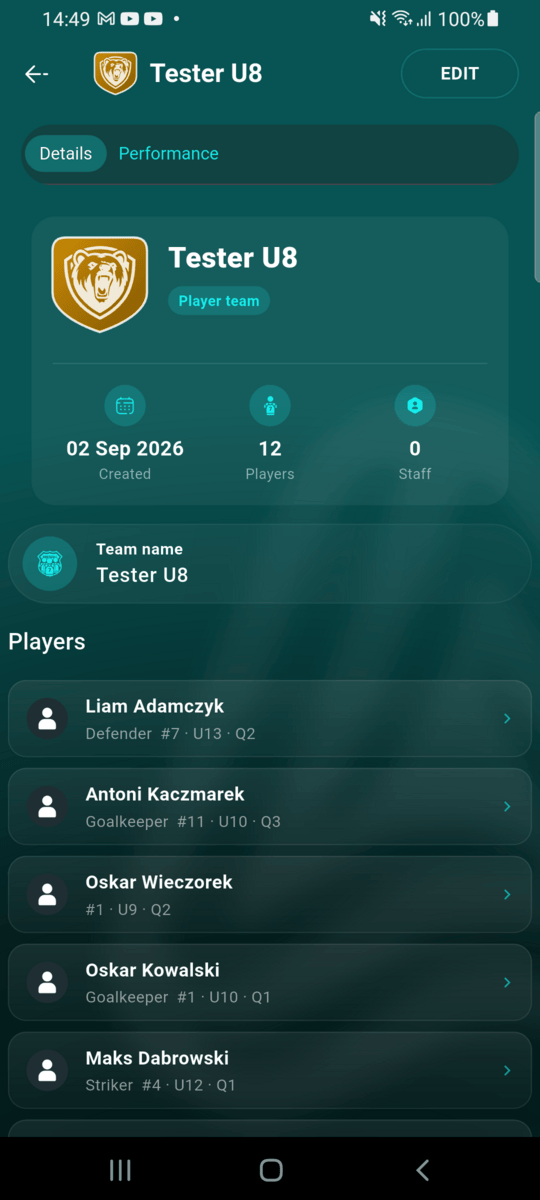
Tap Done to save. The player now appears on the team's roster with their shirt number, age group, and birth quarter.
Removing or moving a player
From the same edit screen, tap the trash icon next to a player's name to remove them from the team. There's no separate "move" action — to move a player to a different team, remove them from the old one and add them to the new one from that team's edit screen.