
Club Admin
Match tracker
The match tracker records a game as it happens: who started, every goal, shot, card and substitution, and when each half began and ended. Score, stats and player minutes are built from those events. This guide follows Riverside Athletic FC U10's home friendly against Kingfisher Colts U10 from the starting lineup to the final whistle.
Before you start
You need a match on the calendar with players invited, see Creating a match. Only invited players can be placed in the lineup or brought on as substitutes. Everyone with access to the match can watch the tracker on their own device, and events logged on one device appear on the others within a few seconds.
Phone or large screen
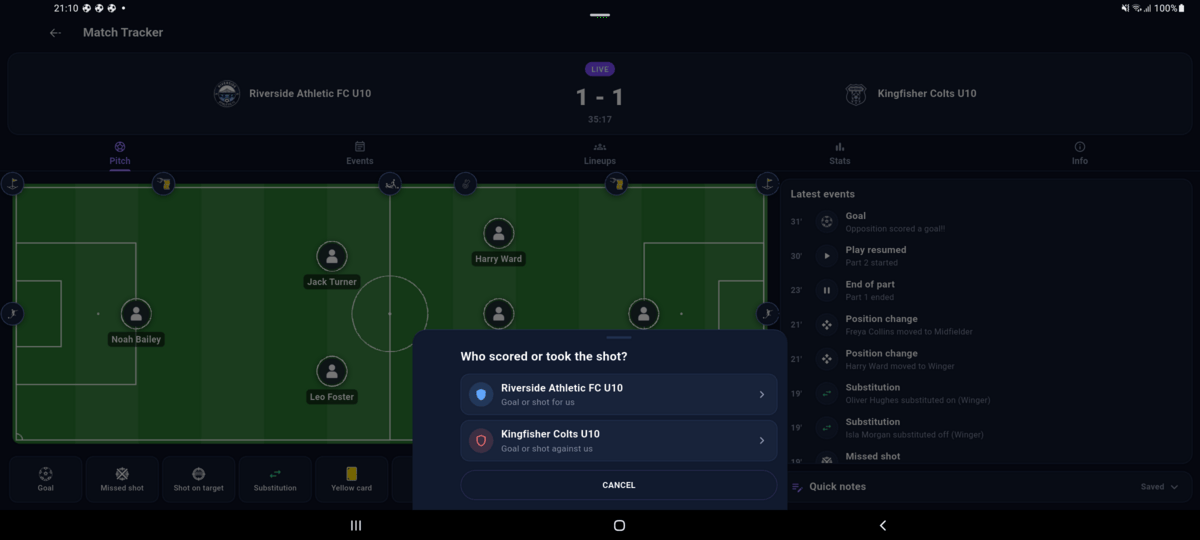
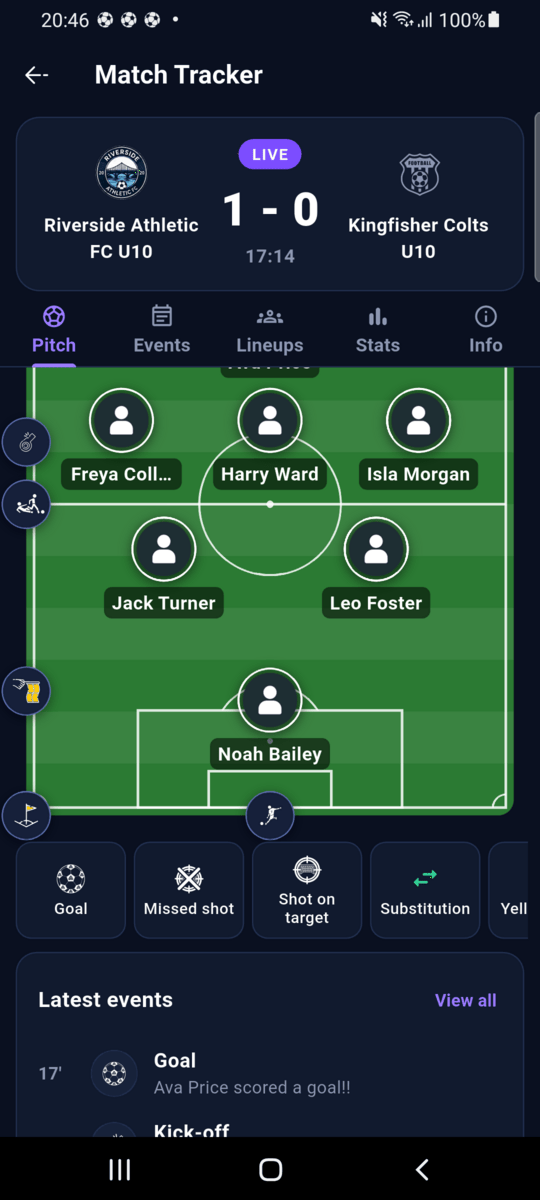
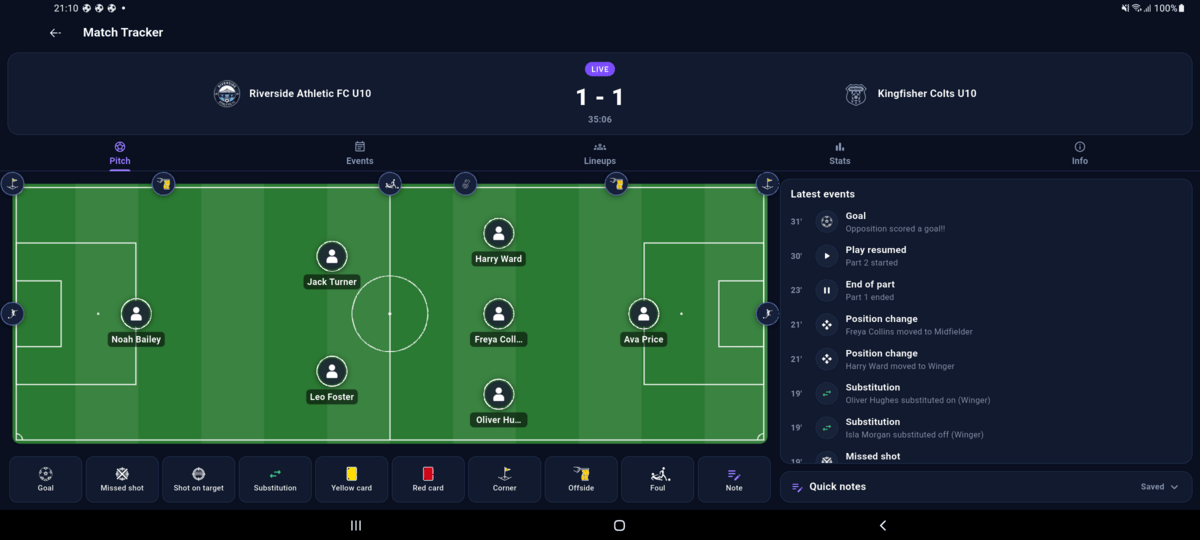
The tracker adapts to the device. On a phone the pitch fills the screen, with the event buttons and the latest events underneath. On a tablet or a 14″ screen held sideways, the pitch lies horizontally with your goal on the left, the event buttons run along the bottom and the latest events and quick notes sit beside it. Every step below works the same way on both.
1. Build the starting lineup
Open Match control
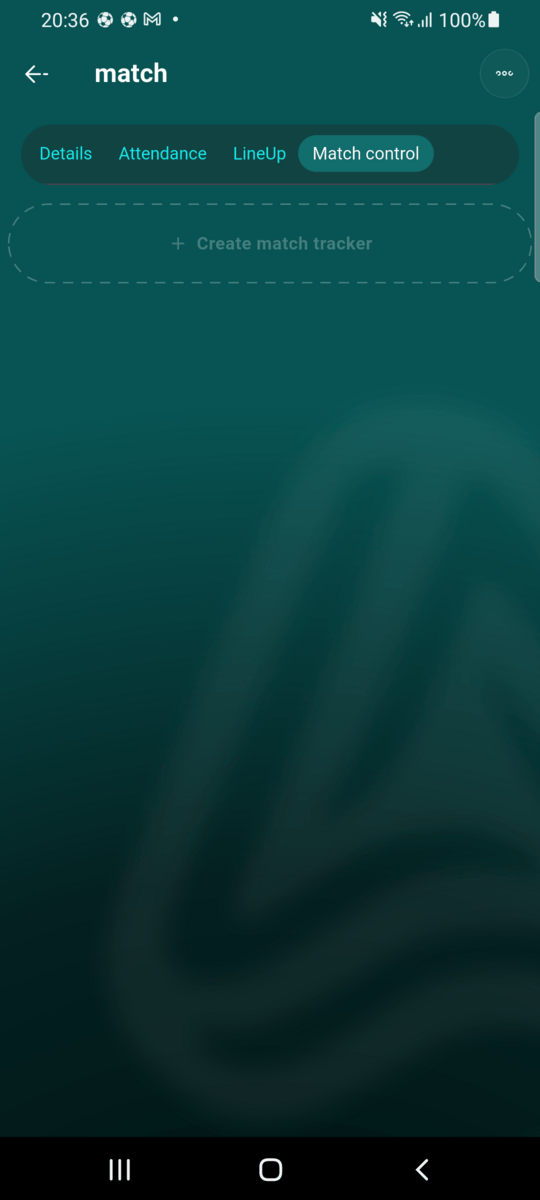
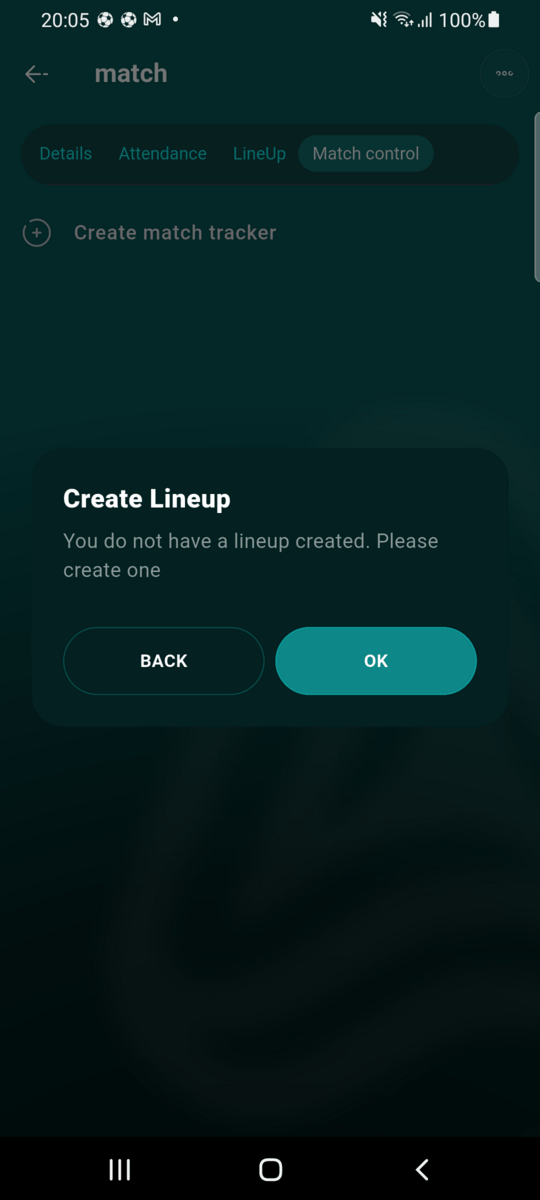
Open the match and go to the Match control tab. Tap Create match tracker. If the match has no lineup yet, Athlo asks you to create one first. Tap OK.
Name the lineup, pick the game type and formation
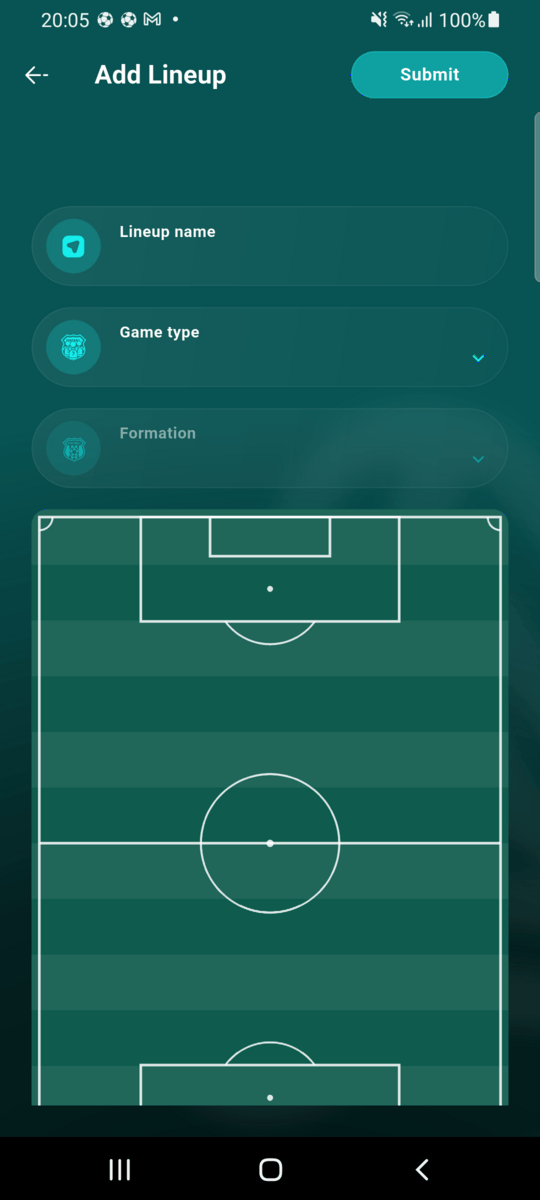
Give the lineup a name, choose the Game type (for example 7v7), then a Formation (for example 2-3-1). The positions appear on the pitch.
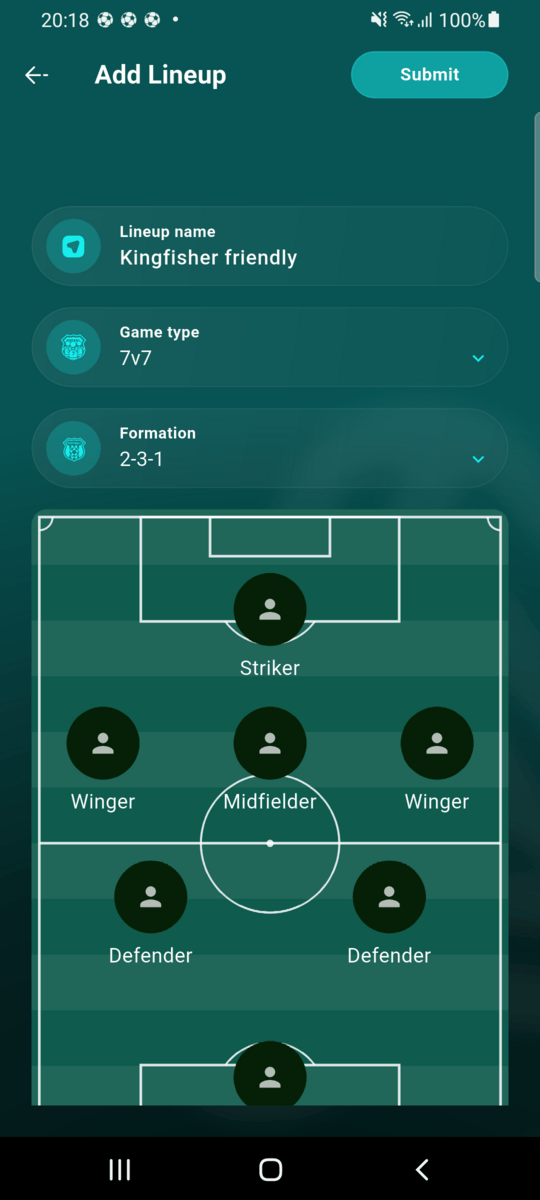
Fill each position
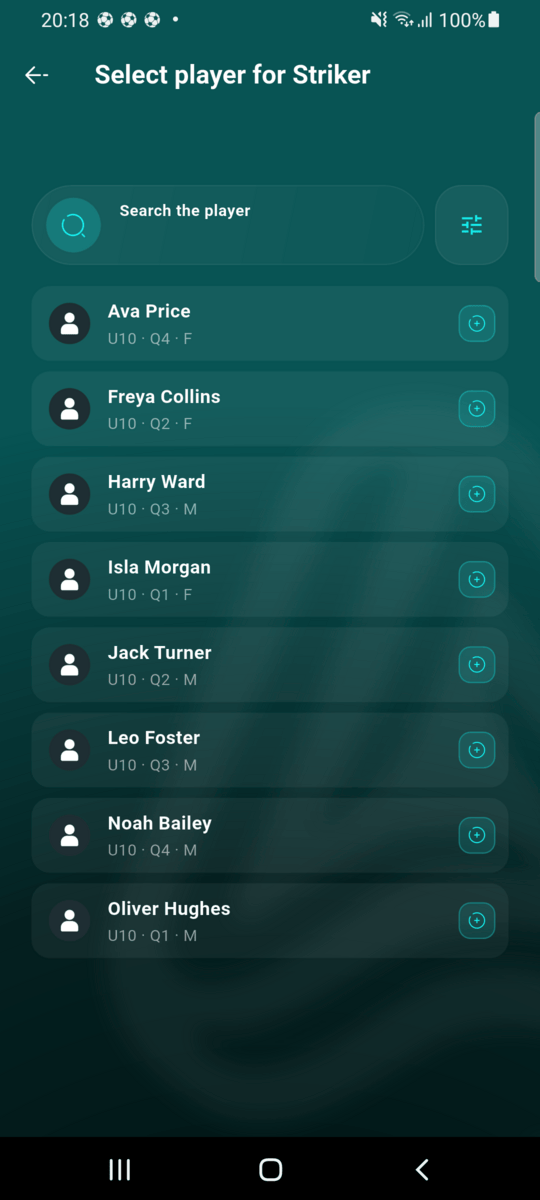
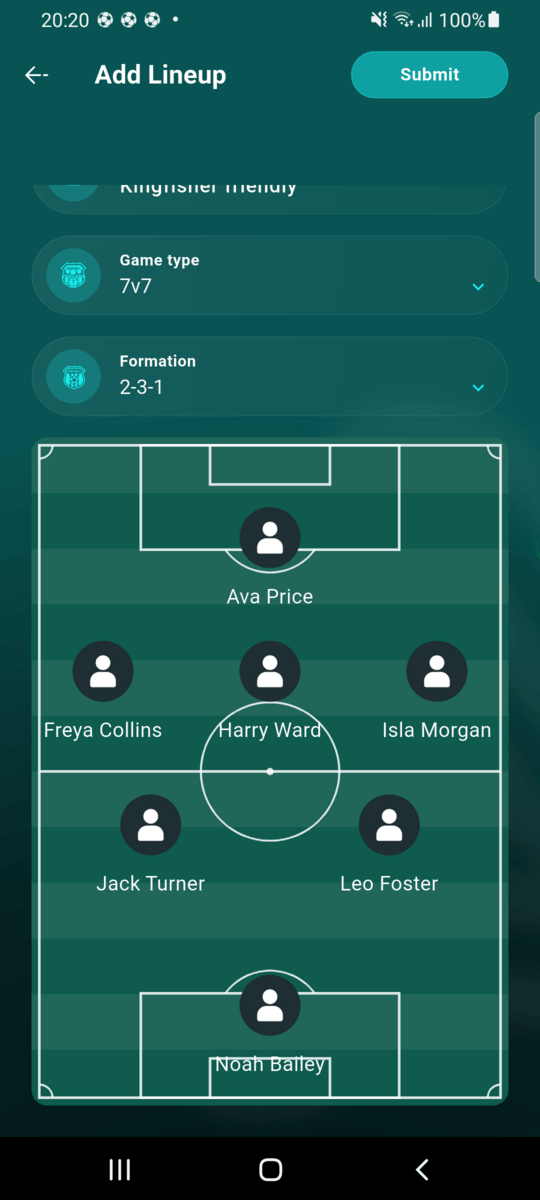
Tap a position to choose who plays there. Only players invited to this match are offered — never the whole club — each shown with their age group, birth quarter and sex. Search by name, or tap the filter button to narrow the list by age group, birth quarter, sex and Invite response, so you can build the lineup from the players who actually accepted rather than everyone who was asked. A player already placed somewhere else isn't offered again. To empty a position, tap it and choose Unassign player. When every position is filled, tap Submit.
2. Set up the tracker
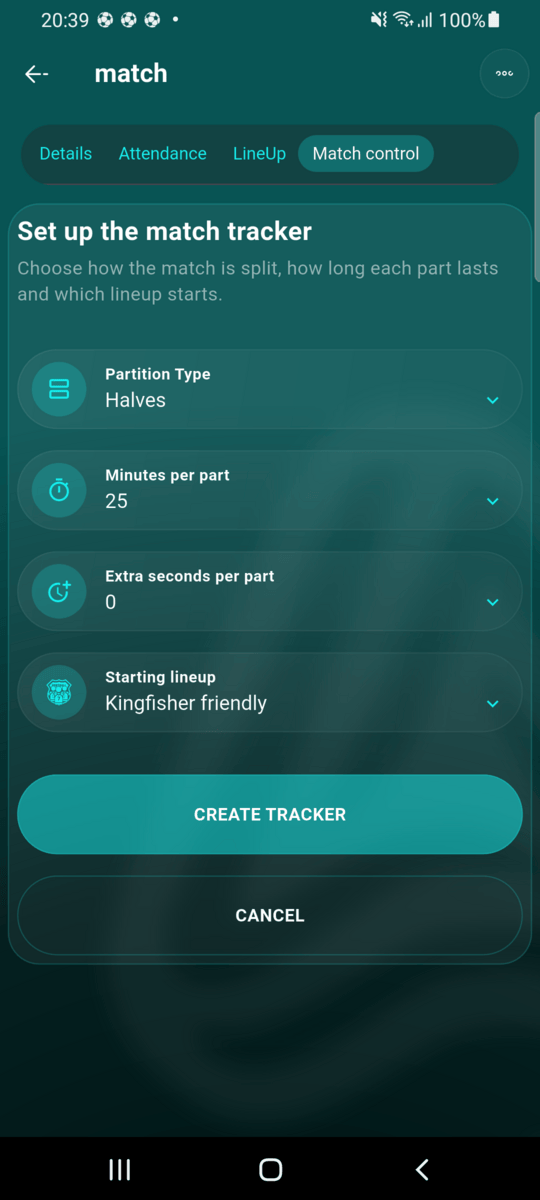
Choose how the match is split
Back on Match control, tap Create match tracker again. Choose the Partition Type (Halves, Quarters or Custom with your own number of parts), the Minutes per part and the Starting lineup, then tap CREATE TRACKER.
Change the starting lineup before kick-off
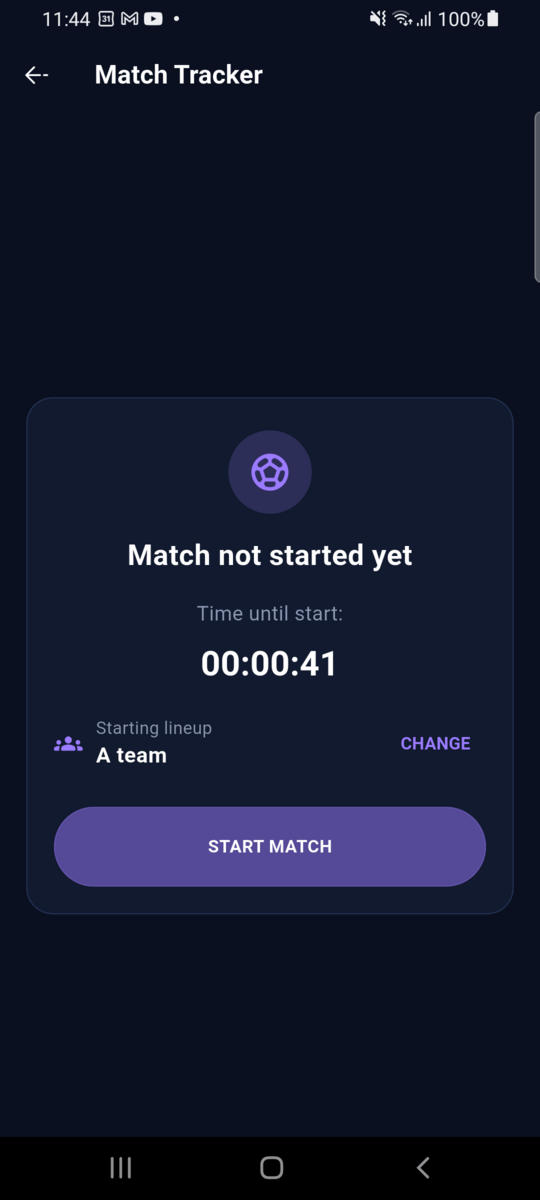
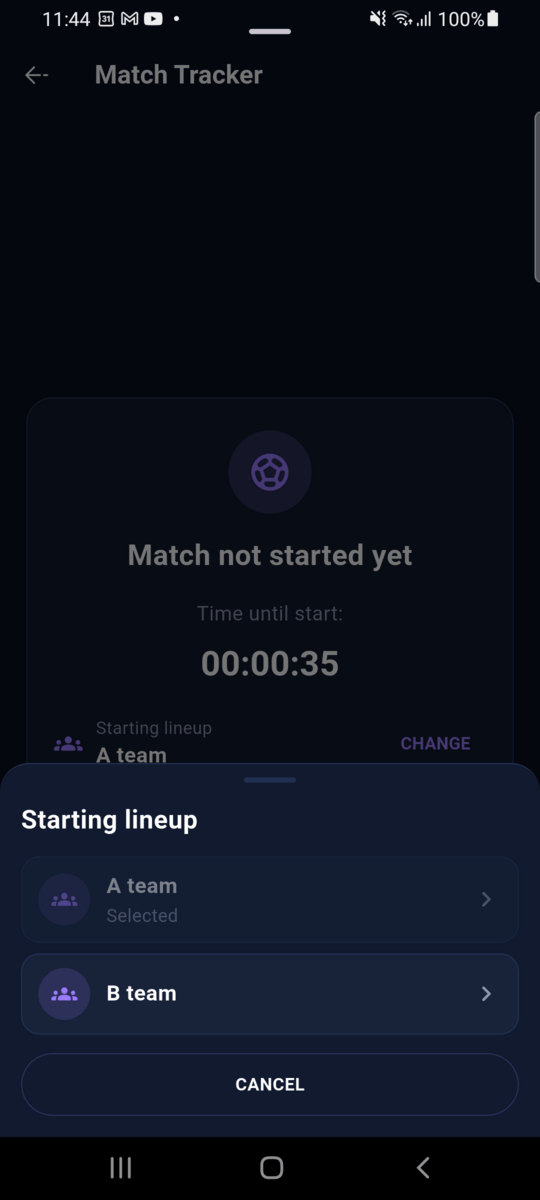
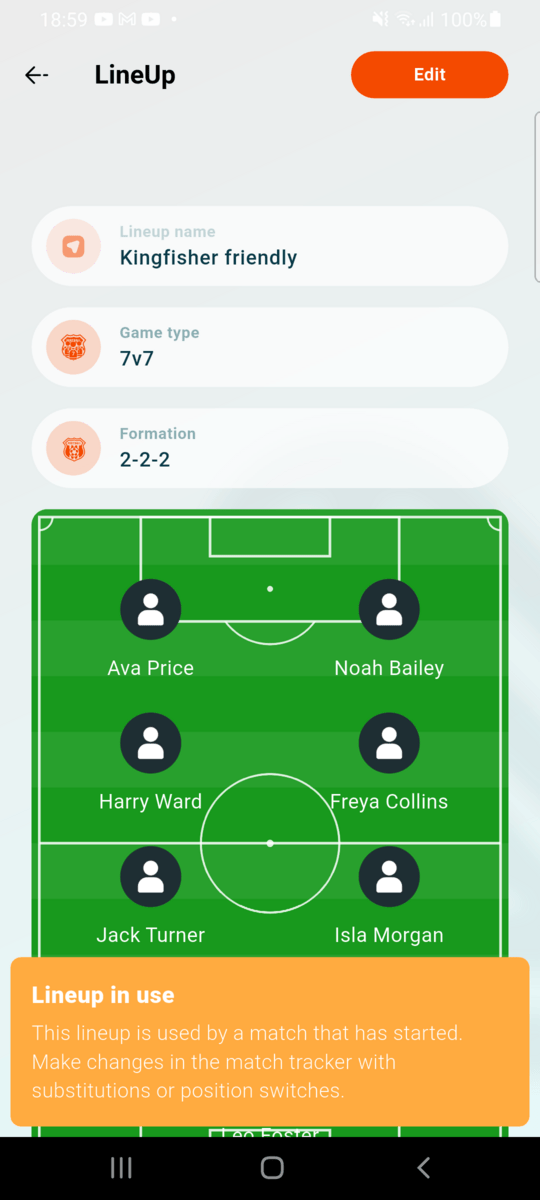
If you made more than one lineup for the match, the tracker shows which one will start under Starting lineup. Tap CHANGE to pick another one, for example when a player is ill on the day. Once the match has started, the starting lineup is fixed, and the lineup itself is locked: in the match's LineUp tab you can still rename it, but not change its players or formation, or delete it. To change who's playing after that, use the tracker (see below).
Kick off
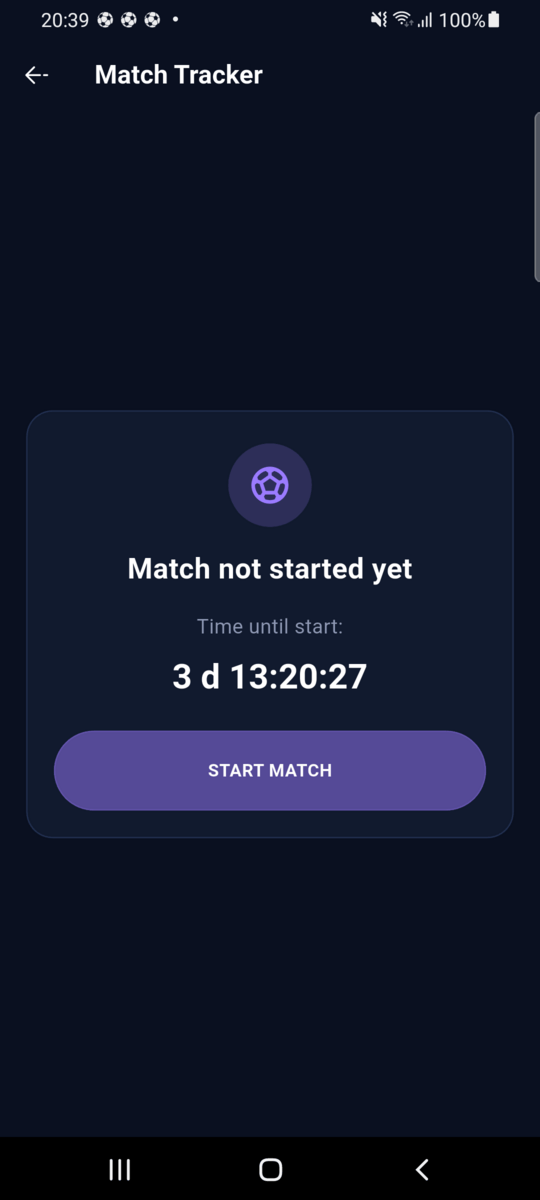
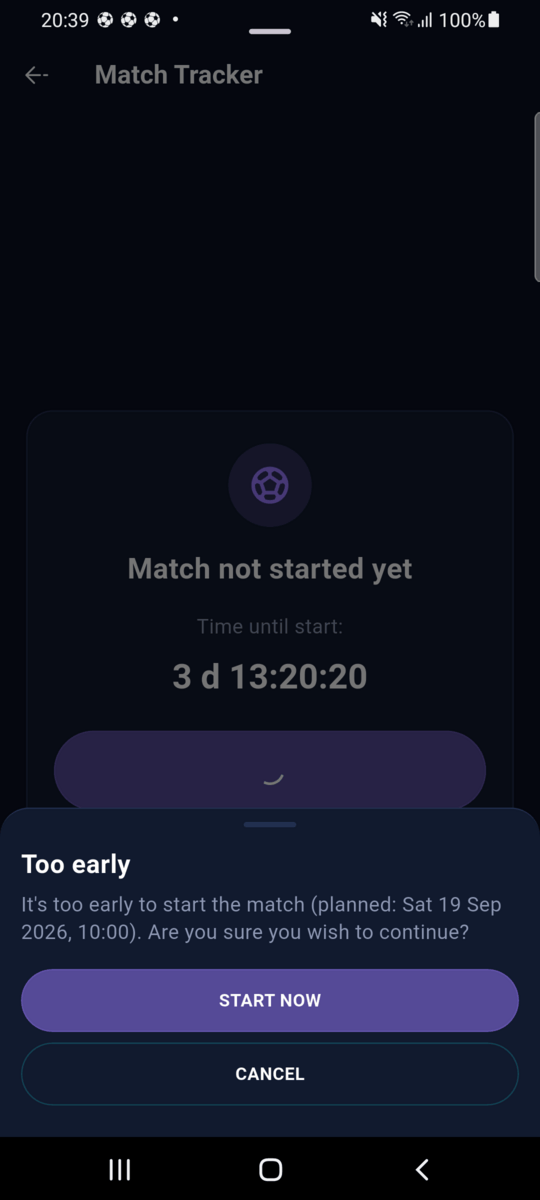
The tracker opens and counts down to the planned start. When the referee blows the first whistle, tap START MATCH. If you start before the planned time, Athlo asks you to confirm. If you start after it, you can record kick-off as right now or at the planned time.
The match is live
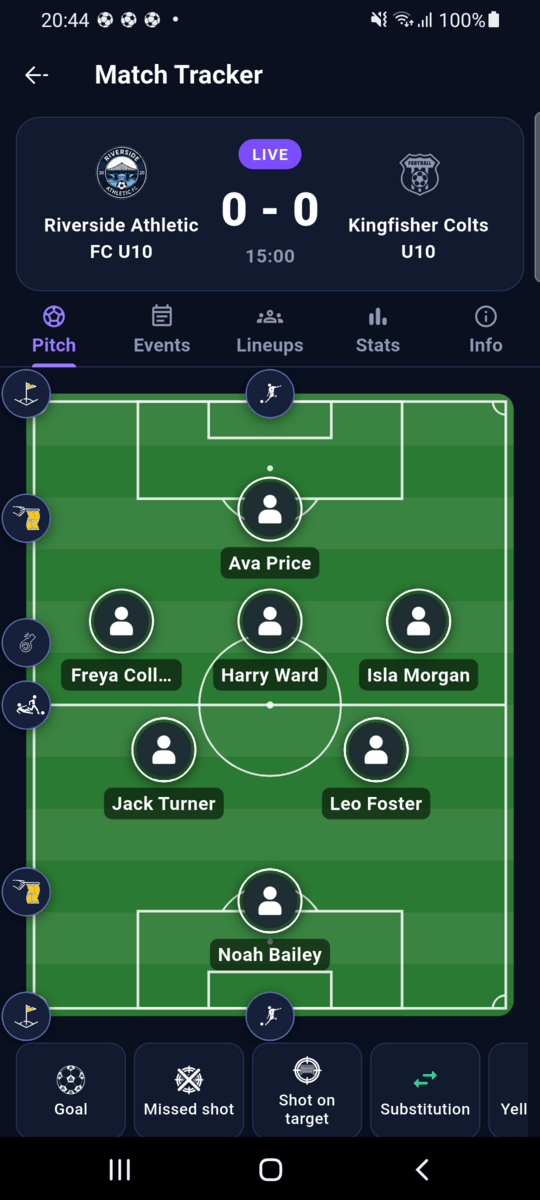
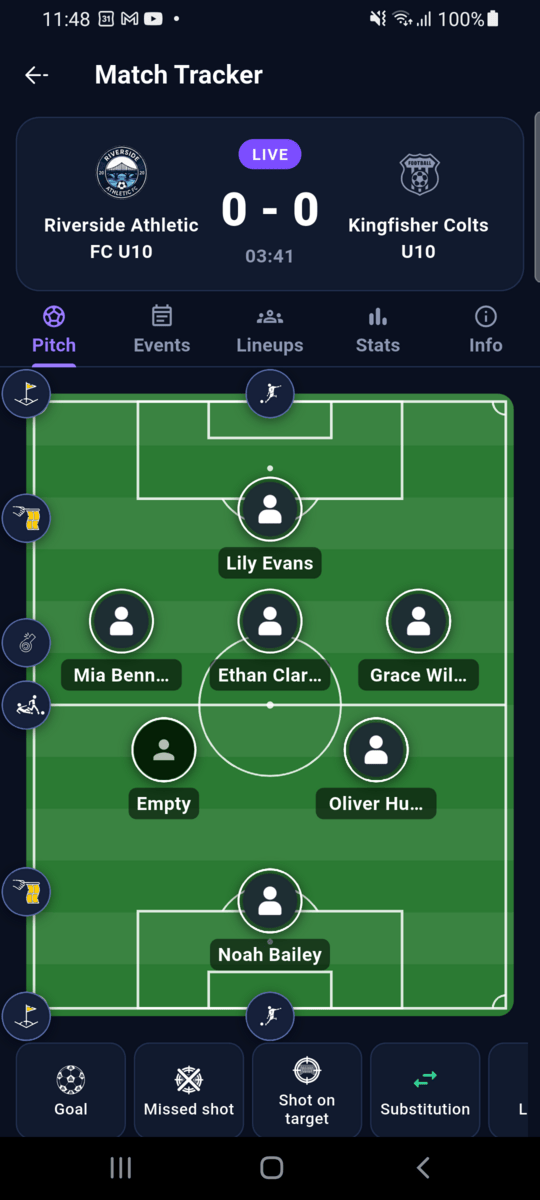
The header shows LIVE, the score and the match clock. The starting lineup is on the pitch, your goalkeeper at the bottom (or on the left on a large screen).
3. Log what happens
Use the buttons under the pitch: Goal, Missed shot, Shot on target, Substitution, Yellow card, Red card, Corner, Offside, Foul and Note. On a phone, swipe the row sideways to see them all. The same actions are also on the round buttons around the edge of the pitch. Each event is stamped with the match minute at the moment you tap.
A goal, with scorer and assist
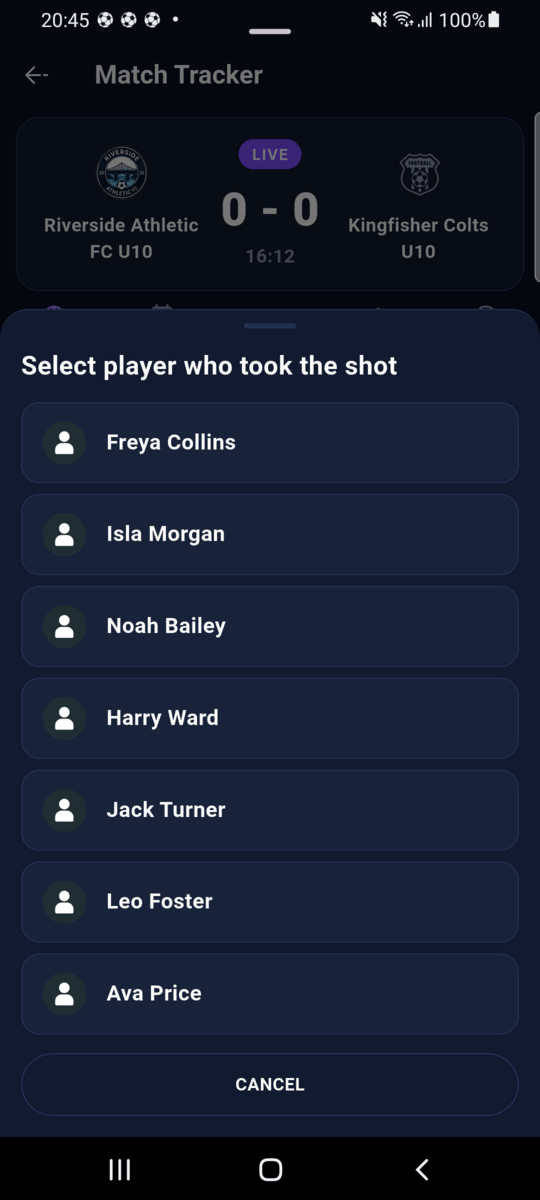
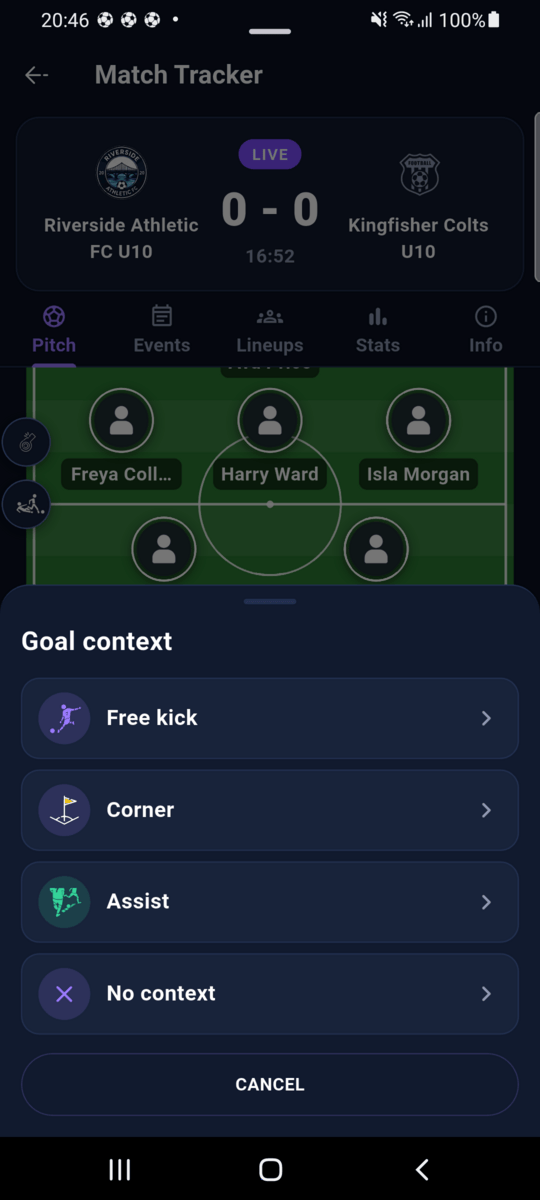
Tap Goal and choose the team. For your team, pick the scorer, then how the goal came about: Free kick, Corner, Assist (then pick who assisted) or No context. The score updates straight away.
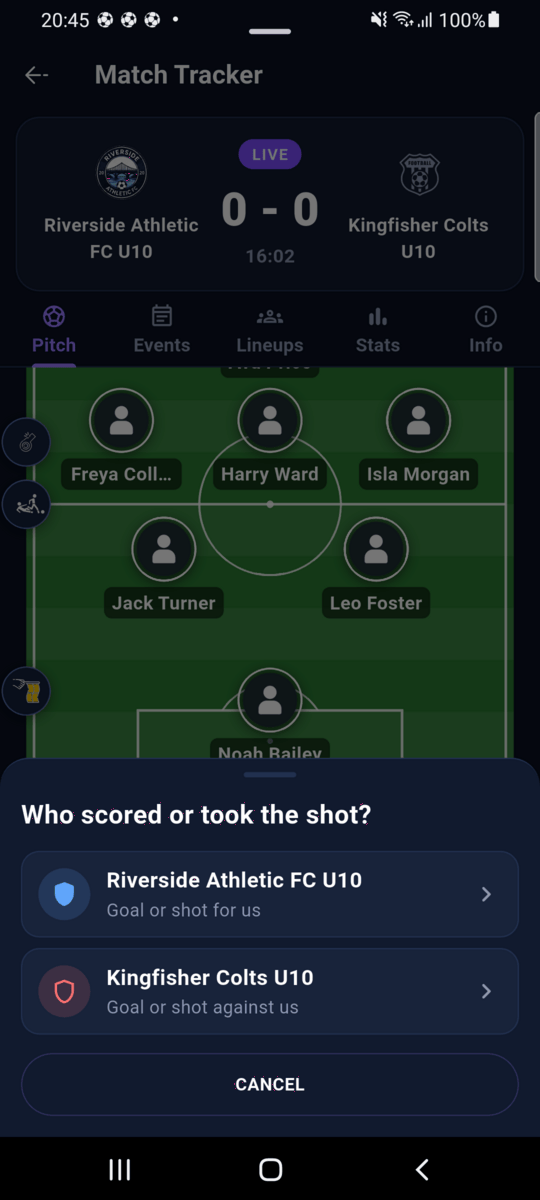
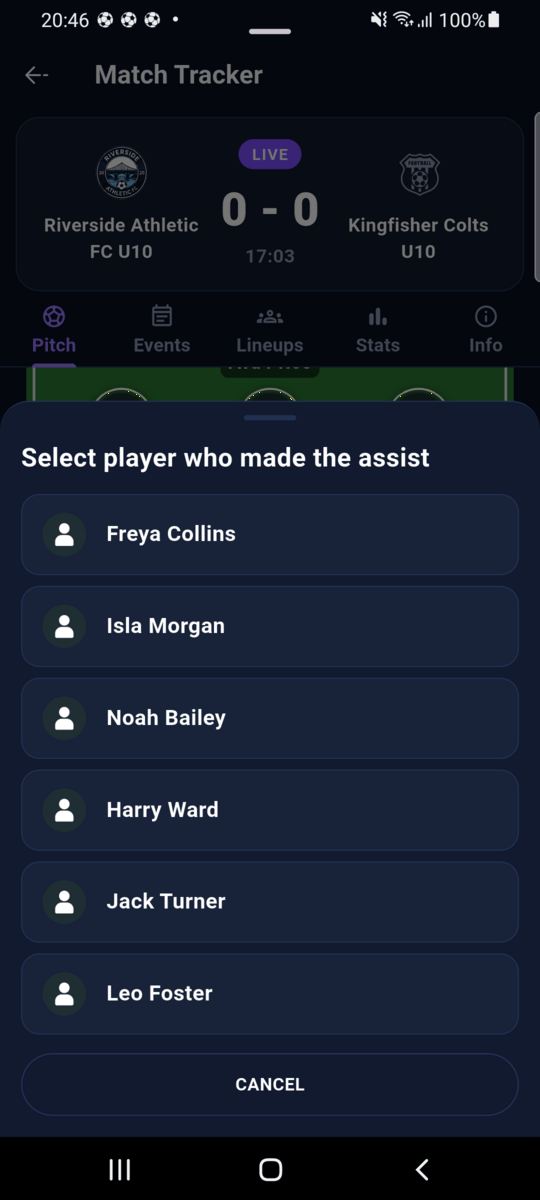
A goal for the opponent needs only the team. Athlo doesn't track the other side's players.
Shots on target and missed shots
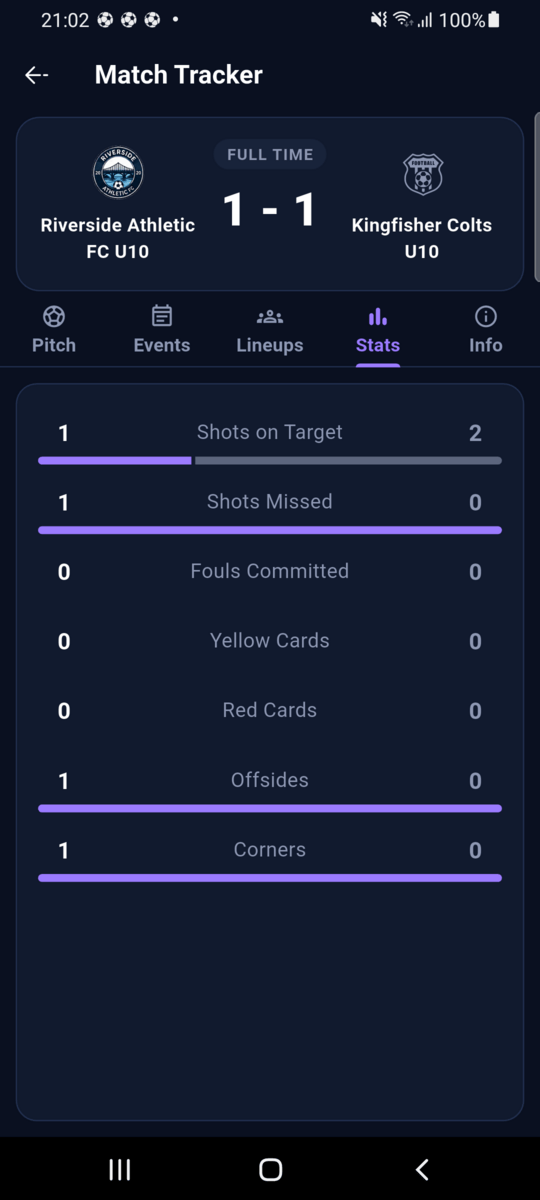
Shot on target and Missed shot work like a goal: pick the team, then the player for your side. They feed the Stats tab.
Substitutions
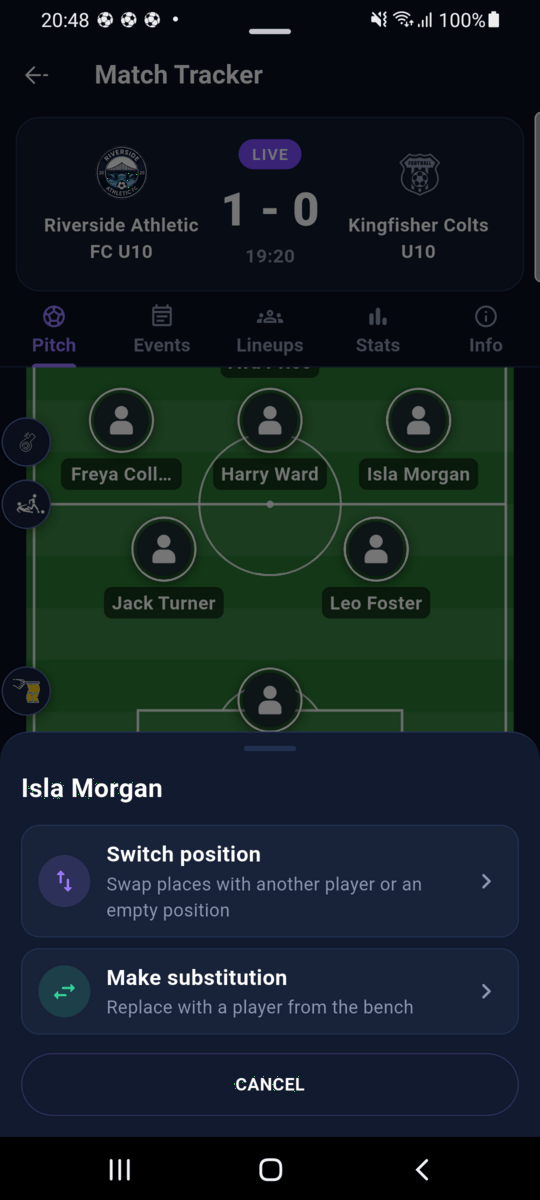
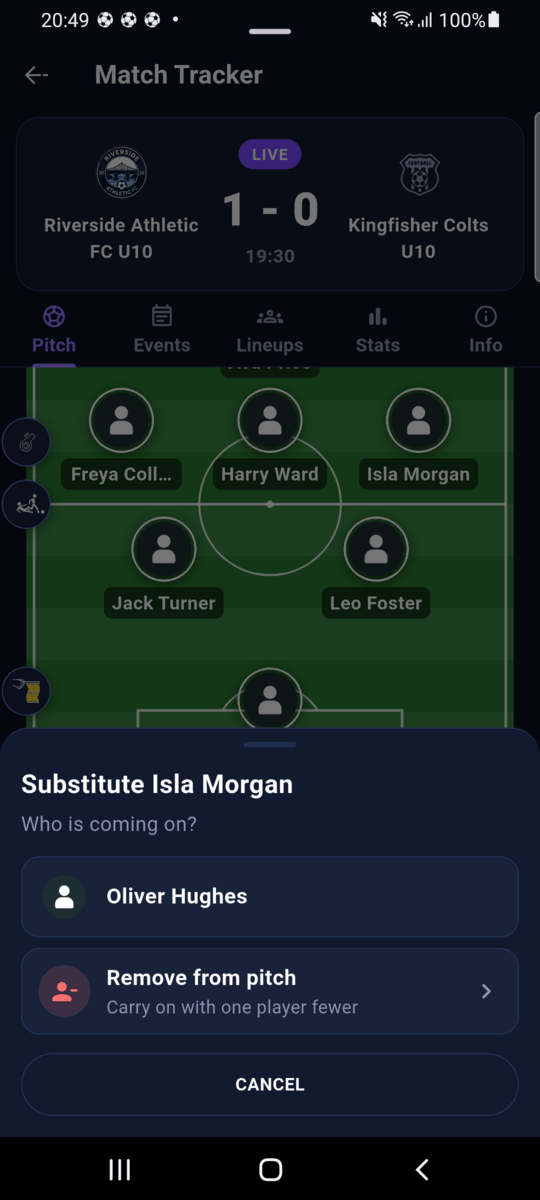
Tap the player coming off, either on the pitch or with the Substitution button, and choose Make substitution. Then pick who's coming on from the bench. Red-carded players aren't offered. Remove from pitch takes the player off without a replacement, as long as enough players stay on. Their position stays on the pitch, marked Empty, and you can move another player into it with Switch position.
Changes on the field
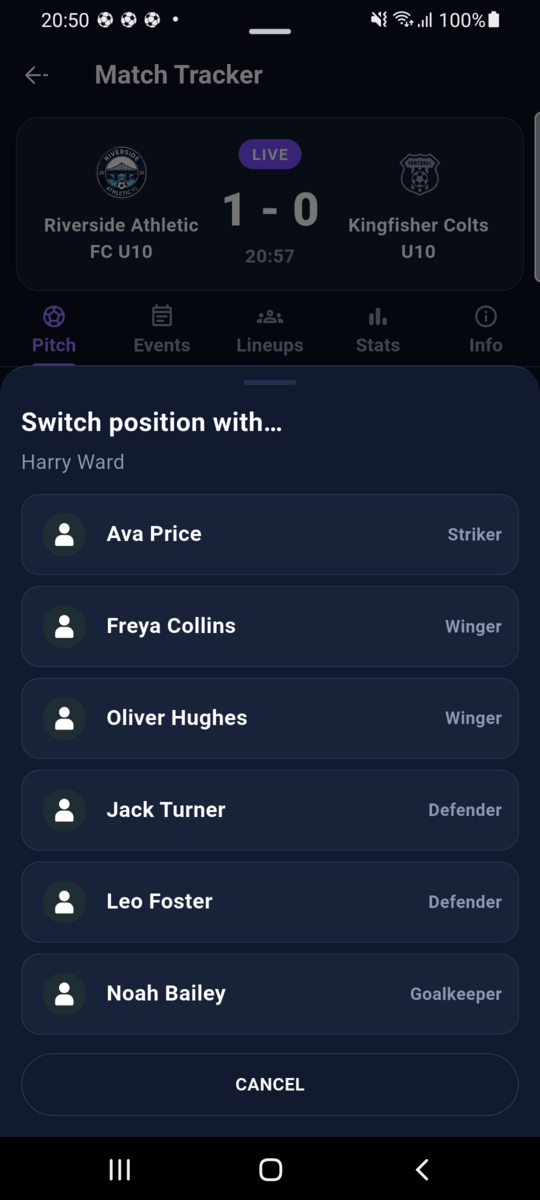
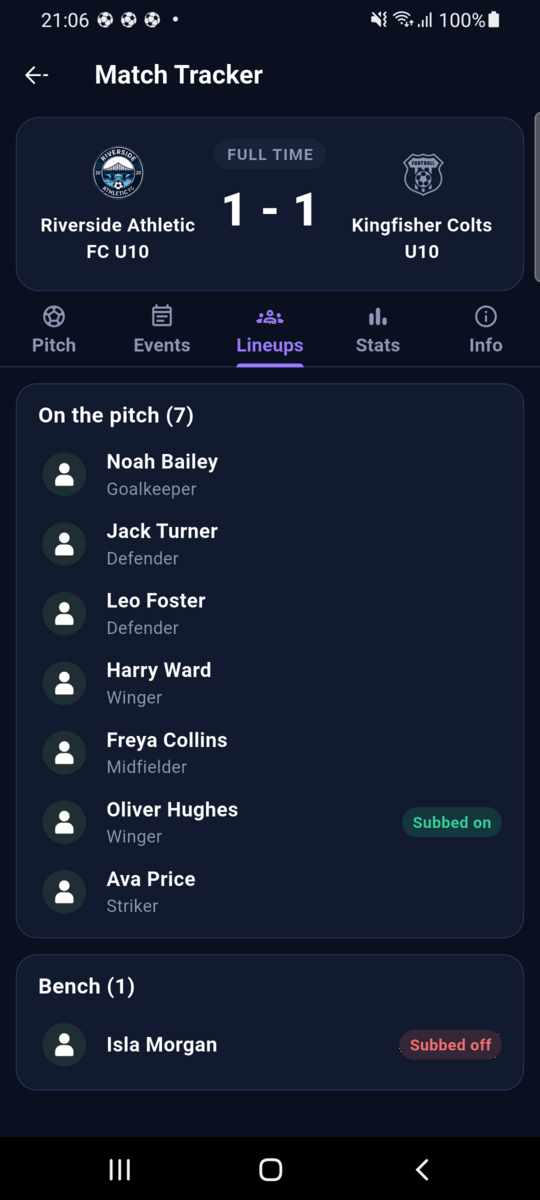
To move players around, tap a player, choose Switch position and pick who they swap with, or an empty position. You can also drag a player to a new spot on the pitch. Every move is recorded, so the Lineups tab always shows who played where.
Make changes in the tracker, not the LineUp tab
Playing a player short, or changing shape? Do it with the tracker's own tools: Remove from pitch, substitutions, Switch position or switching to another lineup. They record who played where and for how long, which is what the Lineups tab, minutes and career statistics are built from. The match's lineup is locked once the match has started. Tapping Edit on it explains this instead of opening the editor.
Switch to another lineup
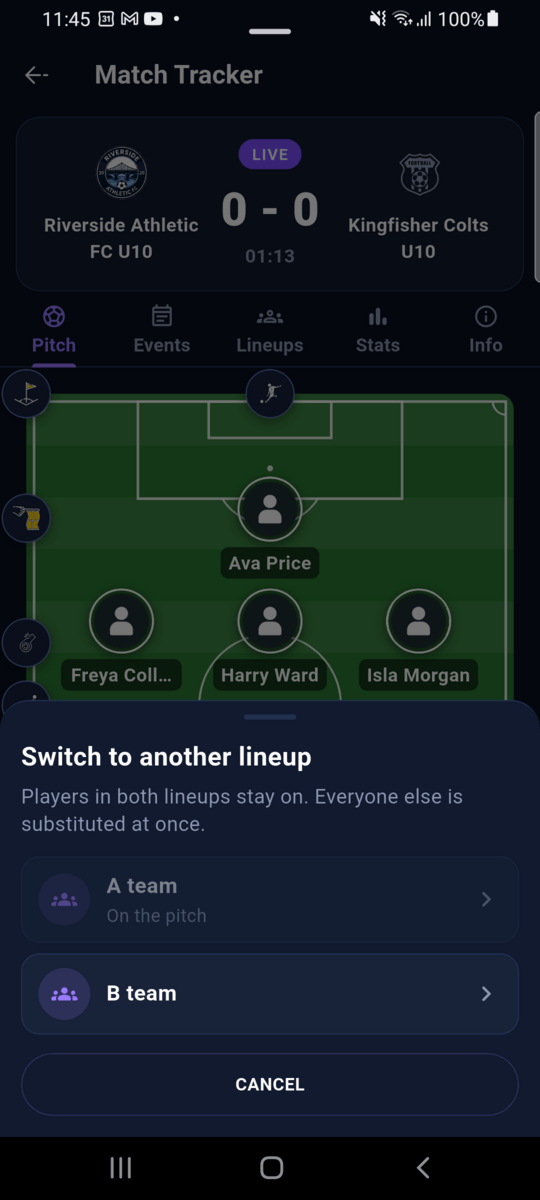
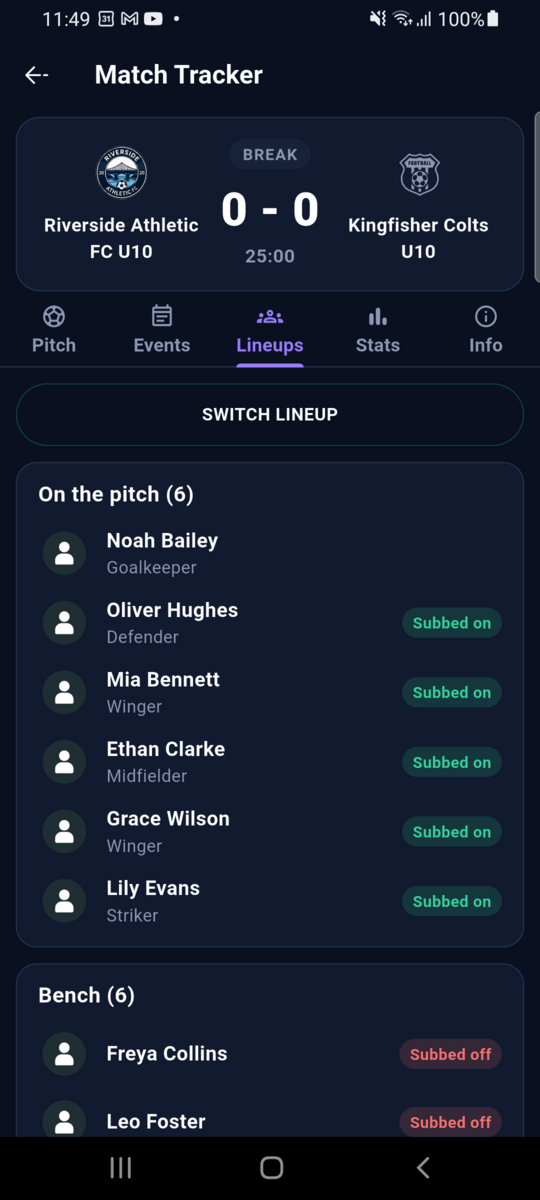
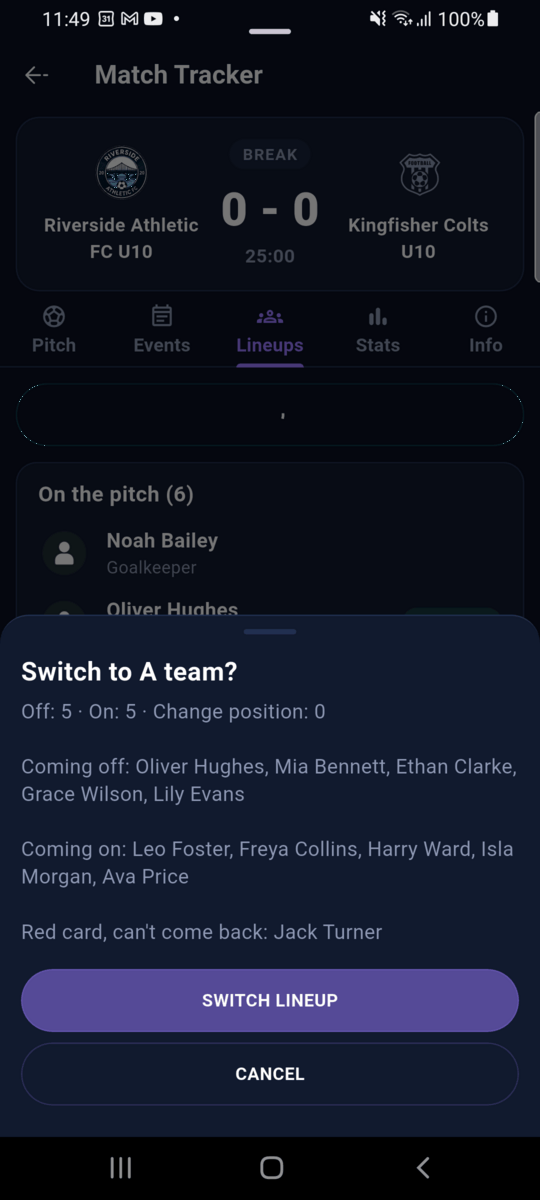
Made more than one lineup, say an A team and a B team that each play a half? Tap Lineup in the buttons under the pitch (scroll them sideways if you can't see it), or SWITCH LINEUP on the Lineups tab. Pick the lineup to switch to. The one playing now is marked On the pitch.
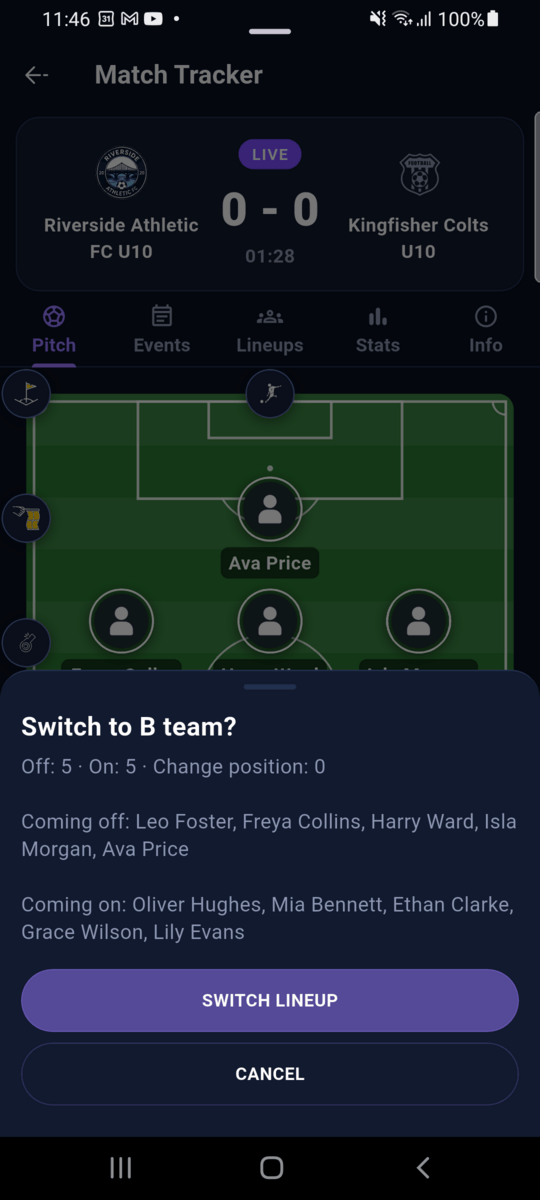
Before anything changes, Athlo shows who comes off, who comes on and who only changes position. Players in both lineups stay on and keep their minutes. Everyone else is substituted at once, so minutes and appearances add up correctly. Tap SWITCH LINEUP to confirm. You can switch as often as you like, including back to the first lineup, and normal substitutions keep working on whichever lineup is on the pitch.
Switching after a red card
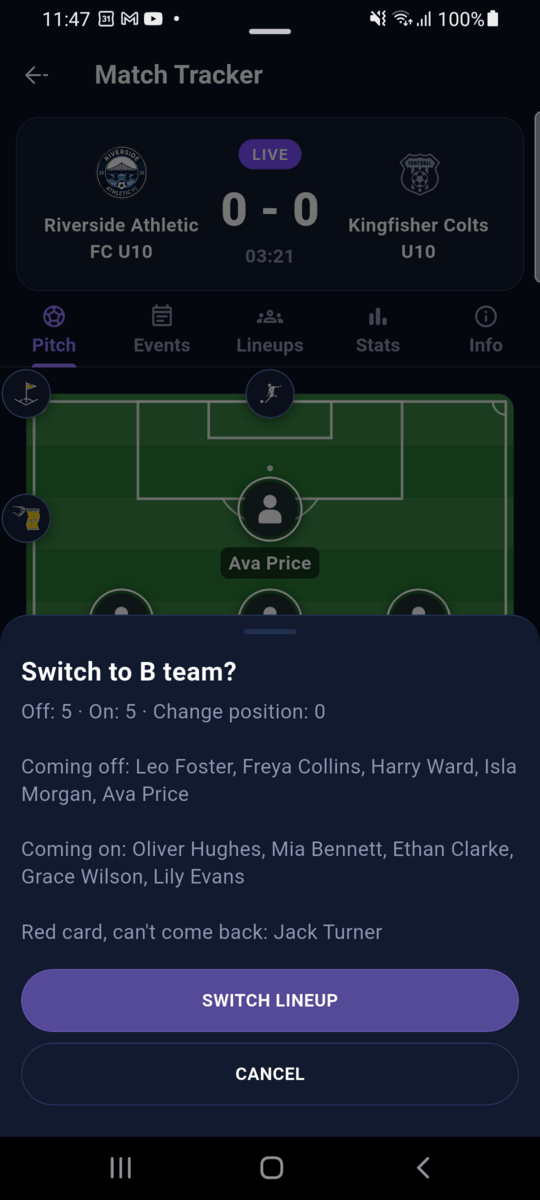
A player who has been sent off can't come back on, even if they're in the lineup you switch to. The preview lists them under Red card, can't come back, and their position stays Empty after the switch, so your team keeps playing one short, just as on the real pitch.
Quick notes
Tap Note to jot something down: type it, or tap the microphone and speak. It's saved to the match notes with the minute, and you can read or edit all notes in the Info tab (or beside the pitch on a large screen).
Fixing a mistake
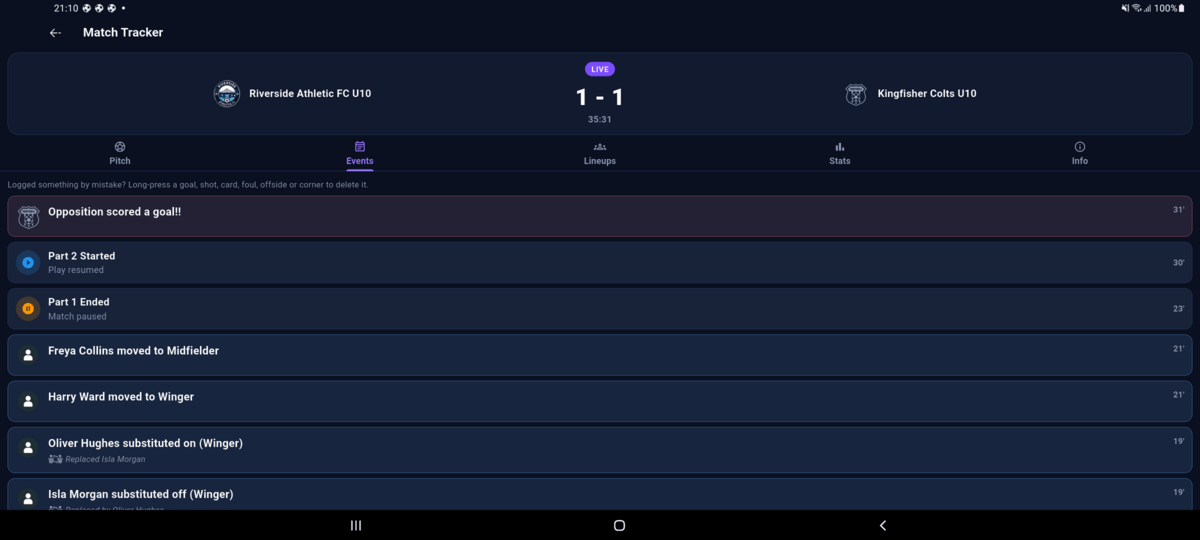
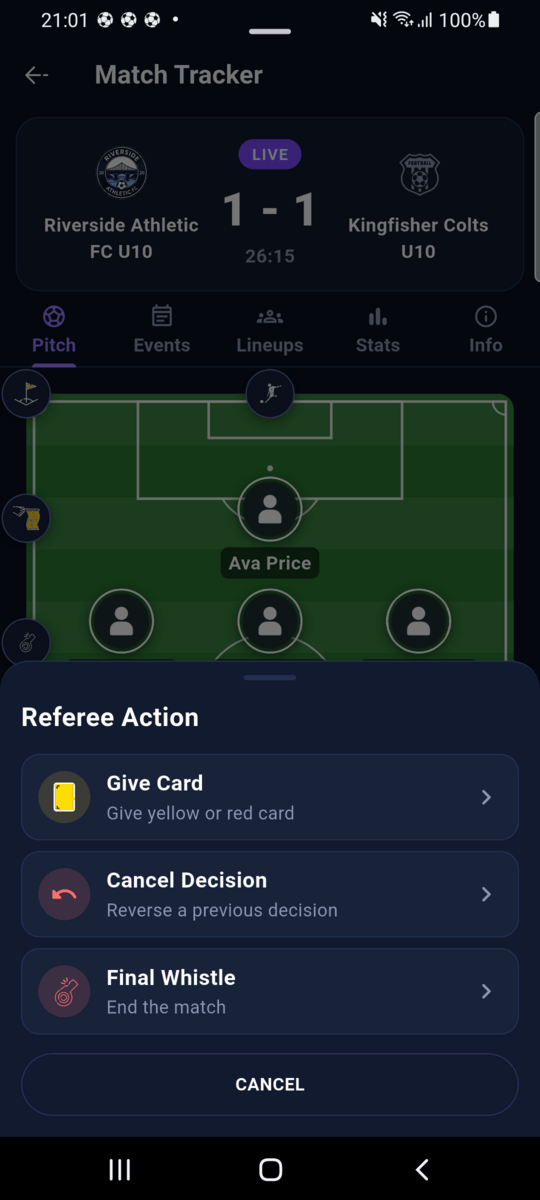
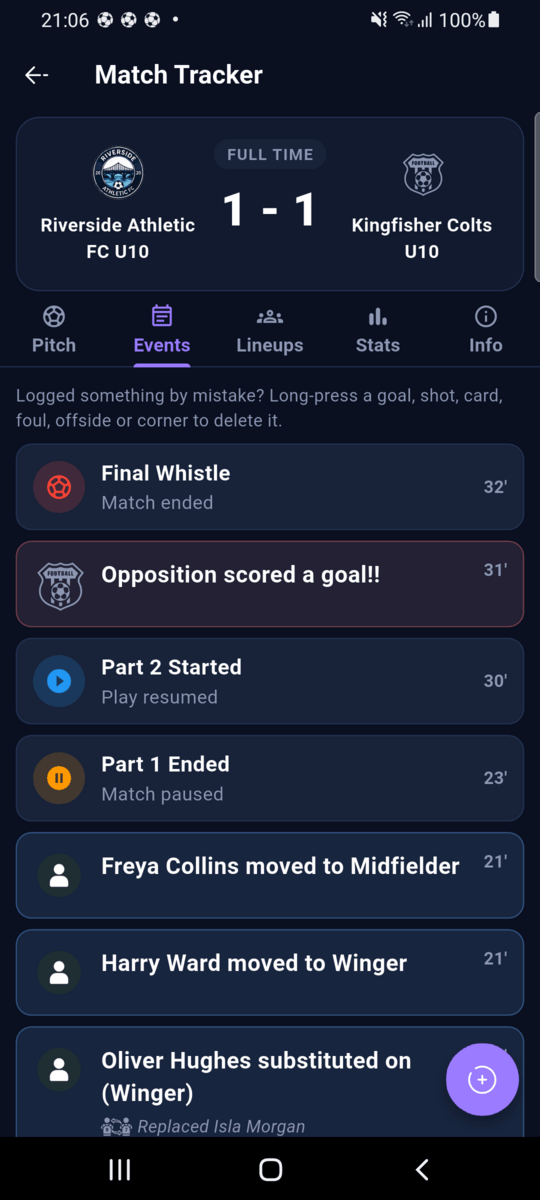
Tap the whistle button at the edge of the pitch and choose Cancel Decision to reverse a recent referee decision, such as a goal that was disallowed. It stays in the timeline marked as cancelled. If you logged something by accident, open the Events tab and long-press it to delete it.
4. Half time and the second half
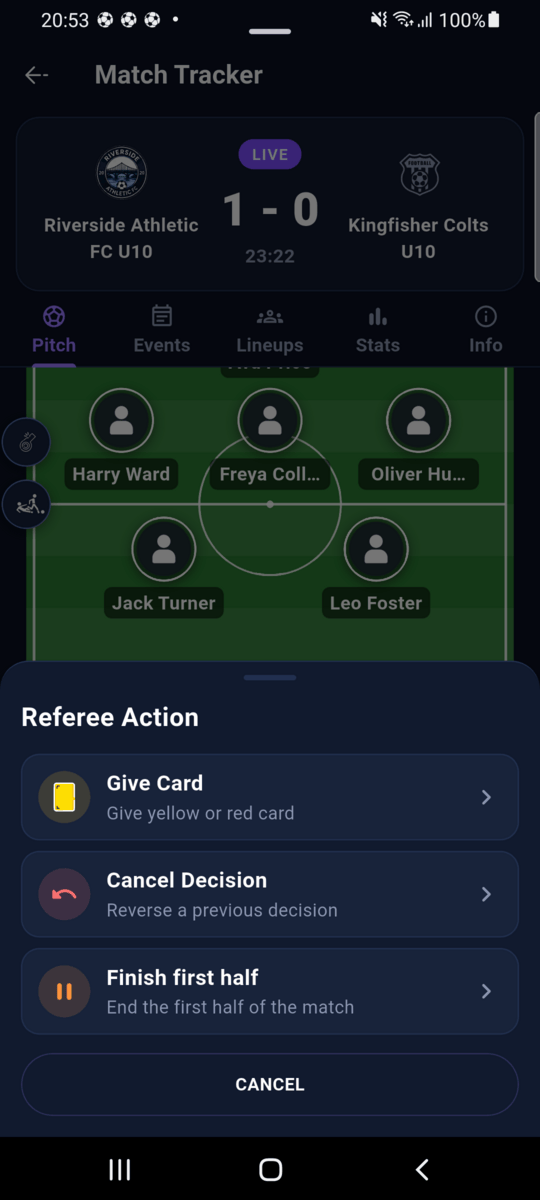
End the half with the whistle button
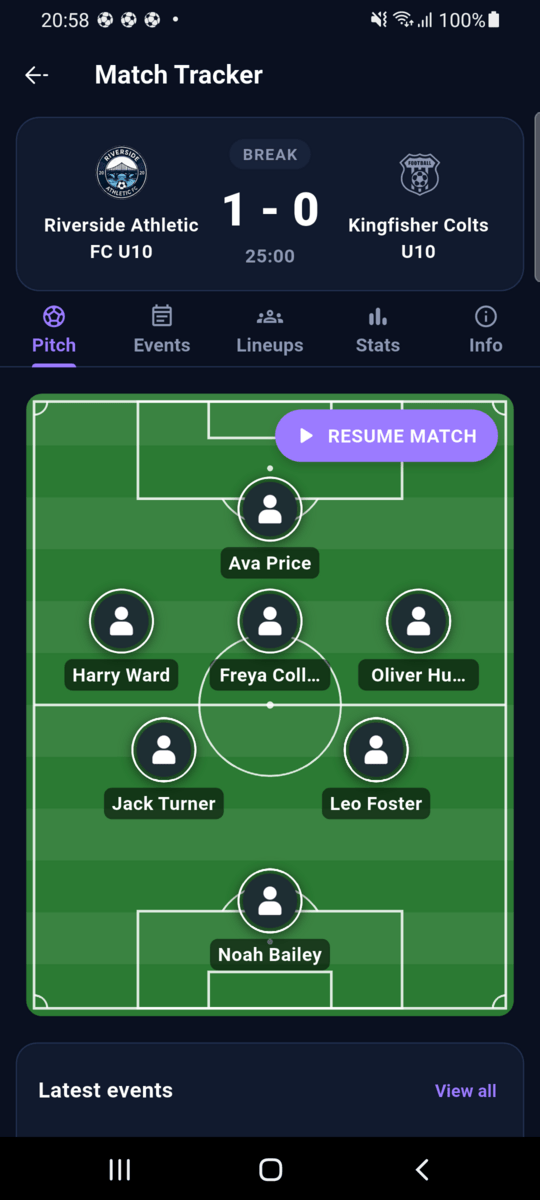
When the referee blows for half time, tap the whistle button at the edge of the pitch and choose Finish first half. The header changes to BREAK and the clock stops. The same menu is where you give a card that isn't linked to a foul.
Switch lineups at half time
During the break the buttons under the pitch are hidden. To bring on another lineup for the second half, open the Lineups tab and tap SWITCH LINEUP. It works the same as during play, sent-off players included, and the new players start their minutes when the second half begins.
Resume for the second half
When play restarts, tap RESUME MATCH on the pitch. The header goes back to LIVE and the clock continues. Log events exactly as in the first half.
5. Final whistle and result
Blow the final whistle
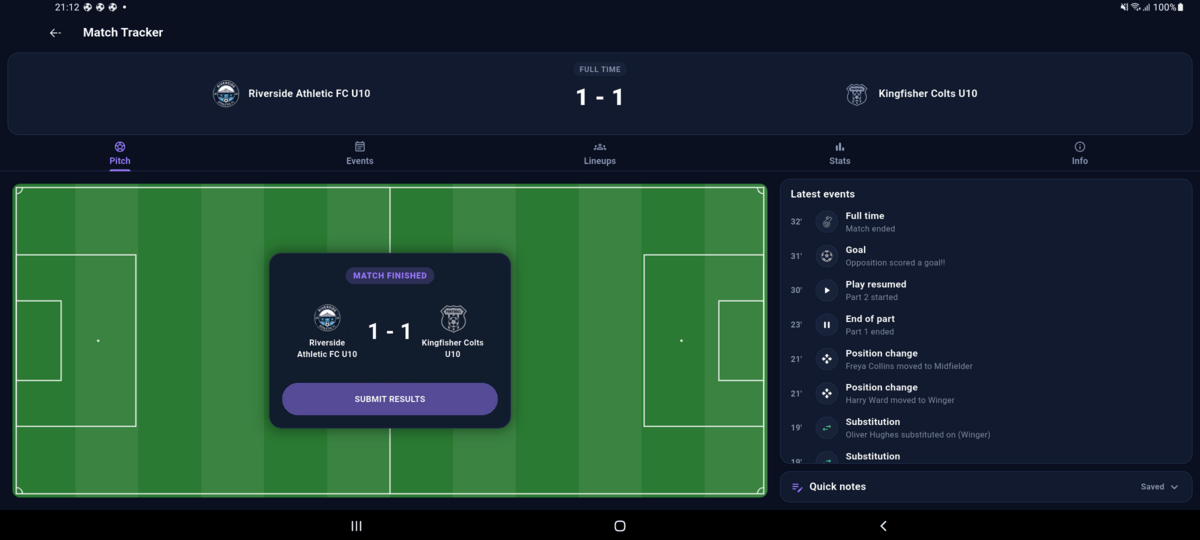
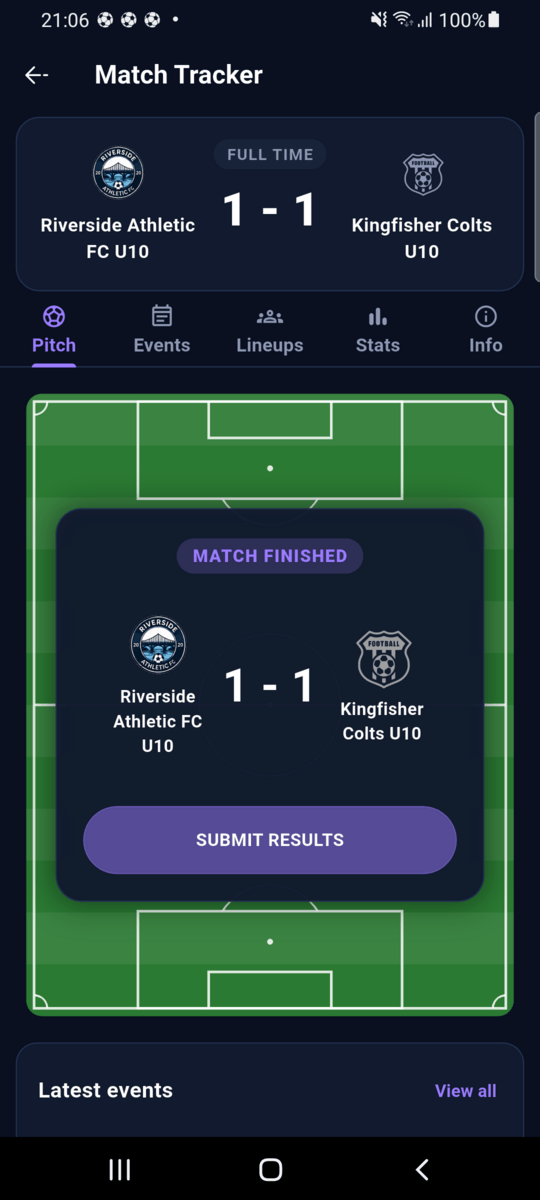
In the last part, the whistle menu offers Final Whistle. Tap it when the match ends. The header shows FULL TIME and a summary appears over the pitch.
Submit the result
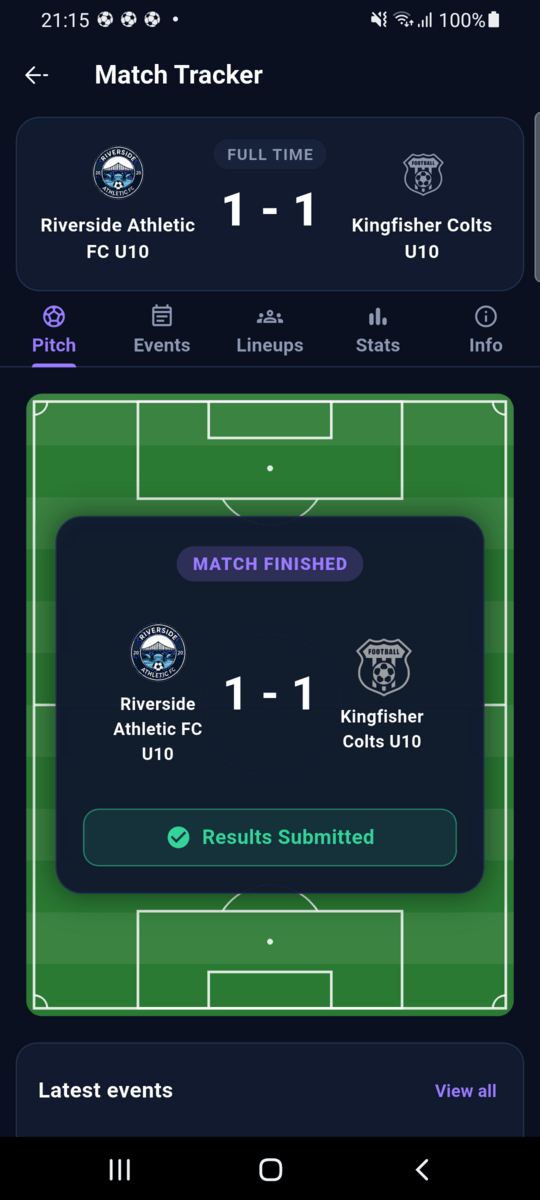
Check the score, then tap SUBMIT RESULTS. The tracker is closed and the card shows Results Submitted. For a league fixture you first confirm the score, and can add or remove goals, before it's sent to the league for the other club to agree.
Review the match
The tabs keep the whole story. Events is the full timeline, Lineups shows who was on the pitch and on the bench (with substitutions marked), and Stats compares both teams.
On a large screen
On a tablet or 14″ screen in landscape, the choices open as a centred sheet over the pitch and the latest events stay visible beside it the whole time. The Events, Lineups and Stats tabs use the extra width too.