

Registration
Registering a player
There are two ways to register a player in Athlo, depending on who's doing it: a club admin registering someone directly from the club, or a parent/player registering from their own Profile tab. Both end up filling in the same underlying form and both produce the exact same result — this guide covers each, using real clubs from a live season.
Who can do this
Anyone with player-management permission at a club can register a new player directly from that club — a coach signing up a new joiner, a club secretary processing a paper form, or a parent who's also a club member. See Path A below.
A parent or player registering with a club they're not yet a member of doesn't need to join it first — they can create the player's profile and register them with the club straight from their own Profile tab, using the + Player button on that club's Orgs listing. See Path B below.
Path A: From inside a club
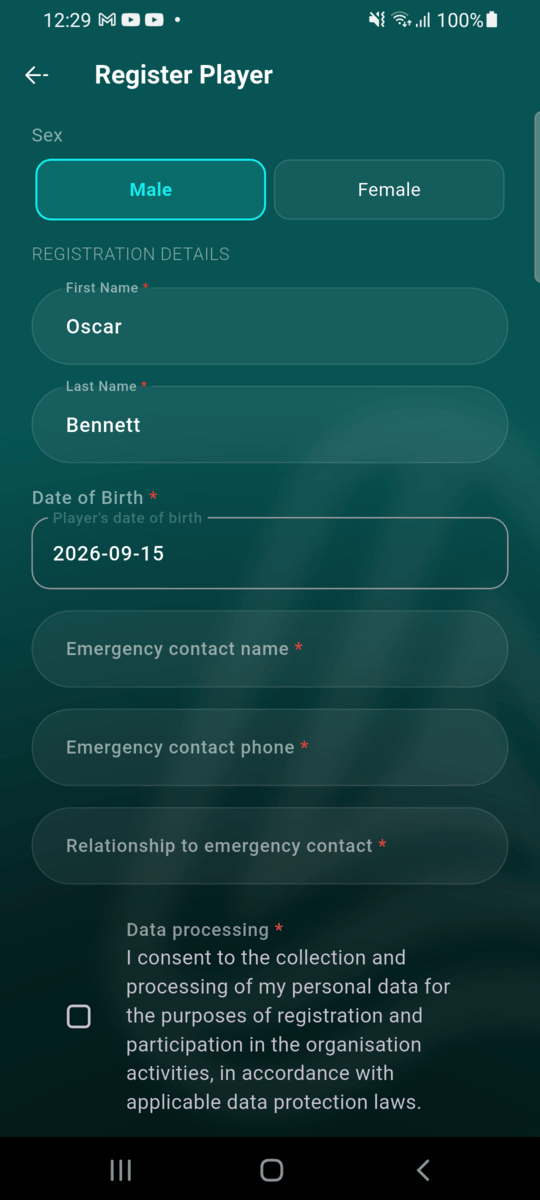
Registering Oscar Bennett with Riverside Athletic FC, as a club member with player-management permission.
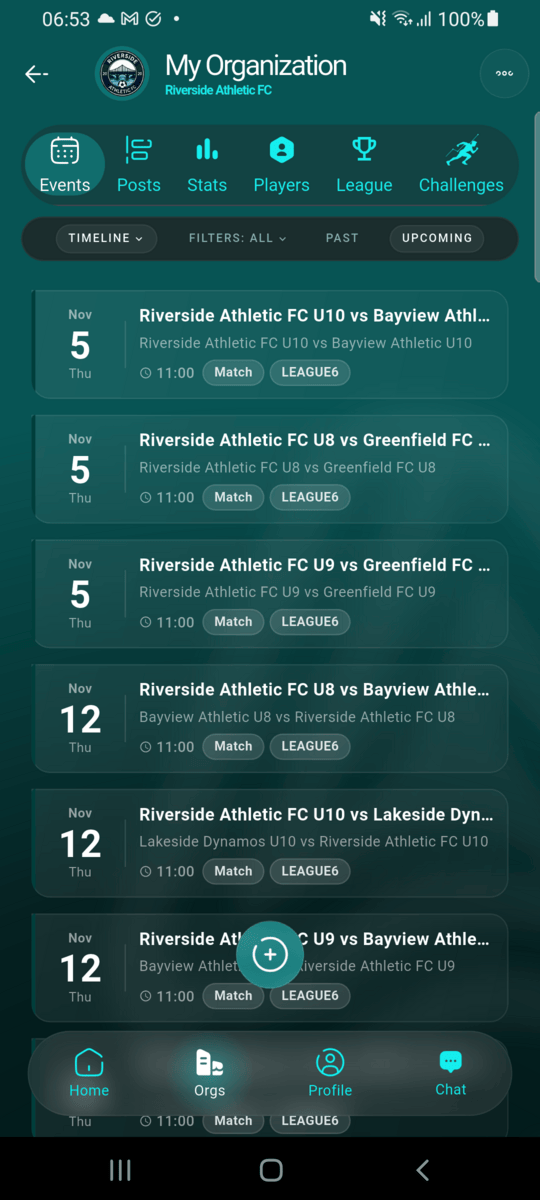
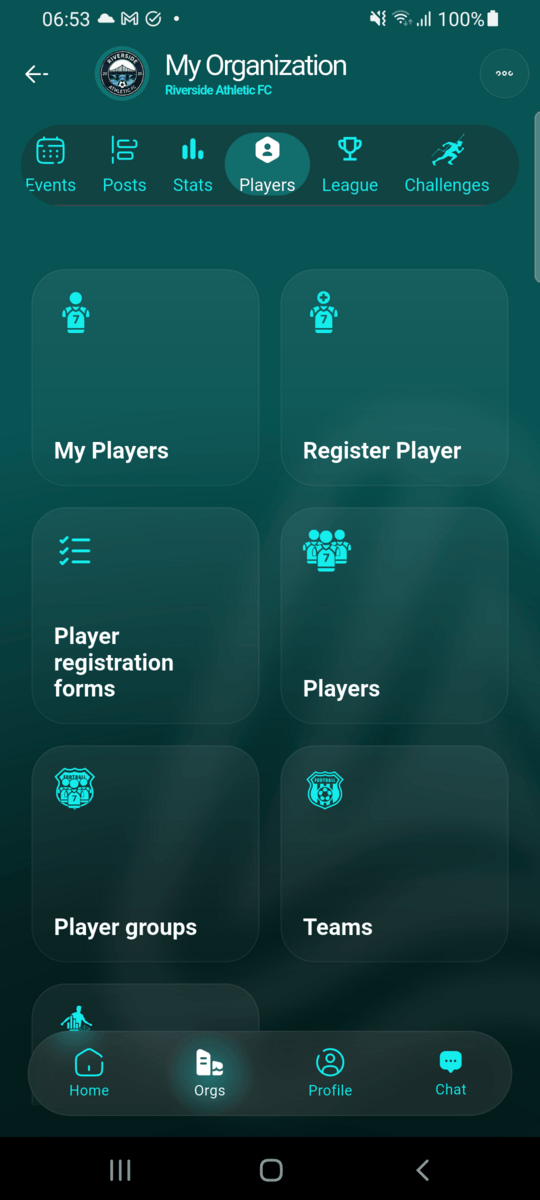
Open your club's Players tab
From your club's page, go to Players, then tap Register Player.
Fill in the player's details
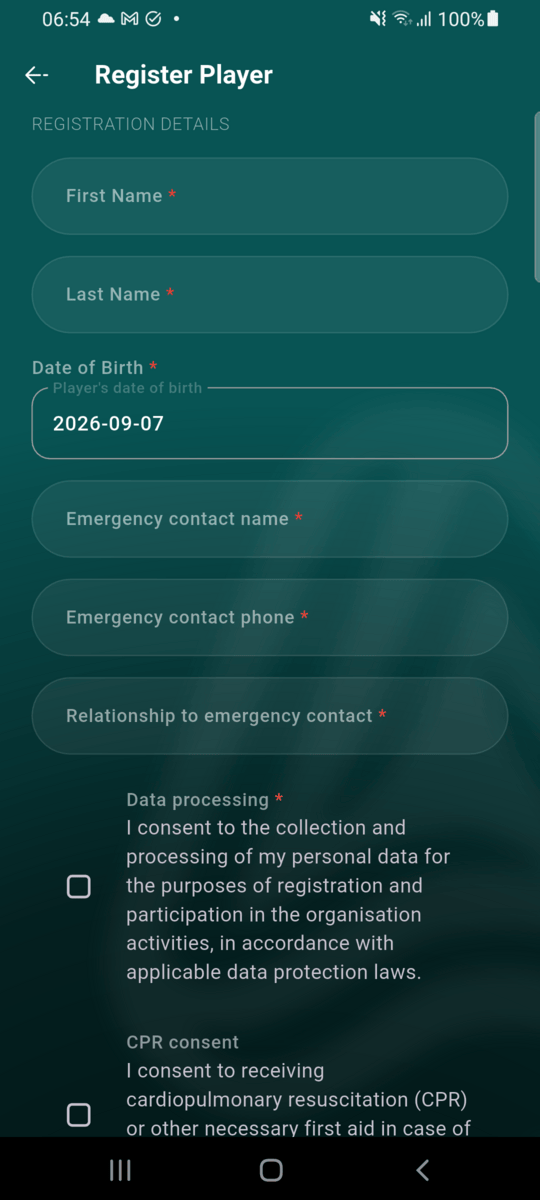
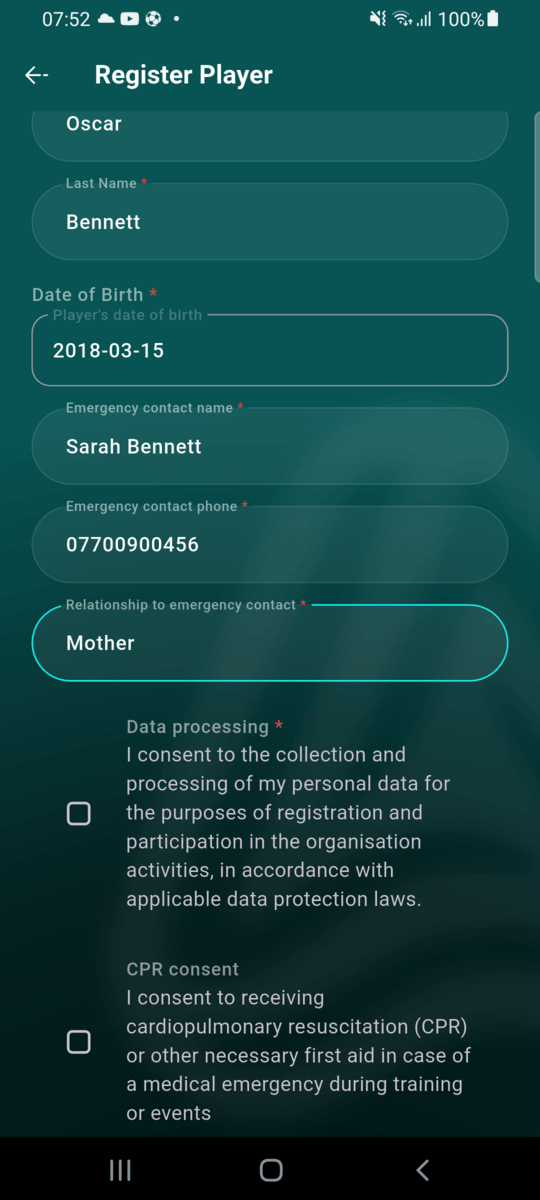
Enter the player's first name, last name and date of birth. The date of birth is what drives everything else in the app — it's used to work out the player's age group and birth quarter automatically, using your club's own cutoff-date settings.
At the top of the form, choose the player's Sex — Male or Female. It's optional, but leagues can run male-only or female-only age groups, and a team can only enter one of those once every player has it recorded. See Player sex below.
Add an emergency contact
Provide an emergency contact name, phone number and their relationship to the player, if your club's form asks for them — most do, but the exact fields depend on how your club has set up its registration form.
Confirm consents and submit
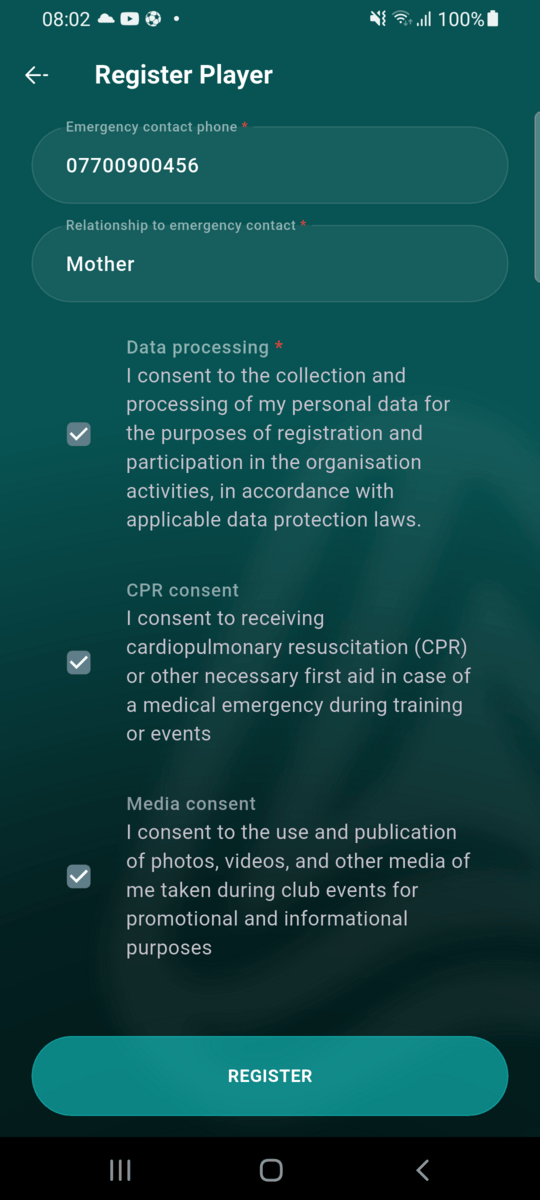
Check the required data processing consent, plus CPR and media consent if your club collects them, then tap Register.
Player appears on the roster
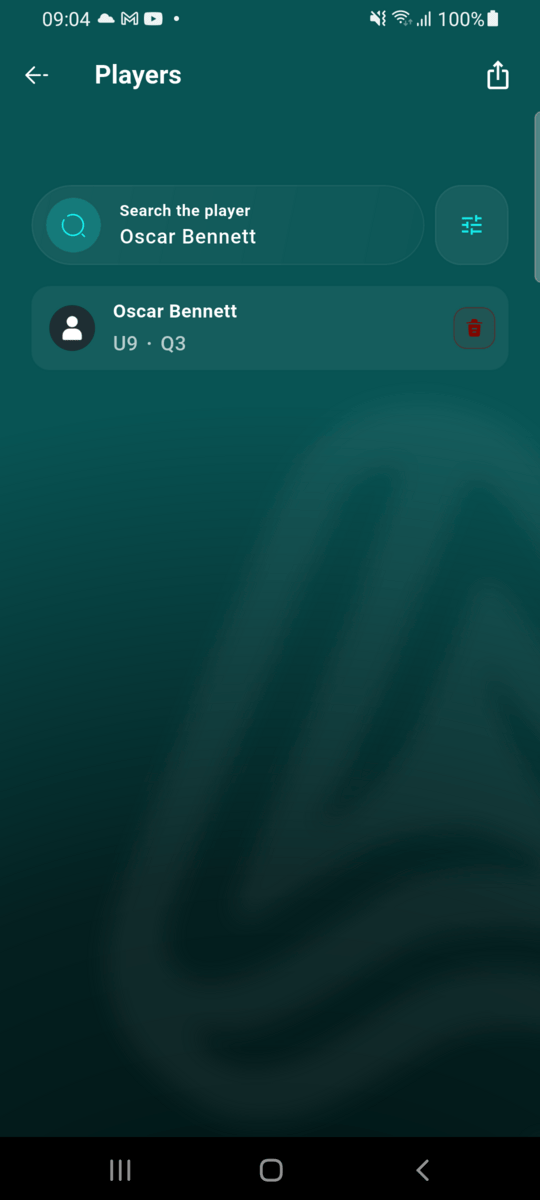
Oscar Bennett now shows up in Riverside Athletic FC's Players list, with his age group and birth quarter already calculated from his date of birth.
Path B: From your Profile (parent or player)
Creating a player profile for Nora Sullivan and registering her with Westfield Rangers — a club her parent, Liam Murphy, is not a member of.
Open My Players from your Profile
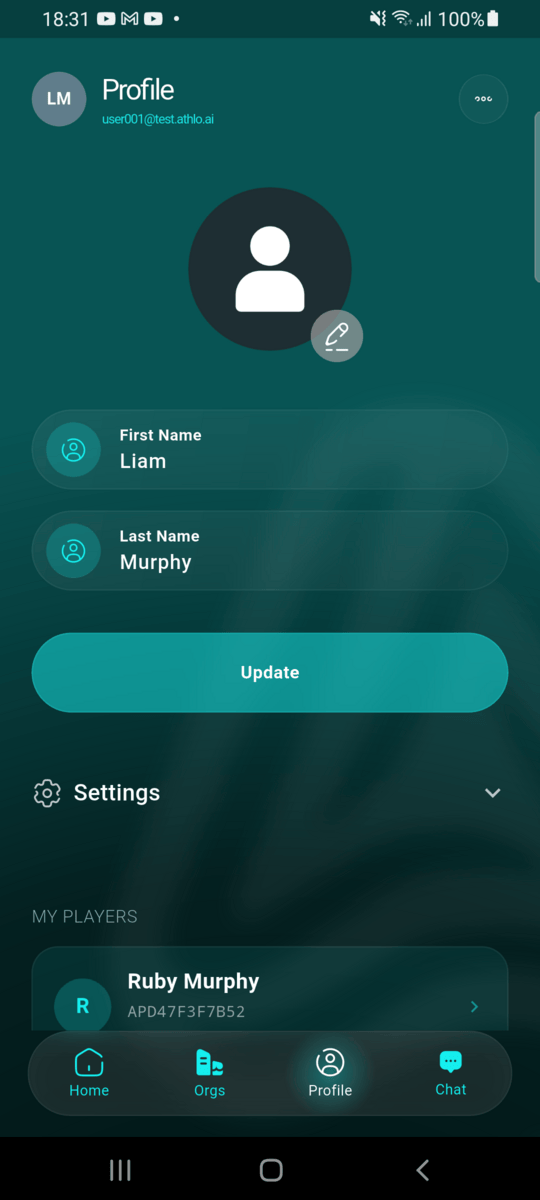
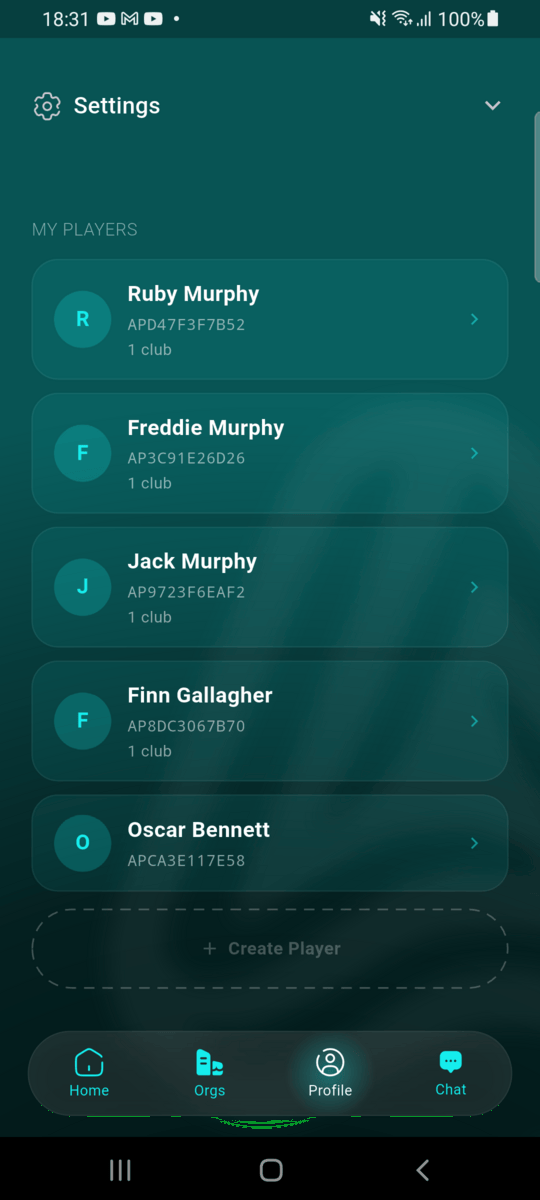
Tap Profile in the bottom navigation, then scroll down to My Players — every player profile you've created, independent of any club.
Create a player profile
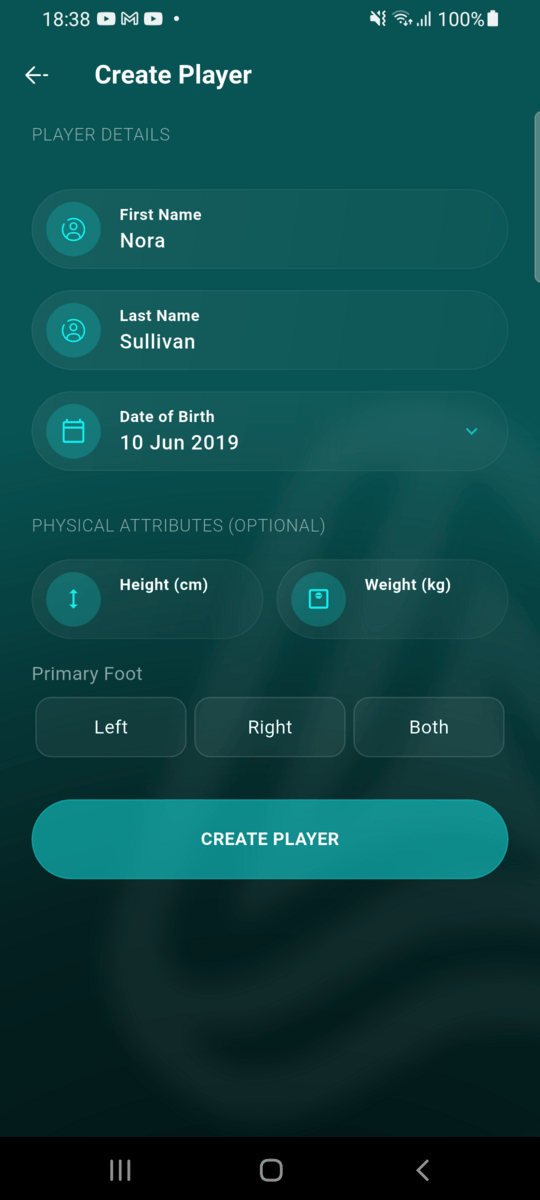
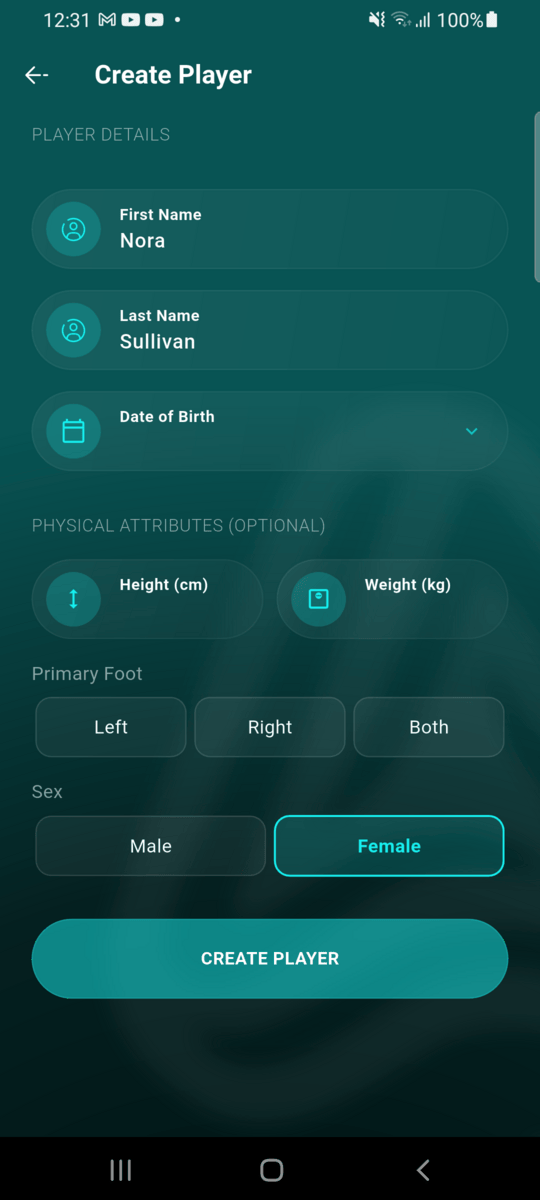
Tap the dashed Create Player button and enter the player's first name, last name and date of birth. Physical attributes and Sex are optional — pick Male or Female under Primary Foot. This creates a standalone Athlo player profile — it isn't registered with any club yet.
Profile created, not yet registered
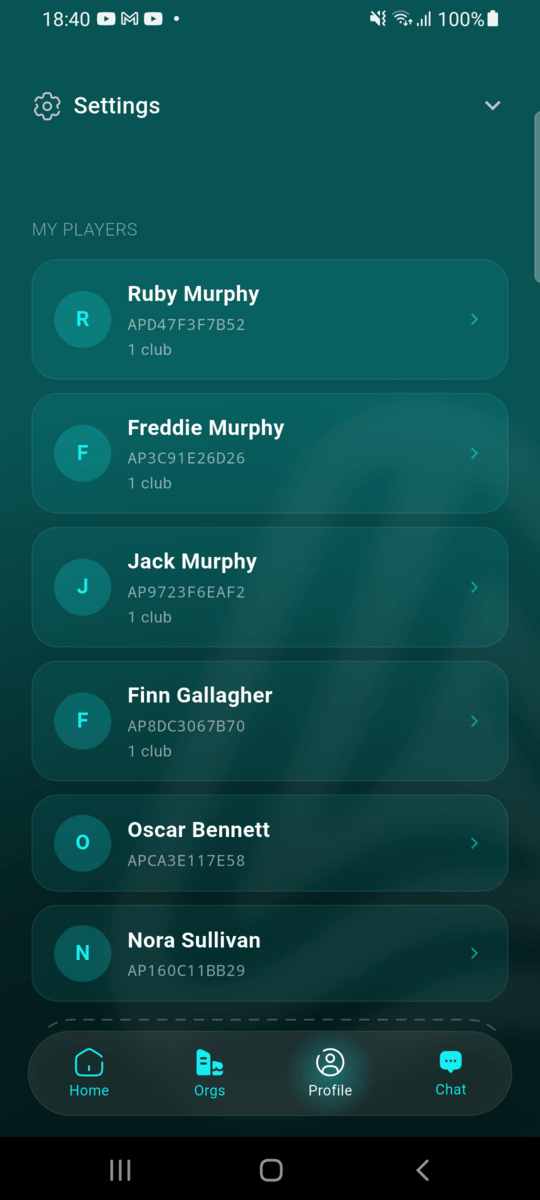
Nora Sullivan now appears in My Players. Unlike the other players in the list, she has no club count shown under her name — she has a profile, but isn't on any club's roster.
Find the club and tap + Player
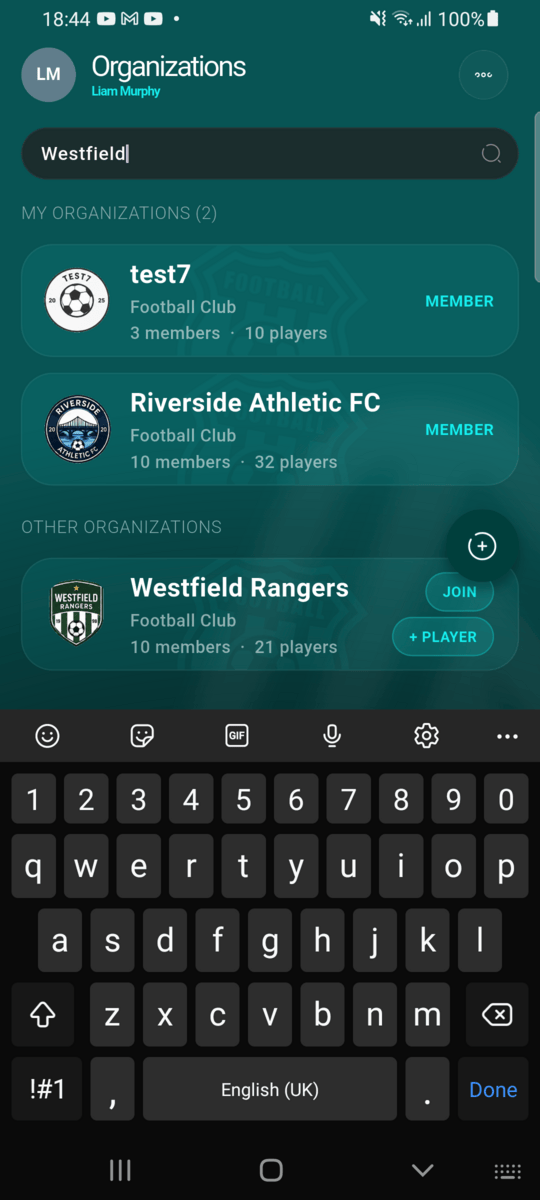
Go to Orgs and search for the club. For a club you're not a member of, a + PLAYER button appears right on the search result — tap it to register a player there without joining the club yourself.
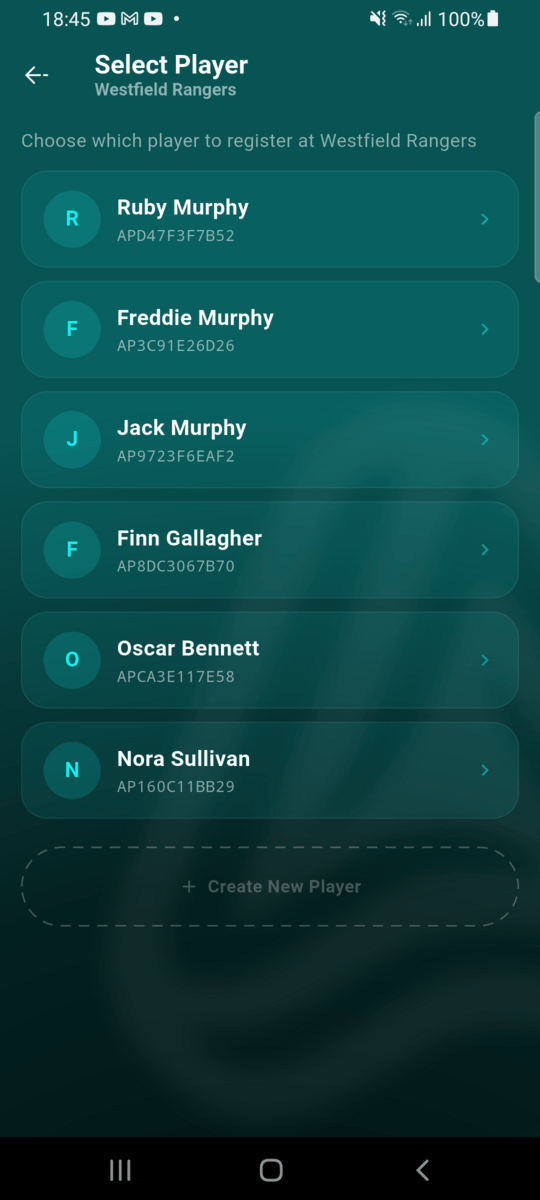
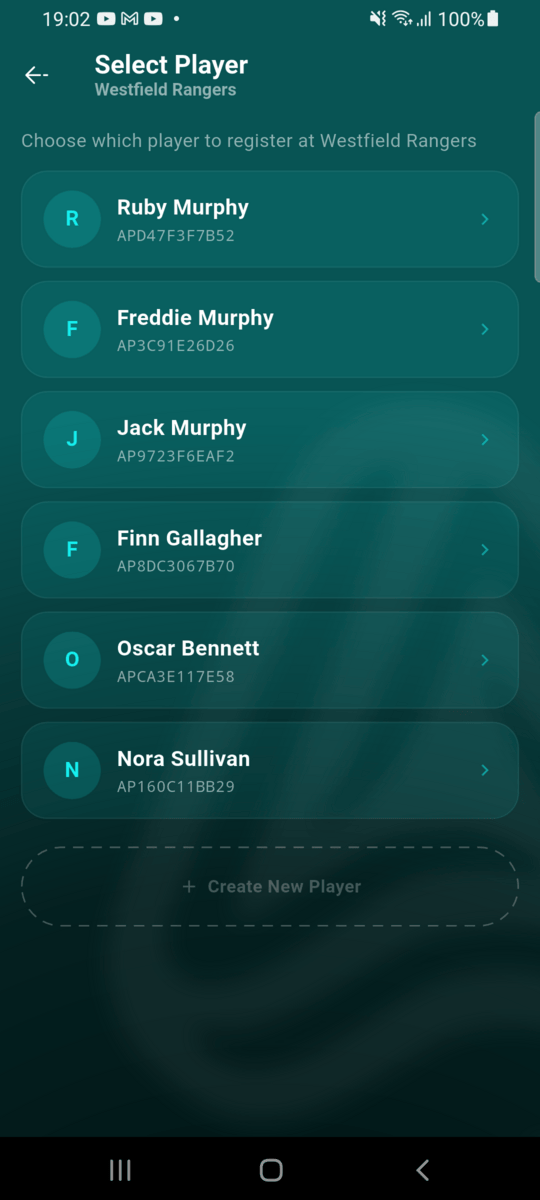
Choose which player to register
Pick the player from your list — here, Nora Sullivan — or tap Create New Player to add a new one on the spot.
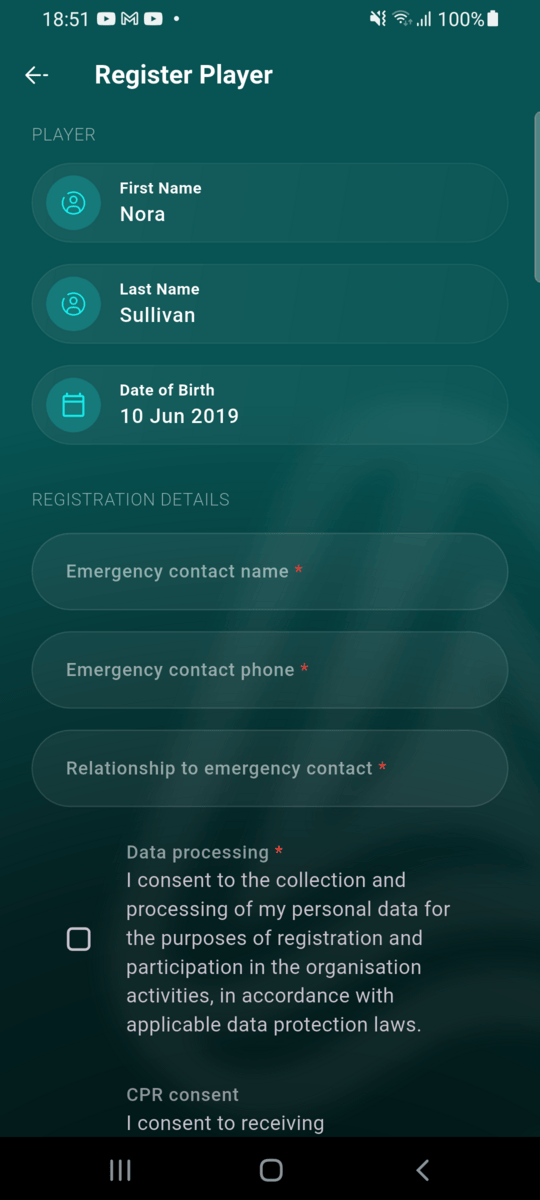
Fill in the registration details
The player's name and date of birth carry over automatically, and so does their sex if you set it on the profile — if you didn't, you can choose it here. Fill in the emergency contact name, phone and relationship, and check the required consents — the same form used in Path A.
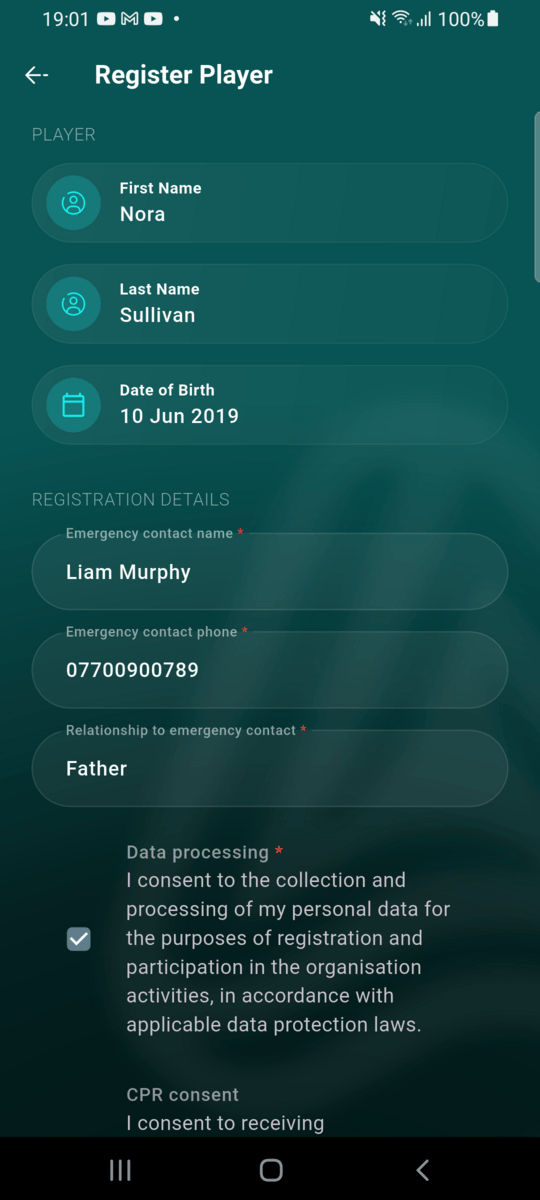
Player is registered
Nora Sullivan is now registered with Westfield Rangers — she'll appear on the club's roster exactly the same way as a player registered from inside the club in Path A.
What happens behind the scenes
Registering a player automatically creates and links an Athlo profile for them — the same identity that's used to recognise a player across different clubs. In Path A this happens in one step; in Path B, creating the profile and linking it to a club are two separate steps, but the end result is identical. This profile link is what makes later workflows like league transfers possible: a transfer can only be proposed for a player who already has it, and the receiving club has to complete one of these two registration flows before a transfer can be confirmed.
Age groups and birth quarters
Age group and birth quarter are never entered manually — they're derived client-side from the date of birth, using your organisation's own age-group cutoff month and day (falling back to 1 September if your club hasn't set one). Changing your club's cutoff settings automatically reclassifies every existing player the next time their record is viewed — no need to re-register anyone.
Player sex
Sex means the player's biological sex, Male or Female. It's optional when you create or register a player, and it matters mainly for leagues: an age group can be open to everyone, or limited to male-only or female-only players. A club can't enter a team into a restricted age group while any player on it is the wrong sex or has no sex recorded, so it's worth filling in as players are added.
Once recorded, it shows as M or F next to the age group and birth quarter in player lists, and every player list's filter sheet has a Sex filter (Male, Female or Not set) — handy for finding players whose details still need completing.
For a player who was added without it, the player's owner (a parent, or the player themselves) can set it later: open the player from My Players, tap the pencil icon and choose Male or Female under Sex. The value on the player's profile is the one every club and league uses — a club's registration form fills it in when it's missing but never changes one that's already set.