

Club Admin
Registration forms
A registration form is what a parent or player fills in to join your club — names, date of birth, emergency contacts, consents, and anything else you need on file. Every new club is created with a basic Default Form so you can start registering players on day one, but it's only a starting point: building your own form lets you collect what your club actually needs. This guide walks through creating one for a real club, Riverside Youth FC.
Who can do this
Building and enabling forms is for people in your club with permission to manage registration forms. You'll find them under your club's Settings tab, in the Player Registration Forms section.
Filling a form in is for anyone registering a player — and they don't have to belong to your club. A parent can register their child with your club, and later re-submit when you change the form, without ever joining it or holding any role in it. They do it from their own Profile tab; see Registering a player, Path B.
Step by step
Find your existing forms
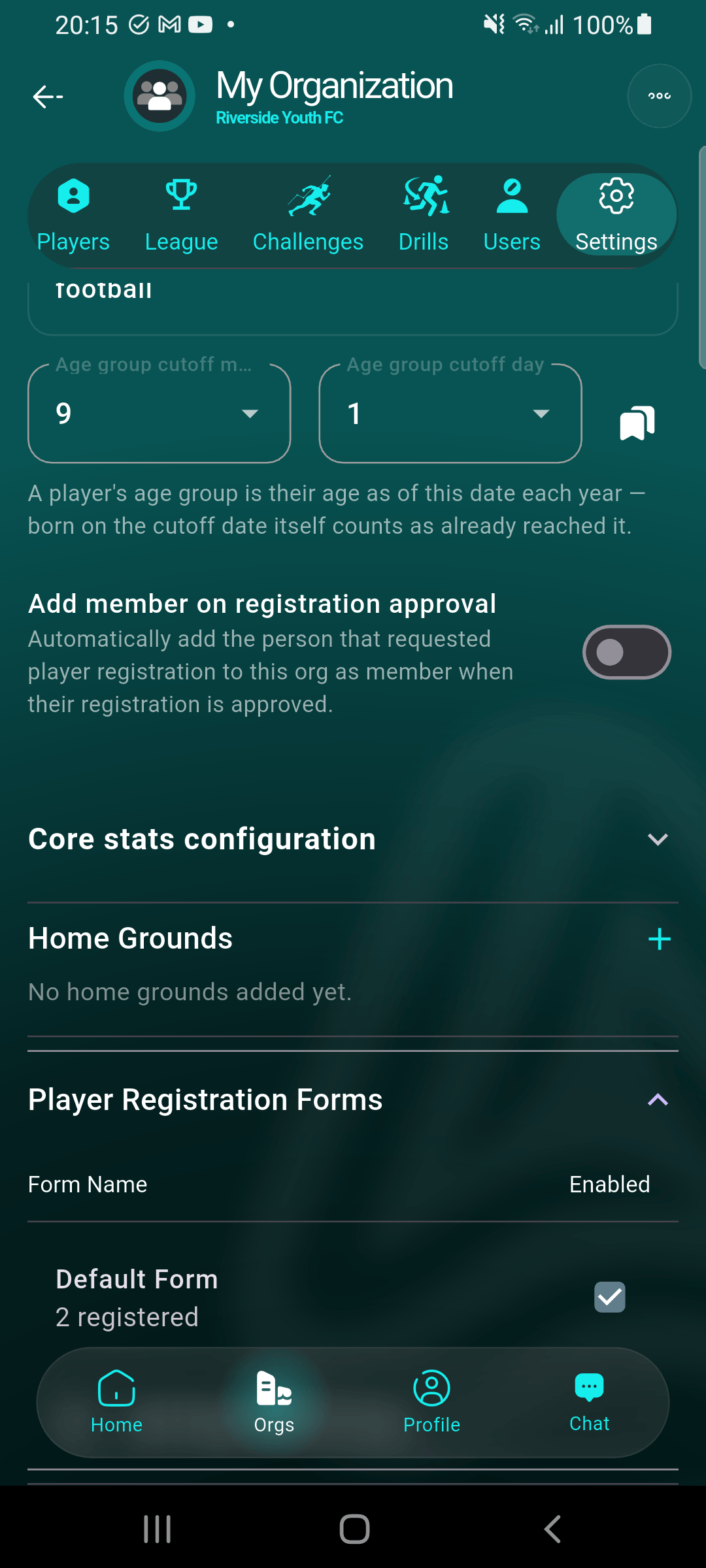
Open your club, go to Settings, and expand Player Registration Forms. The Default Form is listed with a tick next to it (meaning it's the active one) and a count of how many players registered through it.
Start a new form
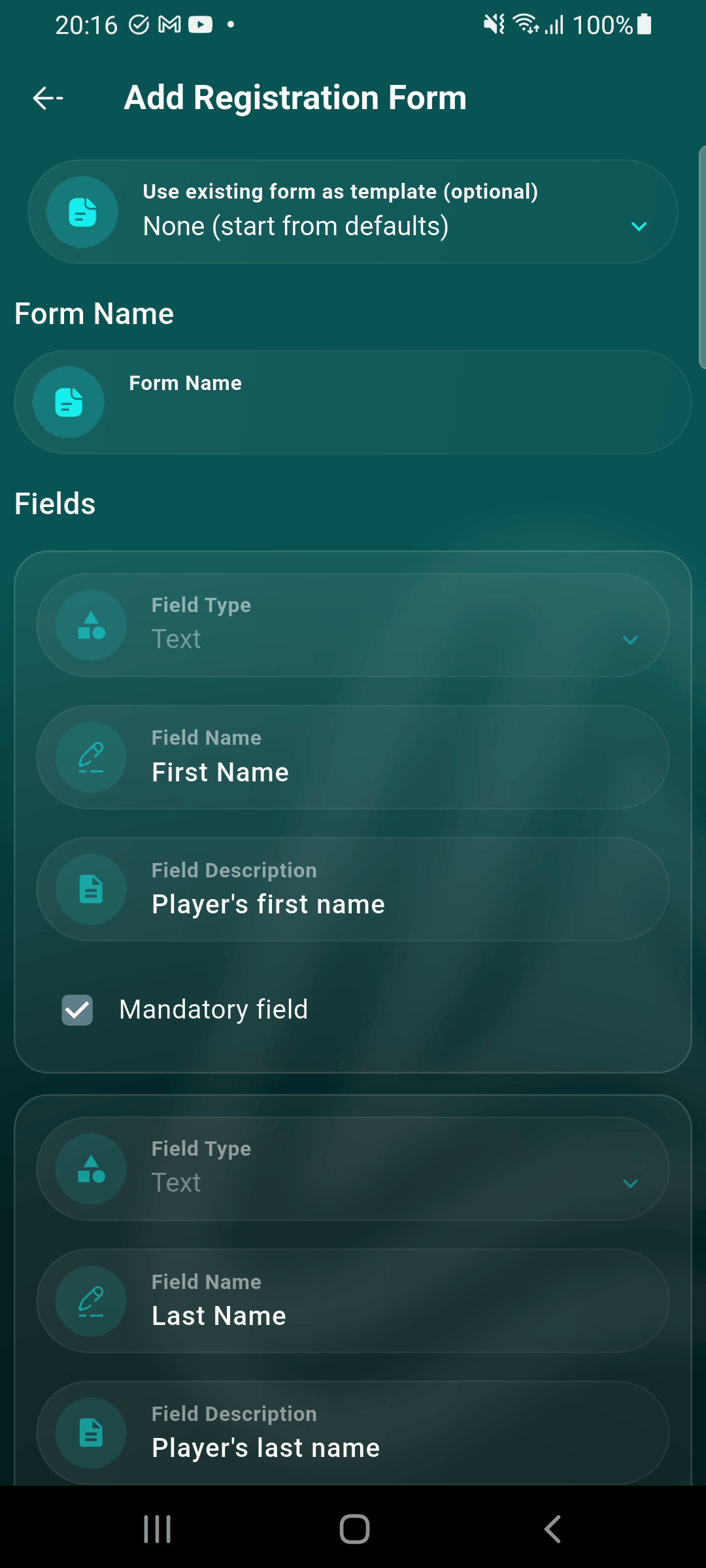
Tap Add Registration Form. A new form starts pre-filled with the standard fields, so you only need to add what's specific to your club. You can also base it on one of your existing forms using the template picker at the top.
Add your own fields
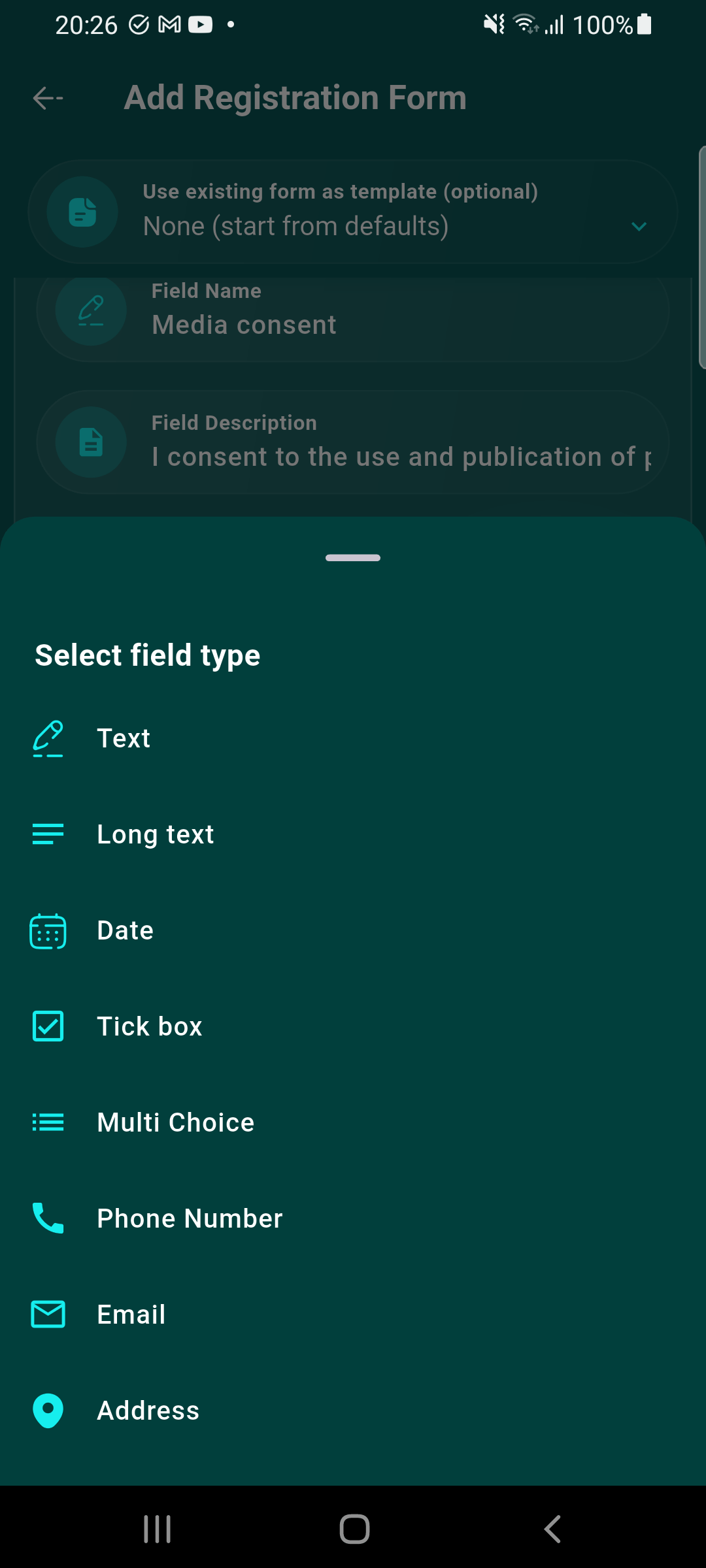
Give the form a name, then tap Add Field and pick the type that fits what you're asking for — free text, long text, a date, a tick box, a multiple-choice list, a phone number, an email address, or an address.
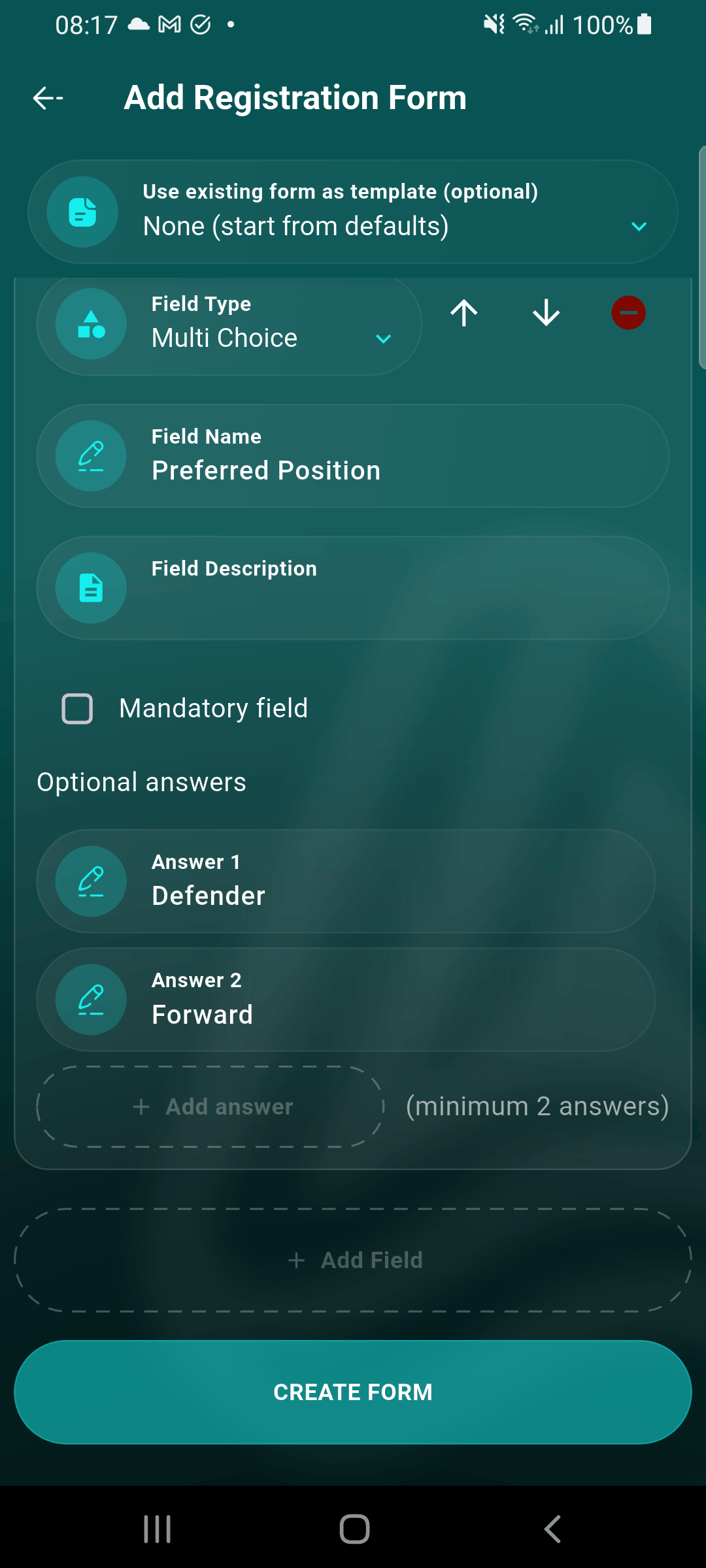
Name each field, optionally add a description to explain it, and tick Mandatory field if it has to be filled in. Multiple-choice fields need at least two answers. Use the arrows to reorder fields, or the red button to remove one.
Make it the active form
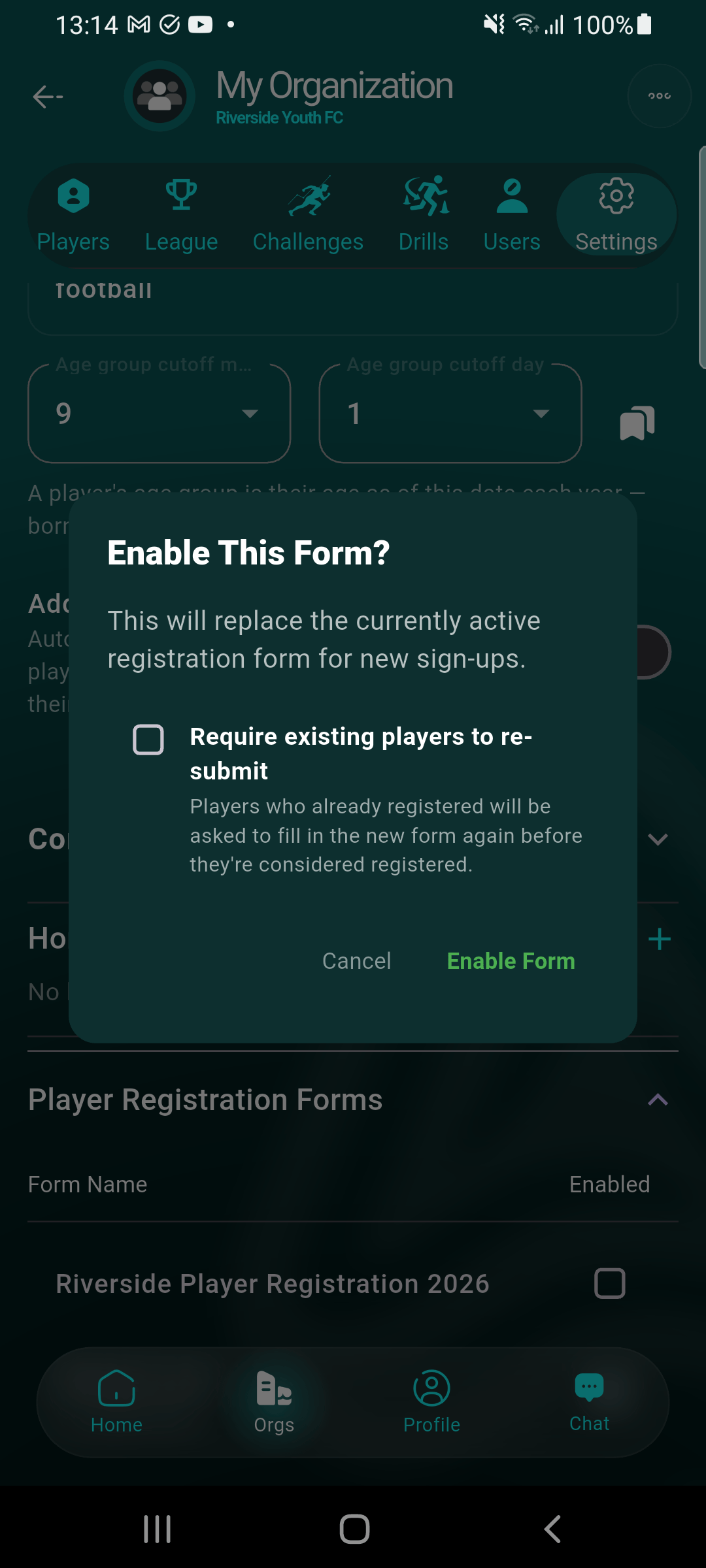
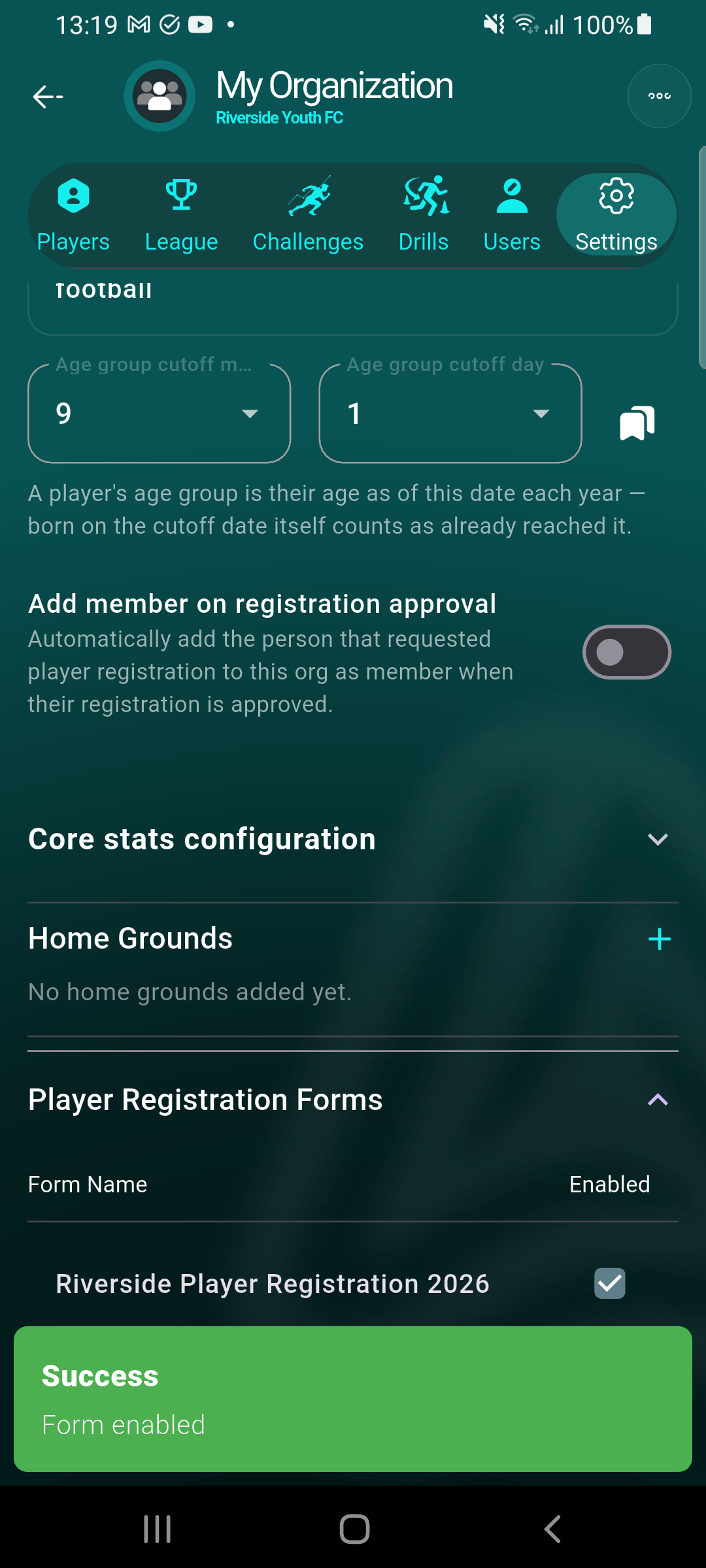
Once created, tick the new form's Enabled box in the settings list. Only one form is active at a time — enabling this one replaces whichever was active before, for all new sign-ups.
The confirmation also offers Require existing players to re-submit. Tick it if the new form asks for something you need from everyone, not just new joiners — every player who registered on the old form will be asked to fill the new one in. Leave it unticked and existing players simply stay as they are.
What everyone else sees
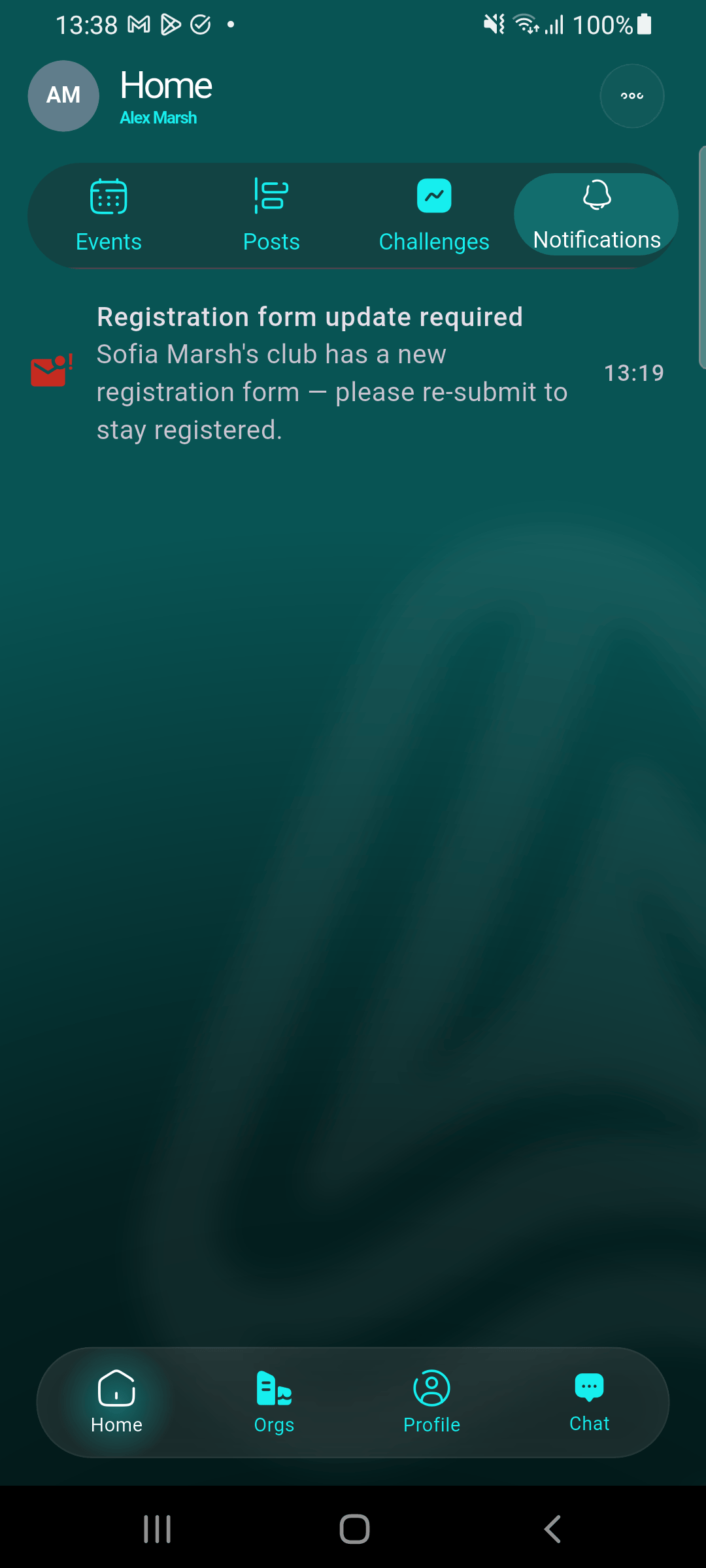
If you asked for re-submission, everyone affected gets a notification naming their player. Tapping it opens the new form directly — which matters, because a parent who isn't a member of your club can't browse into it to find the form themselves. The notification is their way in, and it works whether or not they belong to the club.
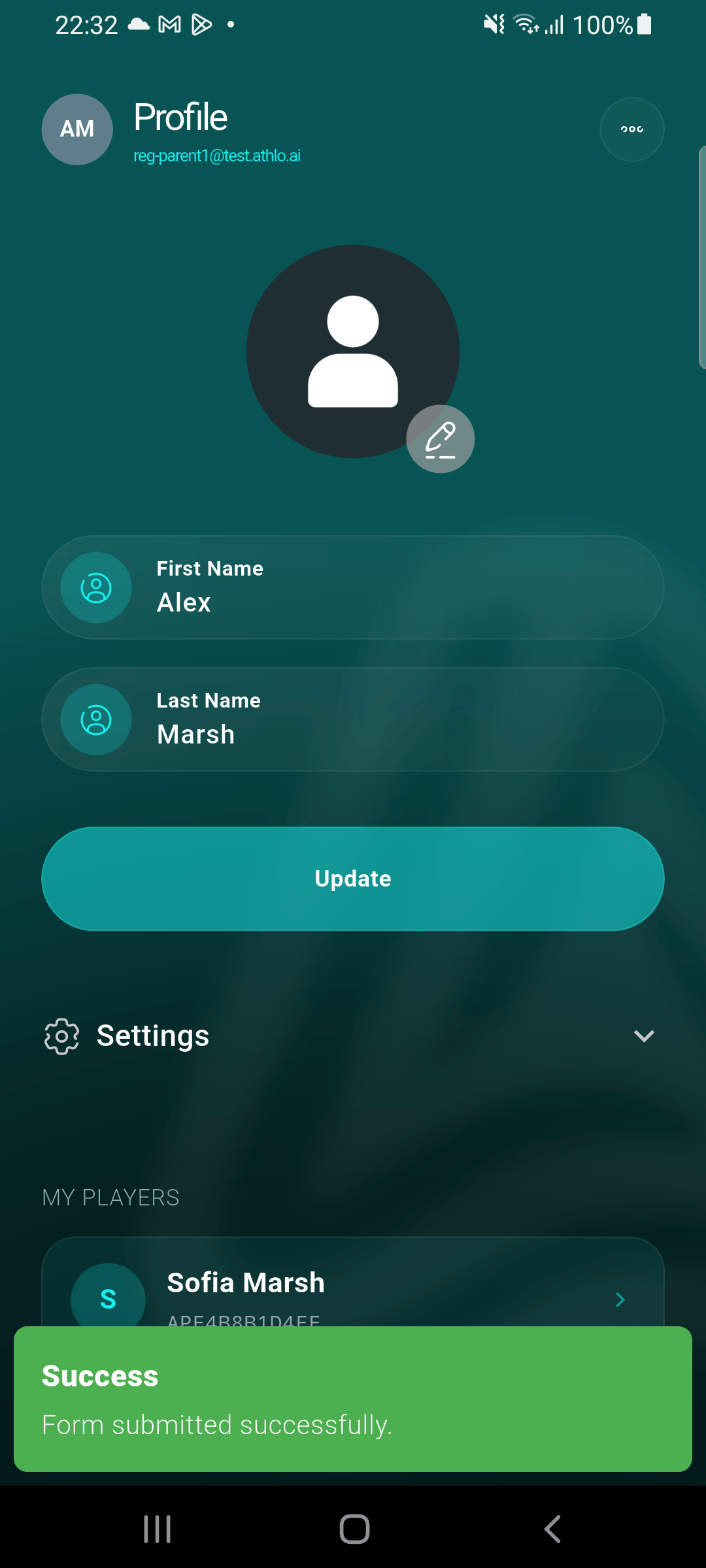
Re-registration complete
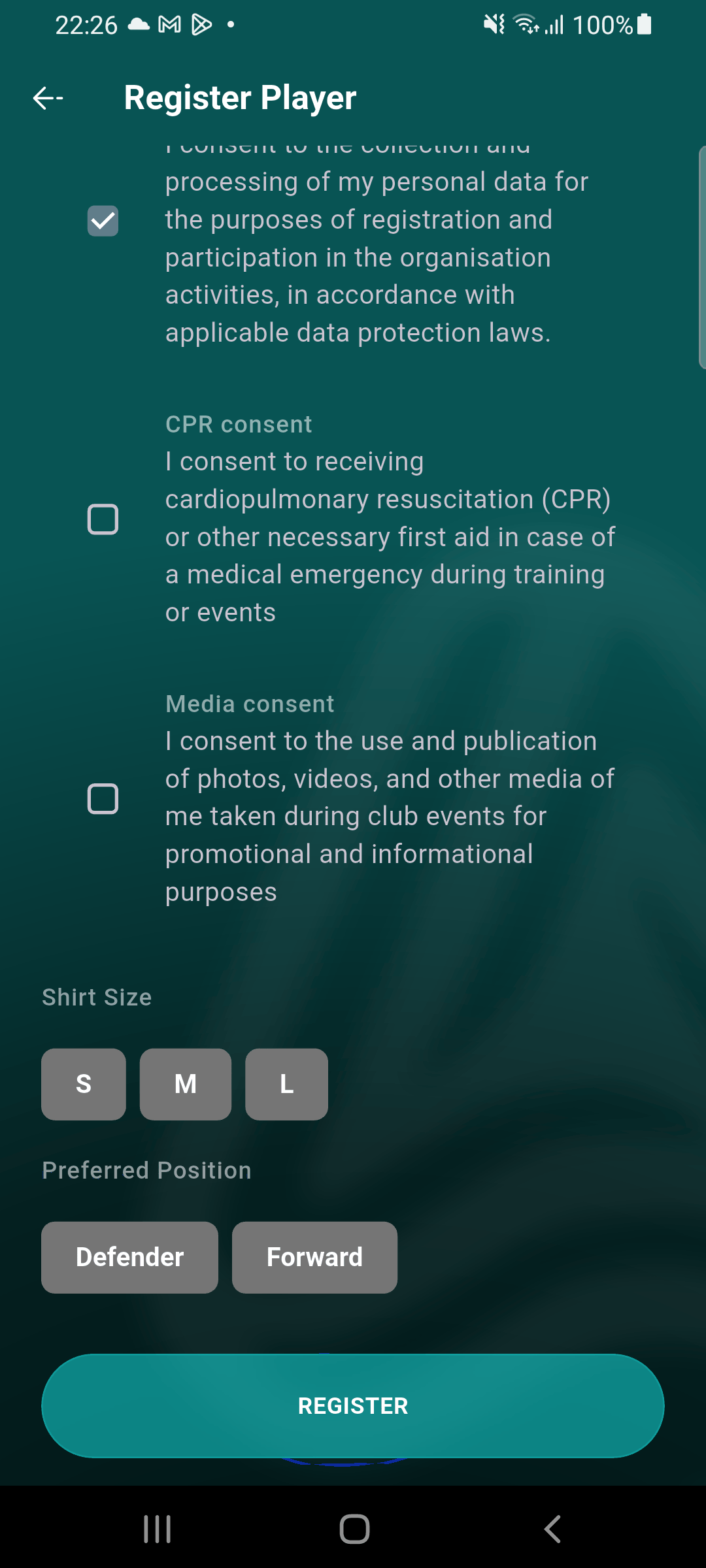
Once they submit, the reminder clears for that player and their answers are recorded against the new form. In your settings list, the player count moves across to the new form — so you can see at a glance who's still on the old version.
A few things worth knowing
Some fields can't be removed — first name, last name and date of birth are how Athlo identifies a player across your club, teams and any leagues you play in, so they're always part of the form. Older forms aren't deleted when you enable a new one, and the answers players already gave stay on their records; you can still see which version each player registered on, and export players filtered by form version. And if you want to see exactly what a form looks like before enabling it, tap it in the settings list for a read-only preview.
It's also worth remembering that your registered players and your club members are two separate lists. Plenty of clubs run with every player registered by a parent who never joins the club — the player is on your roster and counts toward the form's registration total, while the parent stays outside it. Asking for re-submission doesn't change that either way.
See Registering a player for the other side of this — how a player actually gets registered and approved.