
Account
Leaving a club or deleting a player
The owner of a player profile can take the player out of a club, or delete the player profile altogether. Club admins can remove a player from their club's list. This guide covers all three.
Take a player out of a club
Use this when your child stops playing for a club. The rest of the profile stays as it is.
Open the player and find the club
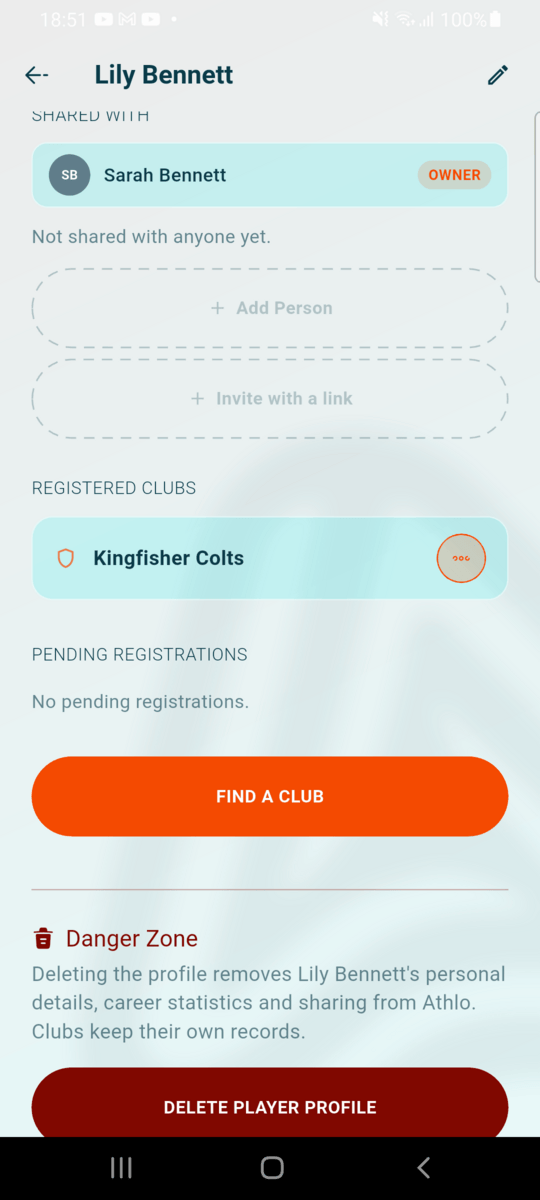
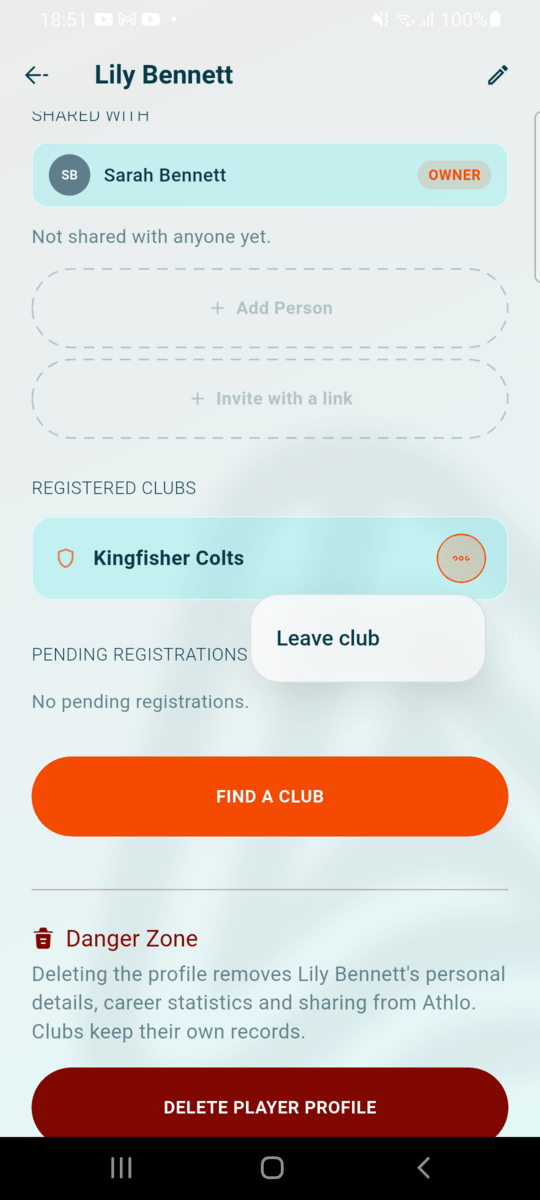
On the Profile tab, tap the player under My Players and scroll to Registered clubs. Tap the ··· button next to the club and choose Leave club.
Confirm
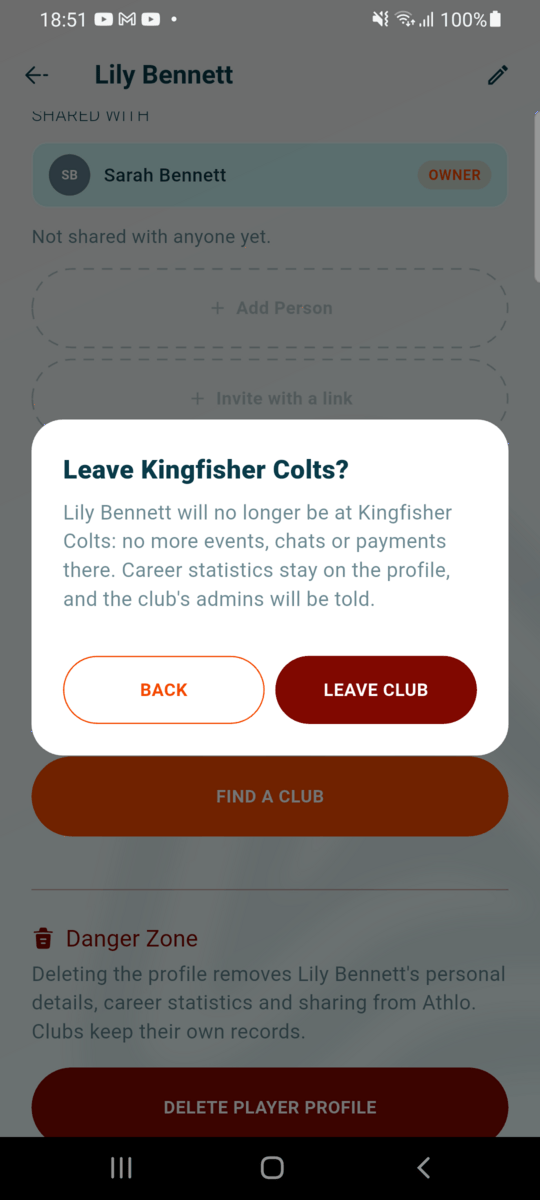
Athlo explains what leaving means. Tap LEAVE CLUB to confirm. The club disappears from the list straight away.
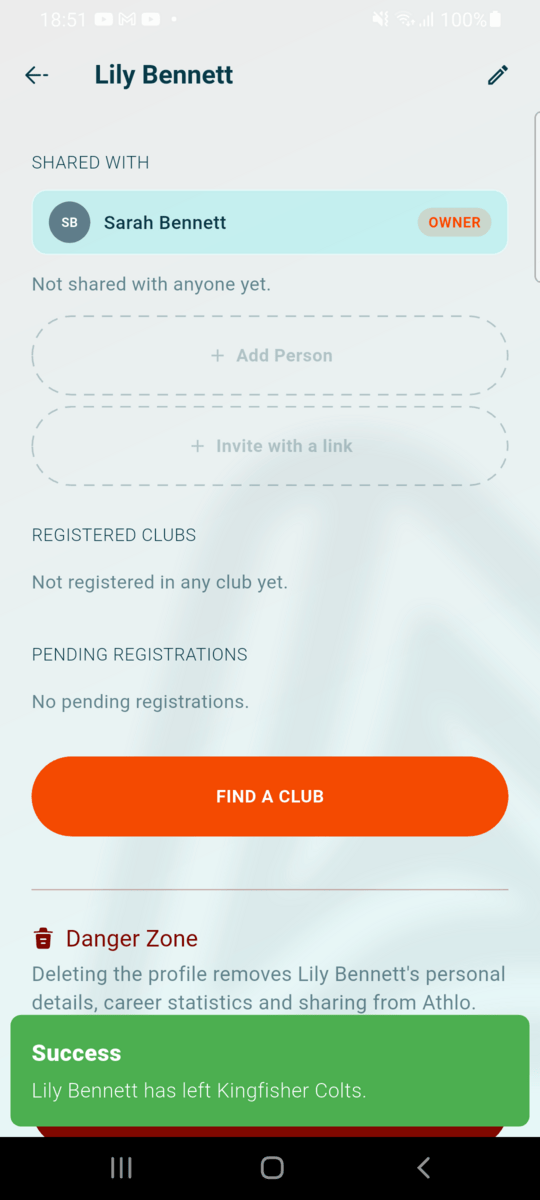
What leaving a club does
- The player is no longer at the club, so no more events or club chats from it.
- Their career statistics stay on the profile, including the matches played for that club.
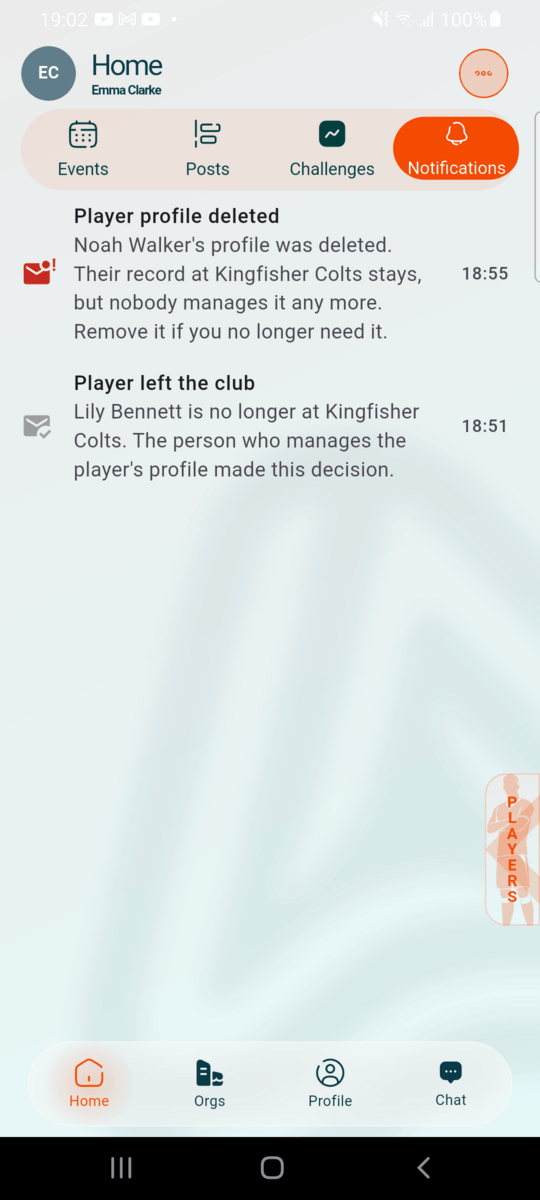
- The club's admins get a notification that the player has left.
- To play for the club again, register again from FIND A CLUB (see Registering a player).
Delete a player profile
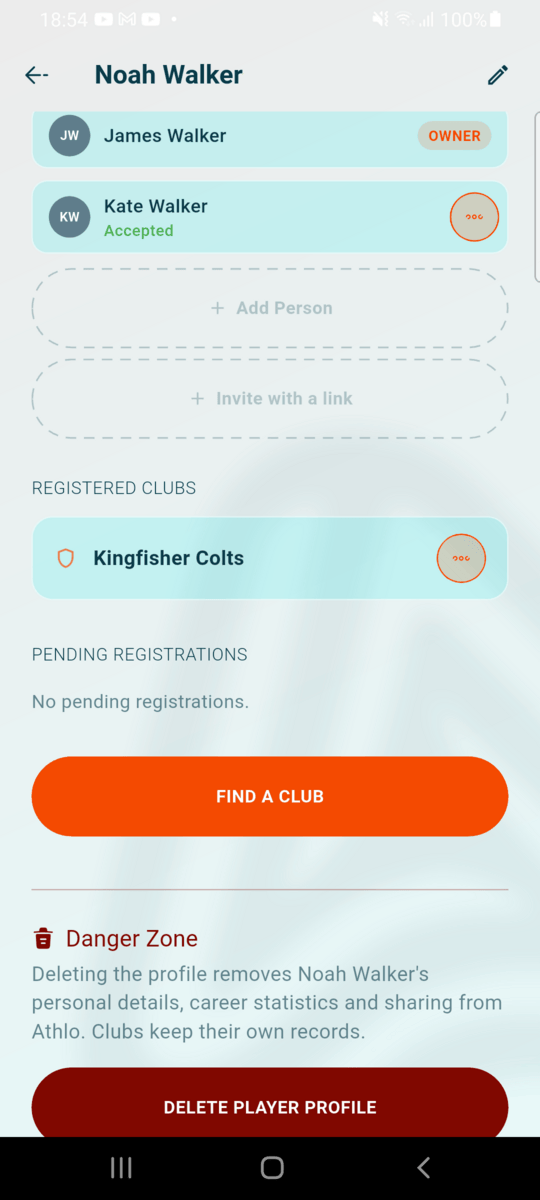
Open the Danger Zone
Open the player from My Players and scroll to the bottom. In the Danger Zone, tap DELETE PLAYER PROFILE.
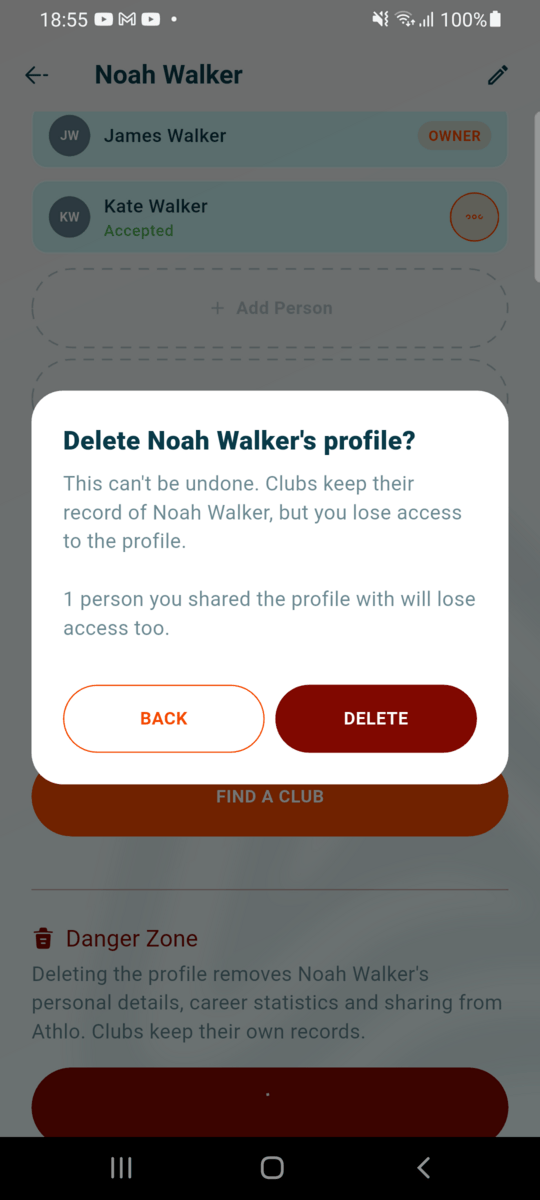
Read the warning
The warning says what happens, including how many people you shared the profile with, since they lose access too. Tap DELETE to continue.
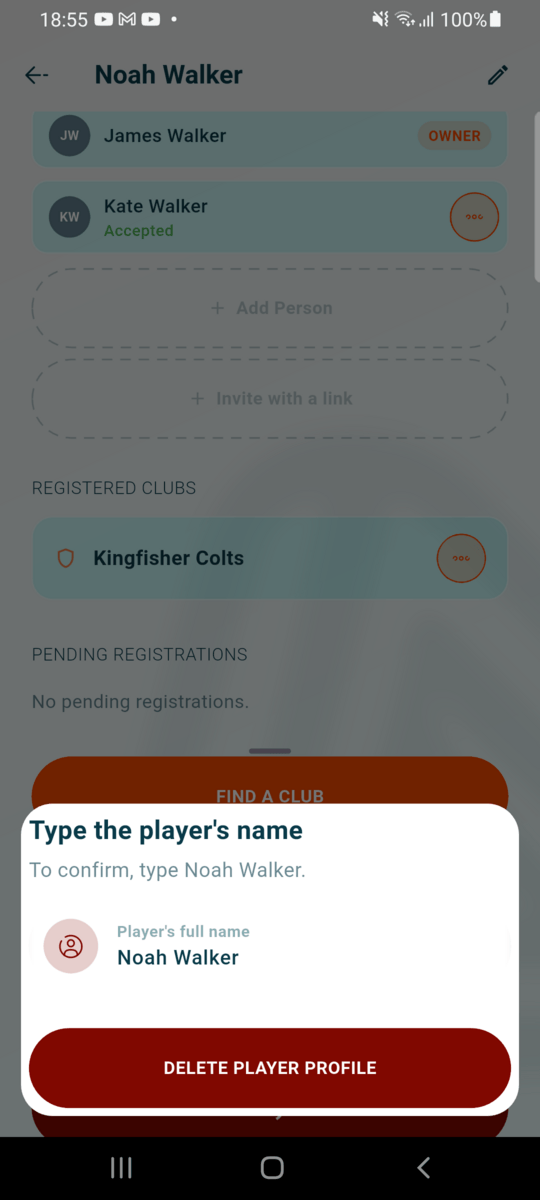
Type the player's name
As a last check, type the player's full name. Capitals and extra spaces don't matter. If the profile has no name, type its Athlo ID instead. Tap DELETE PLAYER PROFILE. If the name doesn't match, Athlo says so under the field and nothing is deleted.
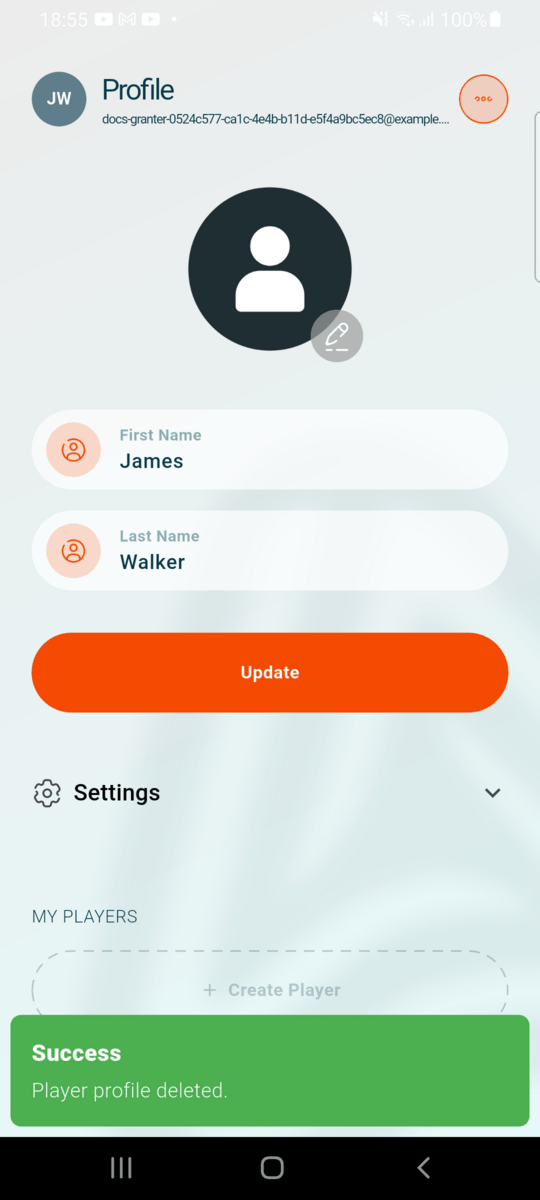
Profile deleted
You're back on the Profile tab and the player is gone from My Players.
What deleting a profile does
| What | What happens |
|---|---|
| The player's name, date of birth and other details | Removed from Athlo |
| Career statistics | Deleted |
| People you shared the profile with | Lose access and get a notification |
| Open co-owner invites, ownership transfers and registration requests | Cancelled |
| Clubs the player is at | Keep their own record of the player (their roster entry and the club's match history), but it's no longer connected to the profile. Each club's admins get a notification and can remove the player if they no longer need the record. |
Deleting your whole account handles your player profiles differently: see Deleting your account.
For clubs: removing a player
Only club admins can remove a player from the club: members of the club's Admin group, and the club's owner. Coaches and managers don't see the option, even if their role has extra permissions.
Remove from the Players list
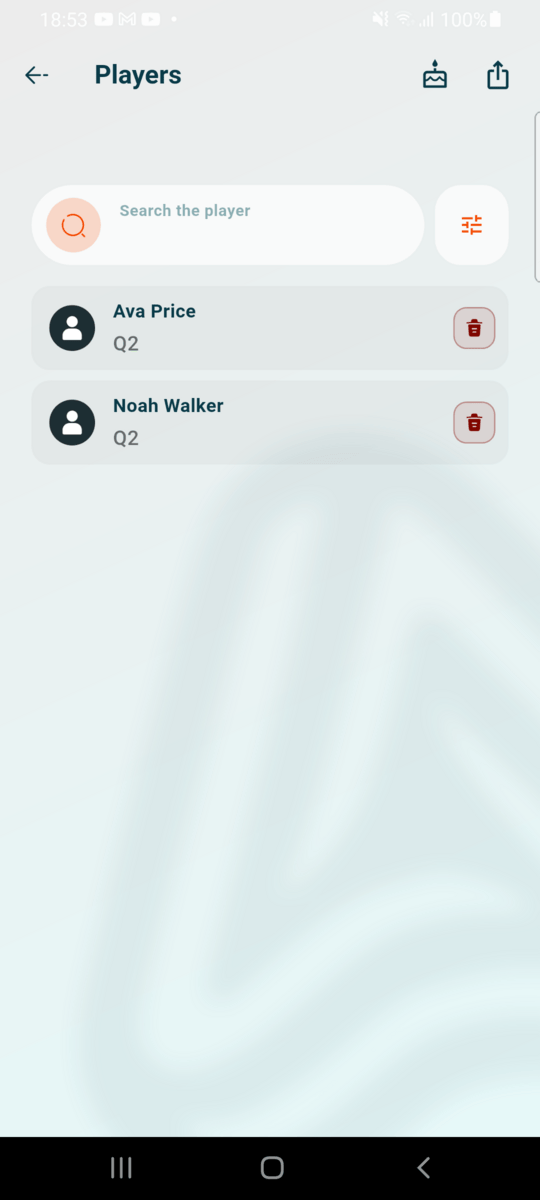
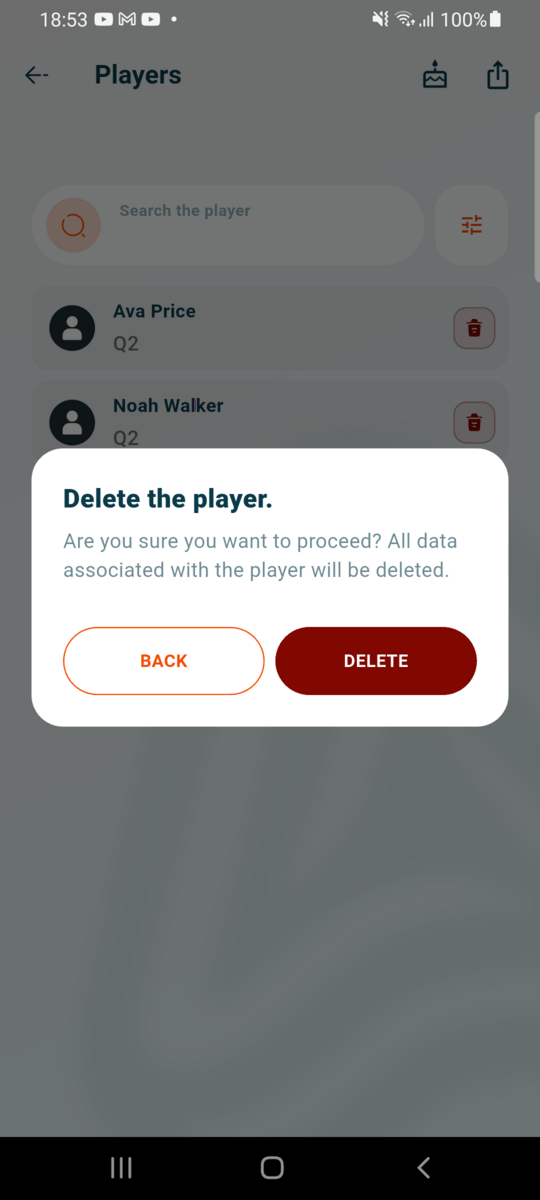
Open the club, go to Players, and tap the bin icon on the player's row. Read the confirmation and tap DELETE. This removes the club's record of the player, including their attendance and stats at the club. The player's own profile and career statistics stay with their family.
When a family leaves or deletes a profile
You get a notification when a player's owner takes them out of your club or deletes their profile. Tap it to open your Players list. After a profile is deleted, the player stays in your list until you remove them.